Saved Queries Management
Learn how to organize Draxlr saved queries into folders, edit names and descriptions, move, duplicate, or delete queries, and search to find any query fast.
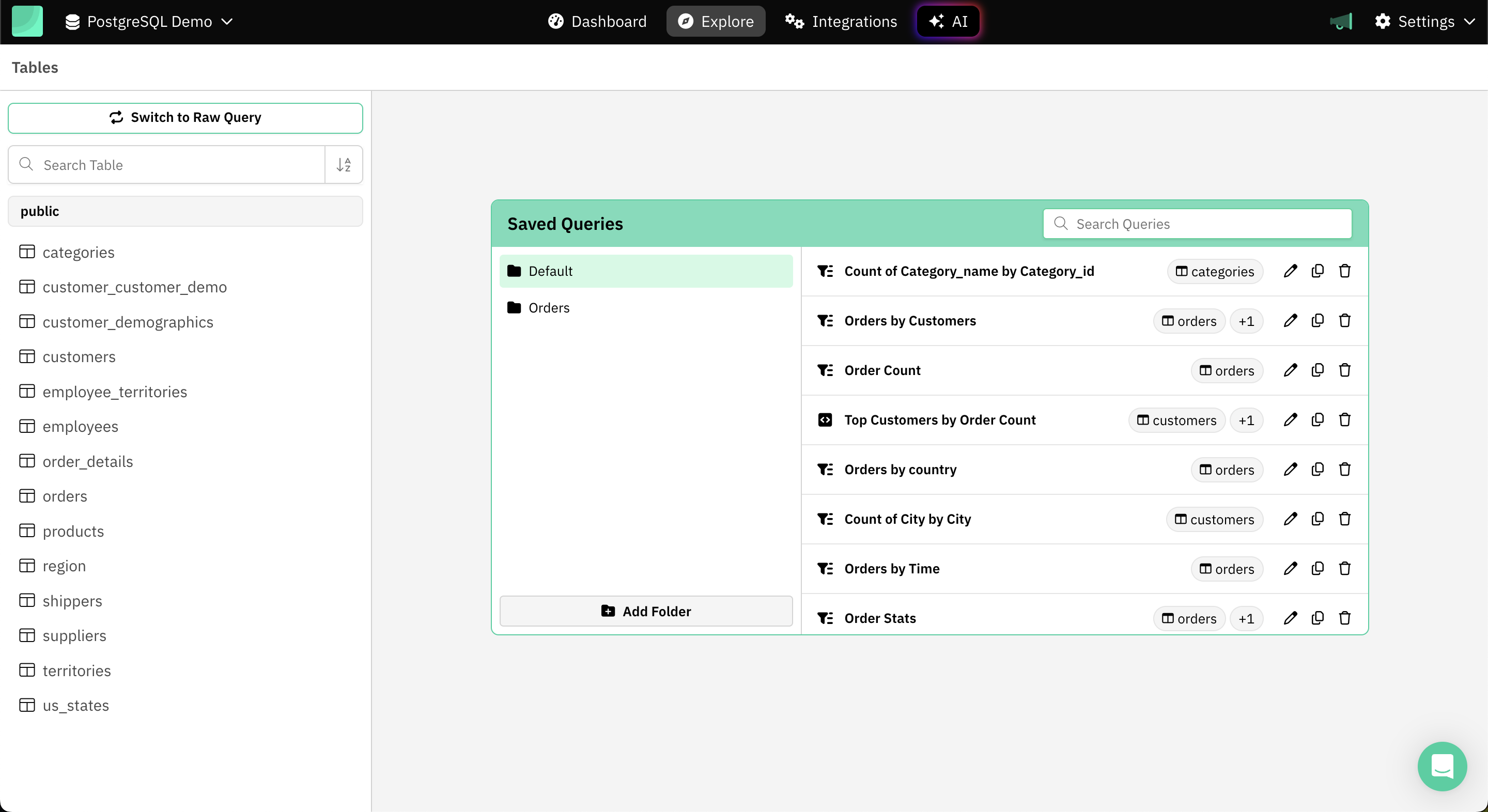
Draxlr allows you to organize your saved queries into multiple folders for easy management and quick access. This is especially useful for users who work with a large number of queries and want to categorize them by use case, project, or team.
How to Create a Folder?
-
Open the Add Folder Modal
- In the main header, click on Explore.
- Find the Saved Queries section.
- Click on Add Folder to open the modal.
-
Name Your Folder
- Type the name of the new folder in the Folder name input field.
-
Save the Folder
- Click the Add folder button.
Your new folder will now appear under the Saved Queries list and can be used to organize your saved queries.
Perform Actions on a Saved Query
Each saved query supports the following actions:
1. Edit Saved Query Details
Clicking ✏️ Edit opens a modal where you can:
- Change the query name.
- Add a description (optional).
- Move the query to a different folder using the Query Folder dropdown.
Click Update to save changes.
2. Duplicate a Saved Query
Clicking 📄 Duplicate creates a copy of the selected query.
- A confirmation modal will appear asking: “Are you sure you want to duplicate?”
- Click OK to proceed, and a new copy of the query will be added to the same folder.
3. Delete a Saved Query
Clicking 🗑️ Delete permanently removes the selected query.
- A warning modal will appear: “Deleting this saved query will remove any dashboard or integrations connected with it. Are you sure you want to delete?”
- Click OK to confirm and delete the query.
⚠️ Note: This action cannot be undone.
4. Browse Saved Queries
All your saved queries are grouped by folders in the Saved Queries panel.
Each entry shows:
- The folder it belongs to (e.g.,
Default,Orders) - The query name
- The tables it uses (displayed as tags)
- Action icons to edit, duplicate, or delete the query
You can scroll through the list or use the search bar to quickly find queries by name or keyword.