Export
Learn how to export query results from Draxlr to Excel (.xlsx) or CSV, what the file includes, and when to use each format for reporting or further analysis.
Draxlr makes it easy to export your analysis results for sharing, reporting, or further processing.
With just a click, you can download your data in Excel (.xlsx) or CSV (.csv) format.
How to Export Data?
-
Run Your Query
- Filter, join, aggregate, or visualize your data as needed until you have the result table you want to export.
-
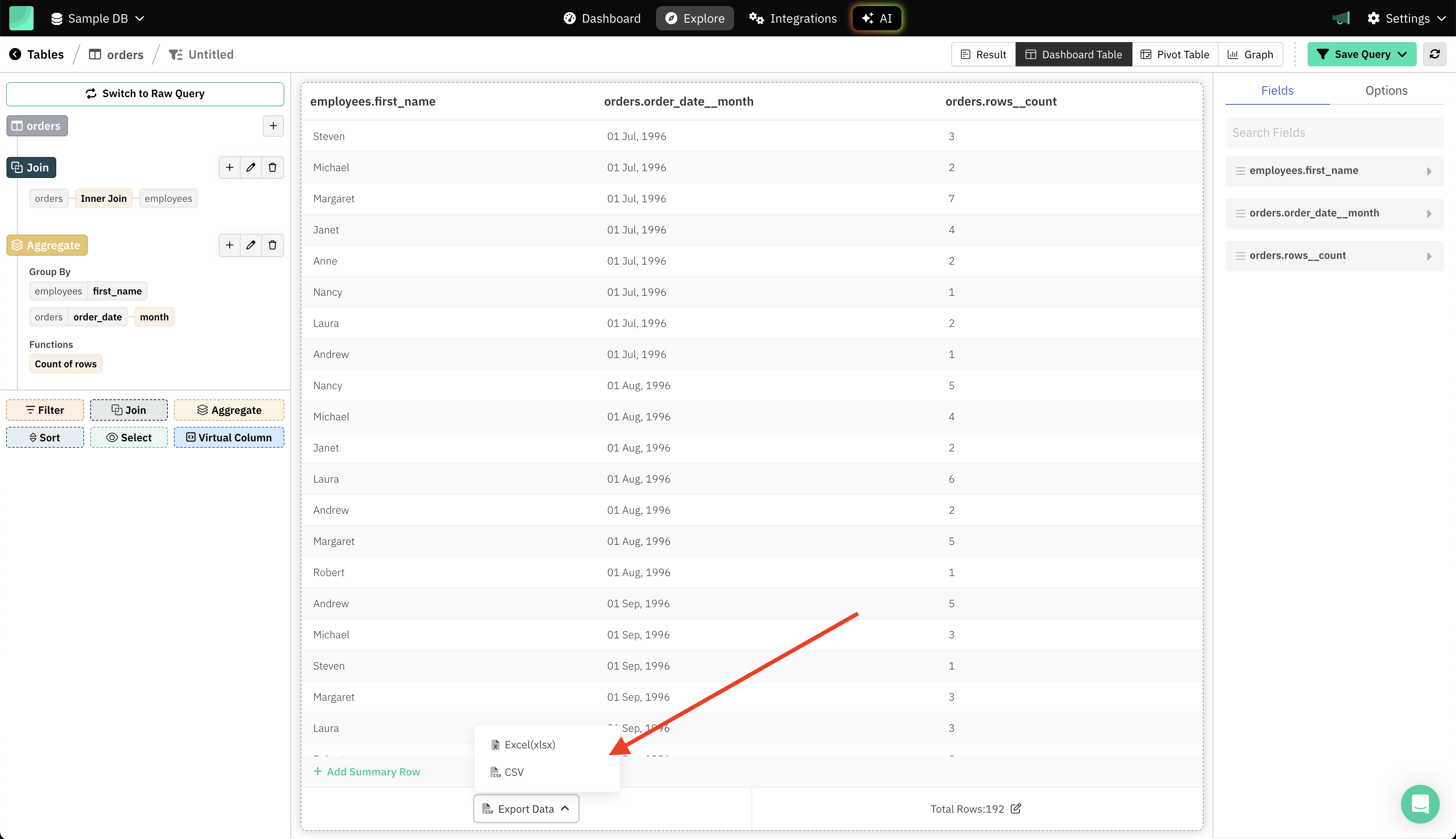
Click Export Data
- Find the Export Data button below your result table, at the bottom left.
-
Choose Your Format
- Click the arrow on the Export Data button to open export options.
- Select either:
- Excel (.xlsx) for a spreadsheet file, ideal for working in Microsoft Excel or Google Sheets.
- CSV for a comma-separated values file, compatible with almost any data tool.
-
Download the File
- Your data will be instantly downloaded in the chosen format.
What Gets Exported?
- The current result table, exactly as you see it—including any applied filters, joins, aggregations, sorts, selected columns, and virtual columns.
- All visible columns and rows at the time of export.
- The number of rows that are exported will depend on your plan.
Tips
- Use Excel (.xlsx) if you need advanced formatting, formulas, or want to open the file in spreadsheet software.
- Use CSV for quick data import into databases, code, or lightweight analysis tools.
- All exports include column headers for easy use and reference.