Dashboard access
Give a member view-only access to a specific set of dashboards, and nothing else.
Dashboard access is a custom access level for people who should see only the dashboards you choose — and have no access to your databases, saved queries, or the Explore section.
It's ideal for clients, external stakeholders, or teammates in other departments who need a curated view of a few dashboards without touching the underlying data.
Dashboard access is controlled by a Group. The group holds the list of dashboards its members can view; you then attach members to that group. Everyone in the group sees exactly the same dashboards.
How it works
Dashboard group → grants view of → selected dashboards
Member → assigned to the group → can view those dashboards (and nothing else)
- You create a Dashboard group and pick which dashboards it can view.
- You add members to the group with the Dashboard access level.
- Members can open only those dashboards — no Explore, no saved queries, no database access.
Step 1 — Create a Dashboard group
You can create the group ahead of time from the Groups tab, or on the fly while inviting a member (see Step 2). To create it up front:
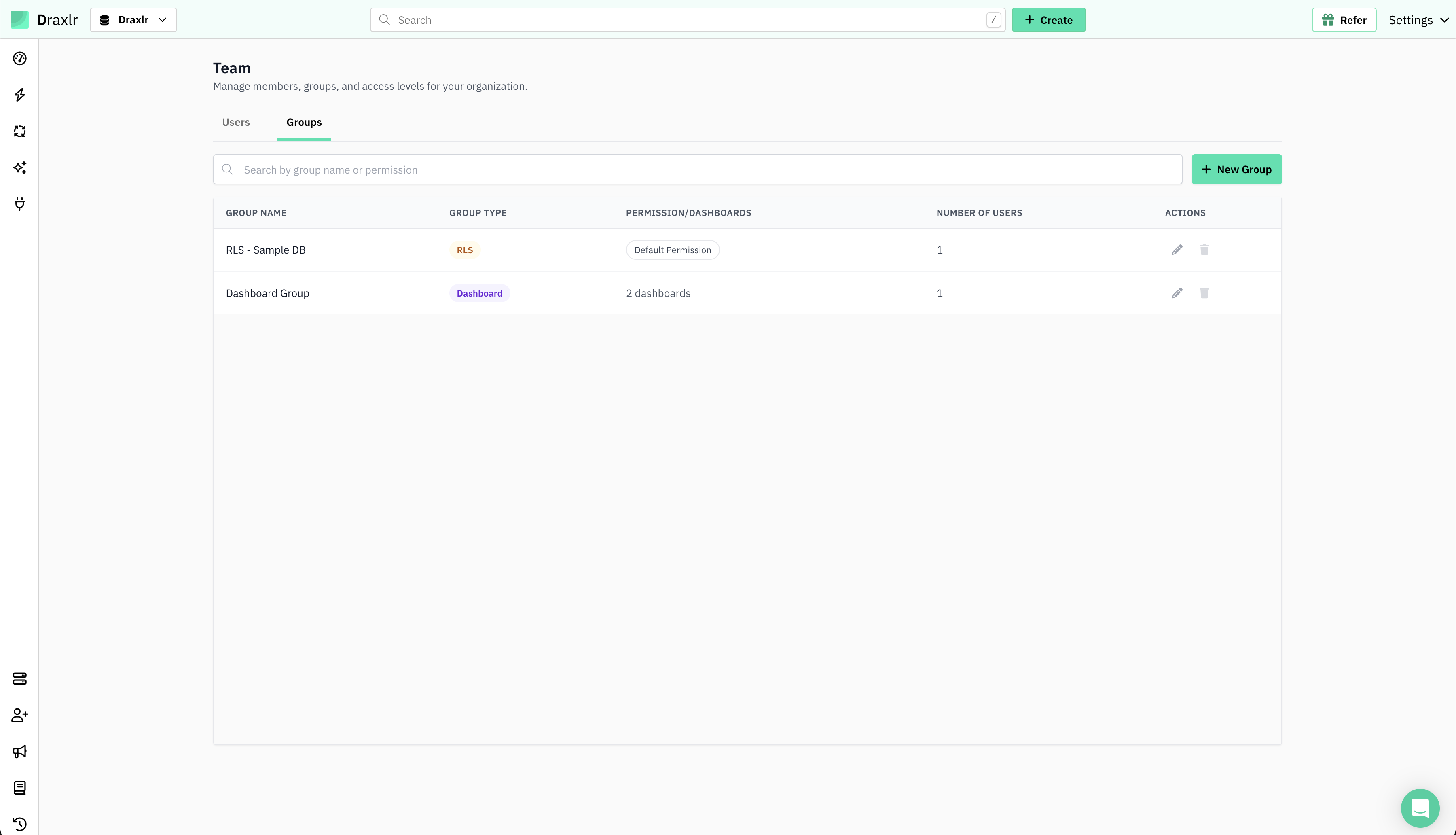
Open the Groups tab
Go to Organization → Team and switch to the Groups tab, then click New Group.
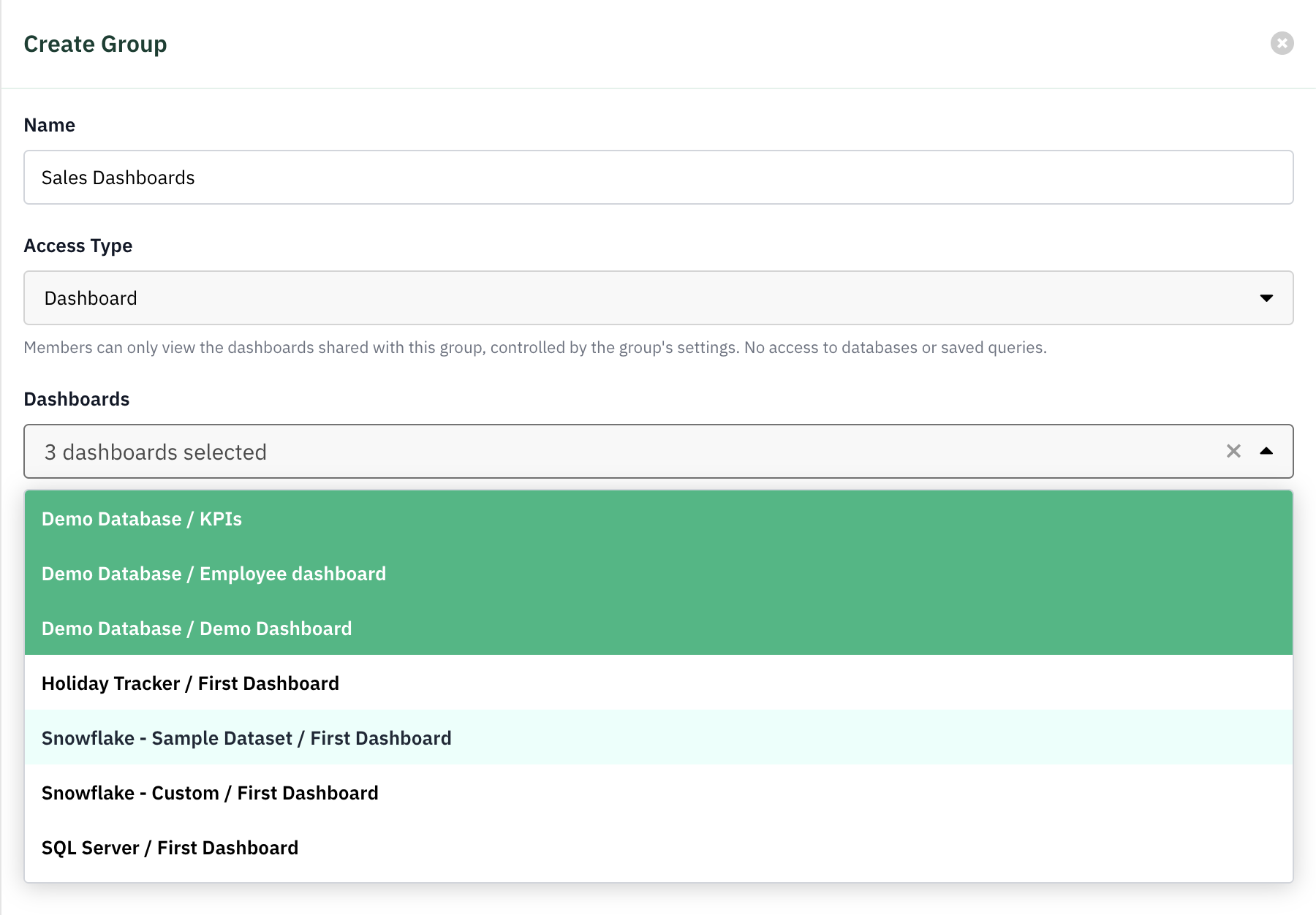
Name the group and choose the Dashboard type
Give the group a clear name (for example, Acme Corp — Client View) and set the group type to Dashboard.
Select the dashboards to share
Choose the dashboards this group is allowed to view. Only the dashboards you add here will be visible to its members.
Save the group
Click Save. The group now appears in the Groups tab with its dashboard count.
Step 2 — Add a member
Invite or edit a member
On the Users tab, click Invite to add a new member, or the Edit Access (pencil) action on an existing one.
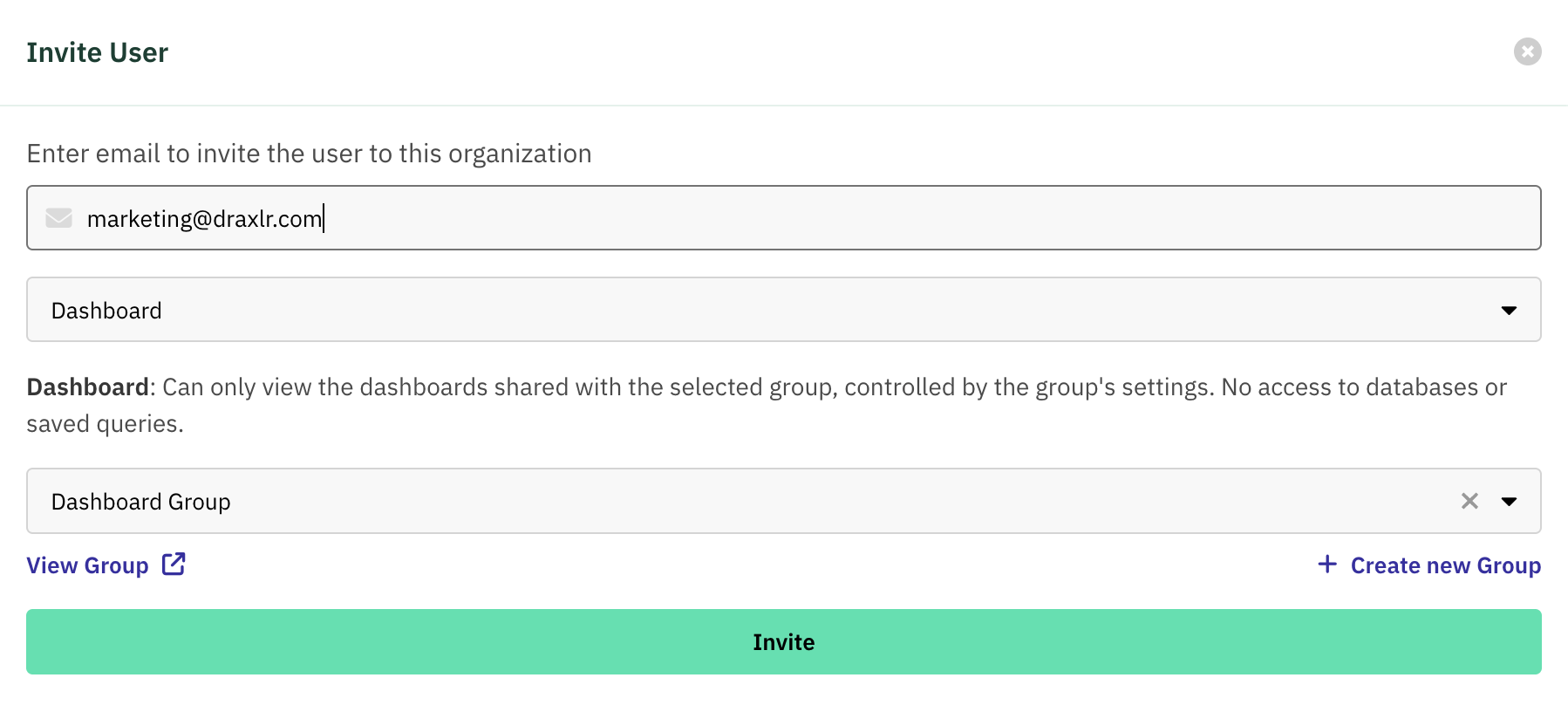
Choose Dashboard access
Set the Access dropdown to Dashboard. A Select group dropdown appears below it.
Select the group
Pick the Dashboard group you created in Step 1.
Don't have one yet? Click + Create new Group — the group form opens on top of the invite, lets you create the group without leaving the flow, and selects it automatically when you save.
Send the invite
Click Update (or Invite). The member receives an invitation and, once they accept, can sign in and view only the group's dashboards.
Everyone in a group sees the same dashboards:
Dashboard access is defined per group, not per member. To give two members different sets of dashboards, put them in different groups. To change what a group can see, edit the group's dashboard list — the change applies to every member of that group.
What a Dashboard member experiences
- Signs in to a simplified view containing only the dashboards in their group.
- Can use dashboard filters and drill-downs that the dashboard already provides.
- Cannot open Explore, view or run saved queries, or see database connections.
- Cannot manage other members or billing.