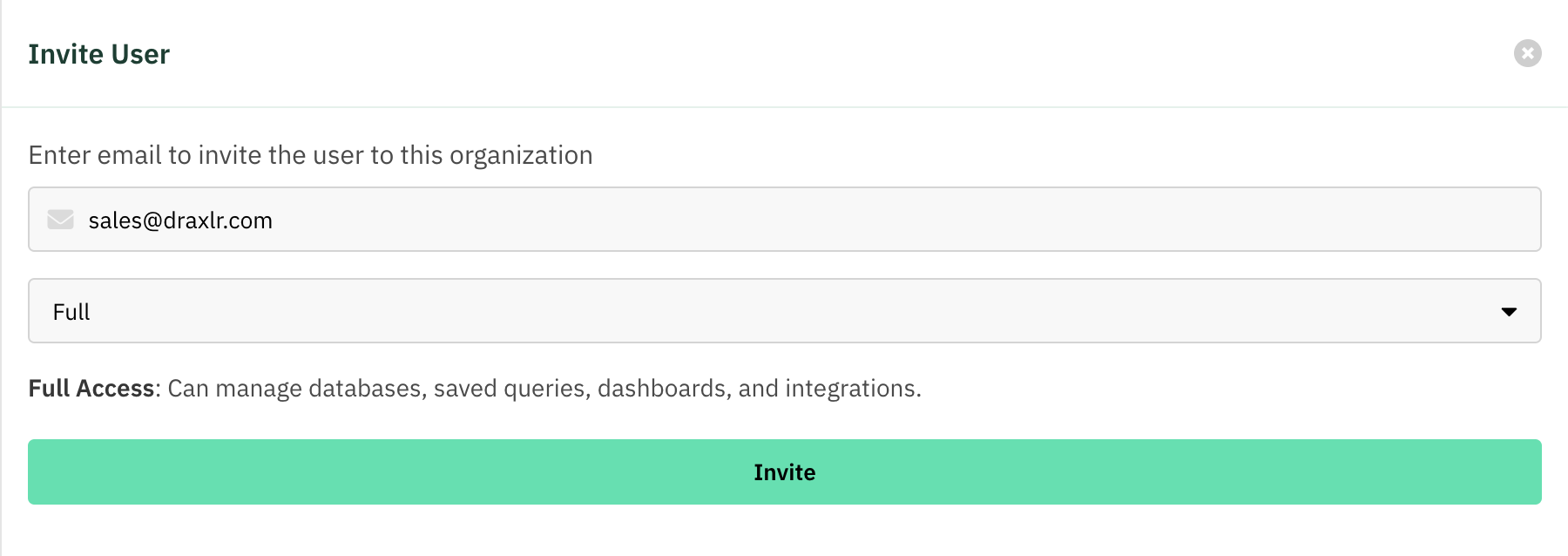
Full access
Full control of the product, without user or billing management.
Full access gives a member complete control over Draxlr's data and content — databases, saved queries, dashboards, and automations — but not over the organization's members or billing.
It's the right level for teammates who build and maintain queries, dashboards, and alerts, but shouldn't be able to invite users or change the plan.
What a full member can do
- Databases — connect, edit, and remove database connections.
- Explore — browse tables and run queries across every connected database (all rows).
- Saved queries — create, edit, organize, and delete saved queries.
- Dashboards — create dashboards and elements, share and embed them.
- Automations — set up Slack alerts, email alerts, API endpoints, and Google Sheets exports.
What a full member cannot do
- Invite or manage other members or change their access levels.
- View or manage billing and the organization's plan.
Assign the Full level
1
Open Team
Go to Organization → Team and open the Users tab.
2
Invite or edit a member
Click Invite, or the Edit Access (pencil) action on an existing member.
3
Choose Full
Set the Access dropdown to Full and save.