Account > Change Password
Change your Draxlr password from your Profile by entering your current password and a new one.
Change your password from your Profile while you're signed in. You need your current password. If you've forgotten it, reset your password instead.
Here is an interactive demo:
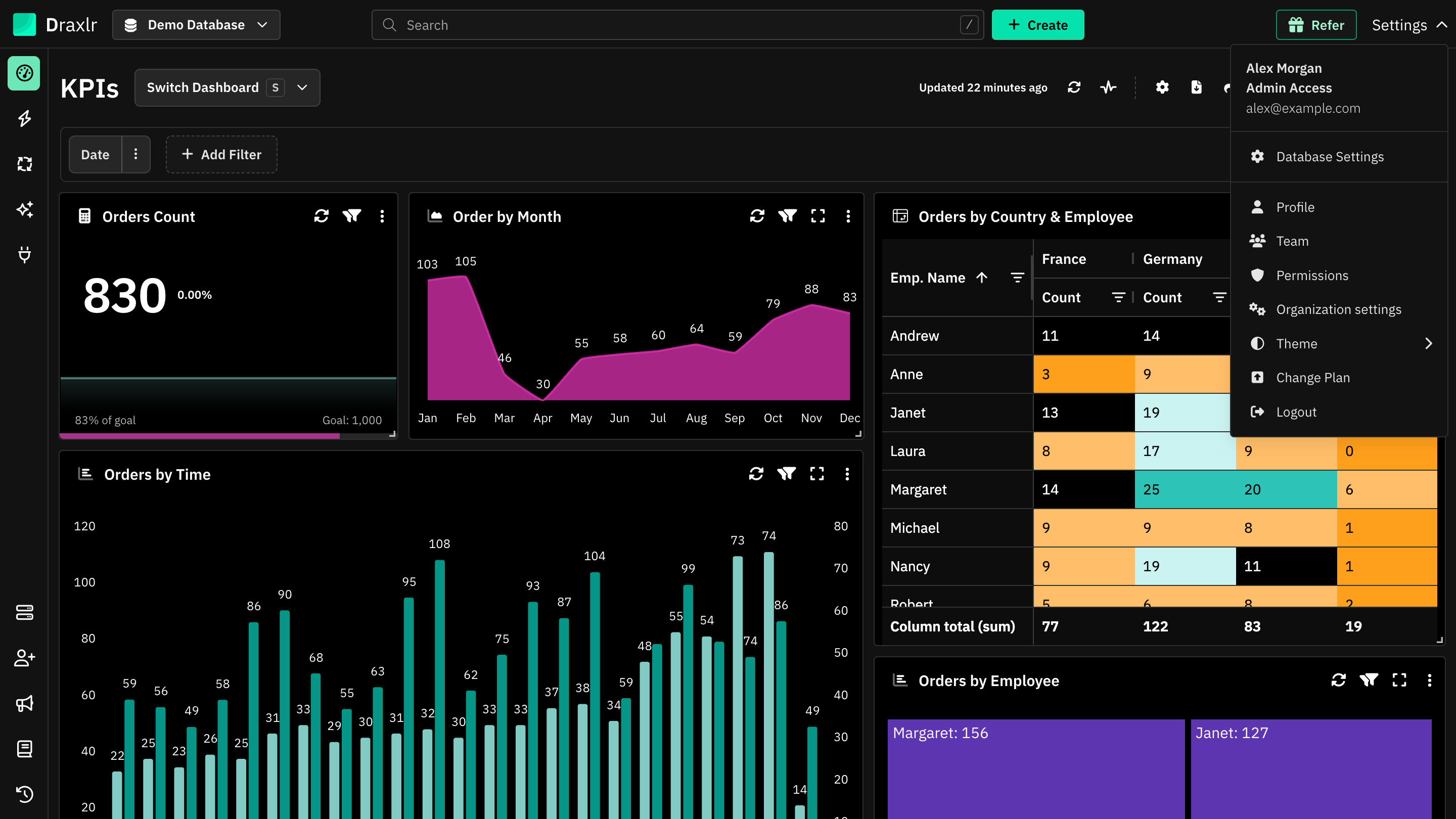
Click Settings at the top right and choose Profile.
Change your password
1
Open your Profile
Click Settings at the top right and choose Profile.
2
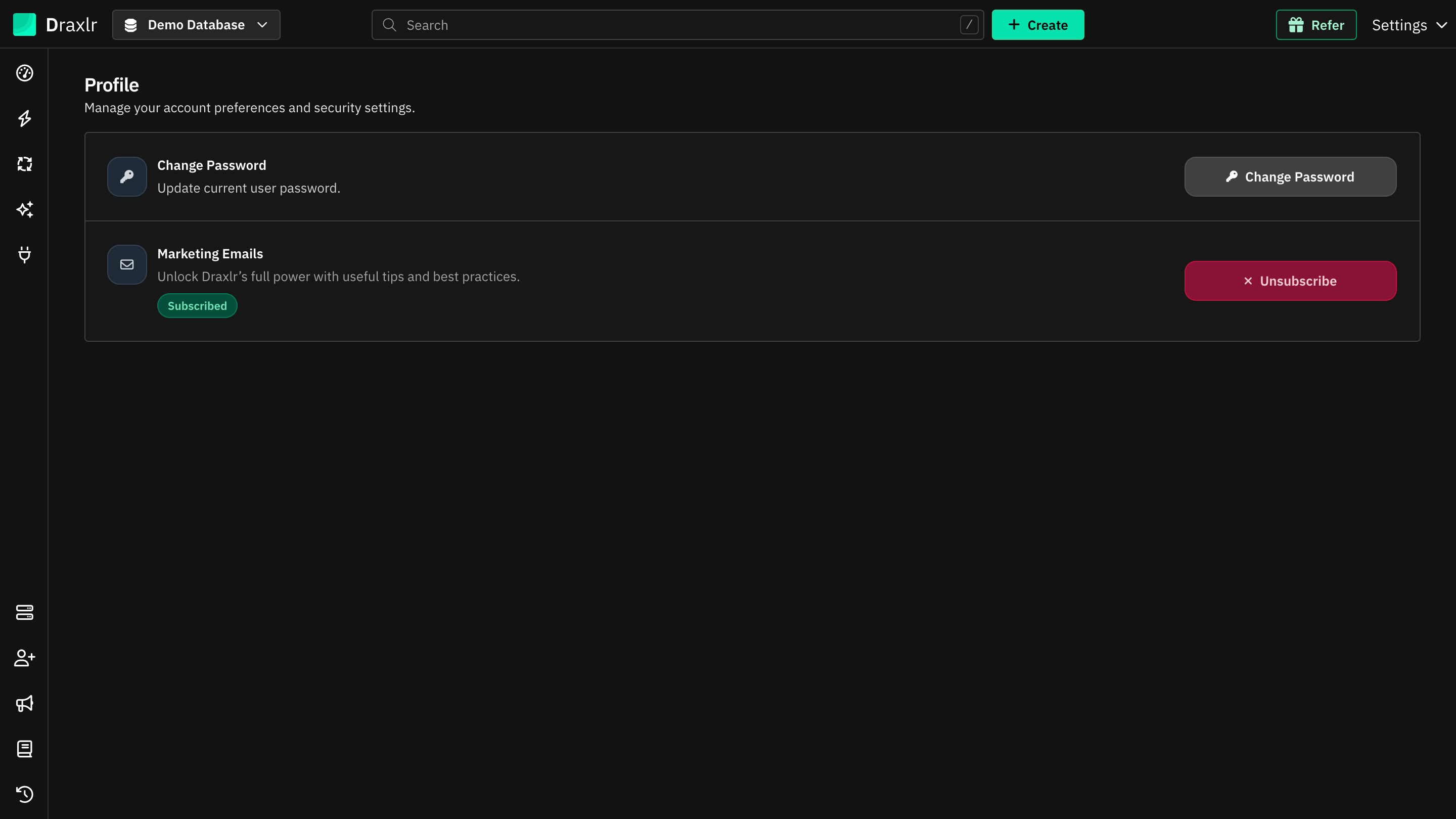
Click Change Password
The Change Password window opens.
3
Enter your current and new password
Enter your Current Password and your New Password. Hover over the info icon in New Password to see the rules.
4
Click Change Password
You see Password changed successfully. Use the new password the next time you sign in.
Password rules
A password needs:
- At least 8 characters
- A number
- A lowercase letter
- An uppercase letter
If your current password is wrong, you see Current password is incorrect and your password isn't changed.
Things to know
- Changing your password doesn't sign you out. You stay signed in on this and other devices.
- Signed up with Google? You don't know your current password, so reset your password to set one.
- Heroku add-on accounts can't change their password here. The Profile page shows Password changes are disabled for this login method.