Account > Theme
Switch Draxlr between light mode, dark mode and your device's setting from the Settings menu. Your choice is saved to your account.
Draxlr has a light and a dark theme. Pick one, or let Draxlr follow your device's setting.
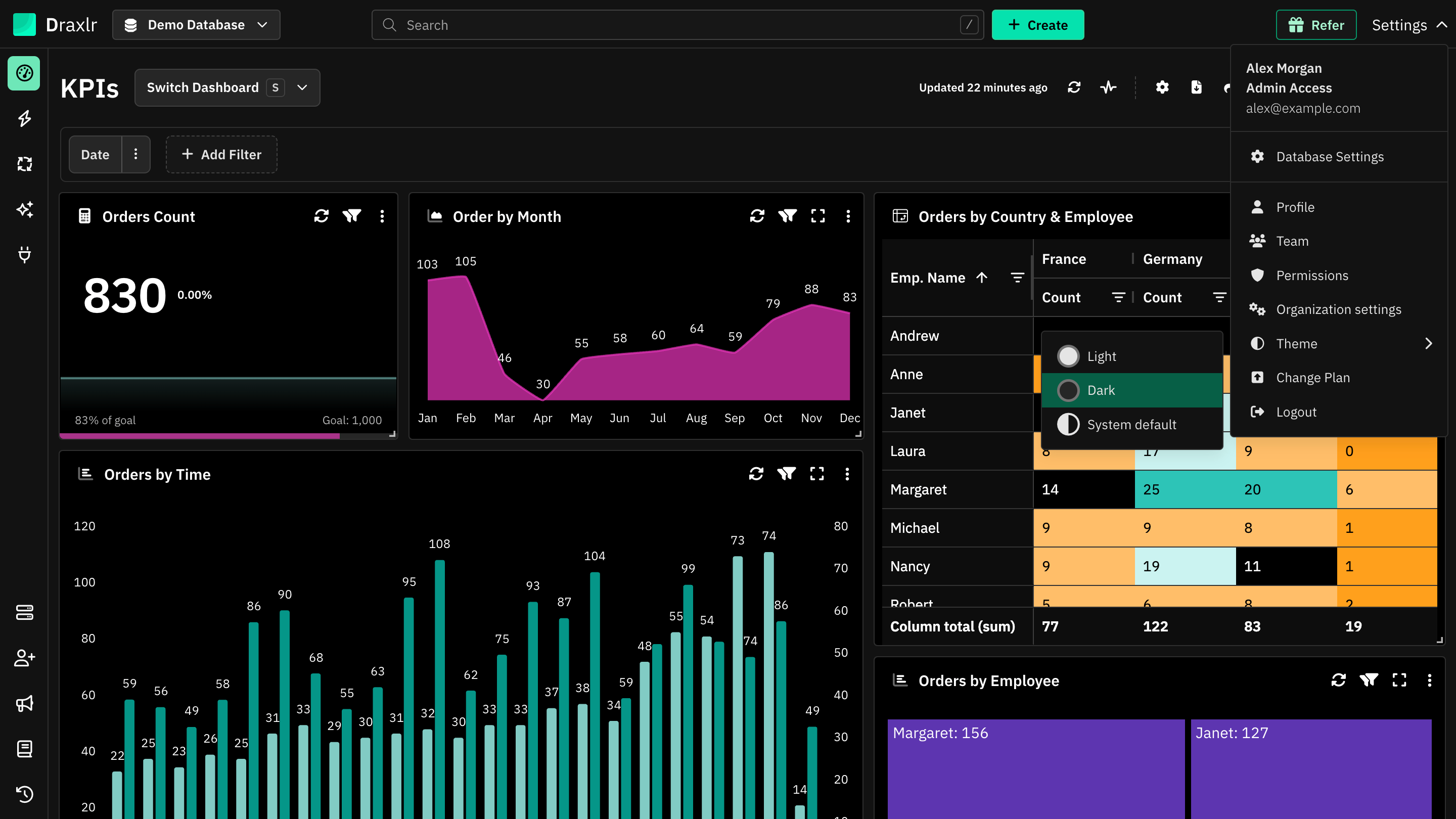
Change the theme
- Click Settings at the top right.
- Click Theme.
- Choose one:
- Light
- Dark
- System default: follows your device's light or dark setting, and switches when your device does.
The page reloads in the new theme.
Things to know
- The theme is saved to your account. You get the same theme when you sign in on another browser or device. New accounts start in dark mode.
- It only changes Draxlr for you. Other members keep their own theme.
- On the sign-in pages, use the sun or moon button at the top right to switch between light and dark. When you sign in, that choice becomes your account's theme.
- Embedded dashboards don't use your theme. Their look is set in the embed's Appearance.
- Text blocks use the dashboard's text color, so they stay readable in both themes. See Text.