Account > Reset Password
Reset a forgotten Draxlr password from the sign-in page with a link sent to your email, or set a password if you signed up with Google.
If you've forgotten your password, reset it from the sign-in page. Draxlr emails you a link to set a new one.
Here is an interactive demo:
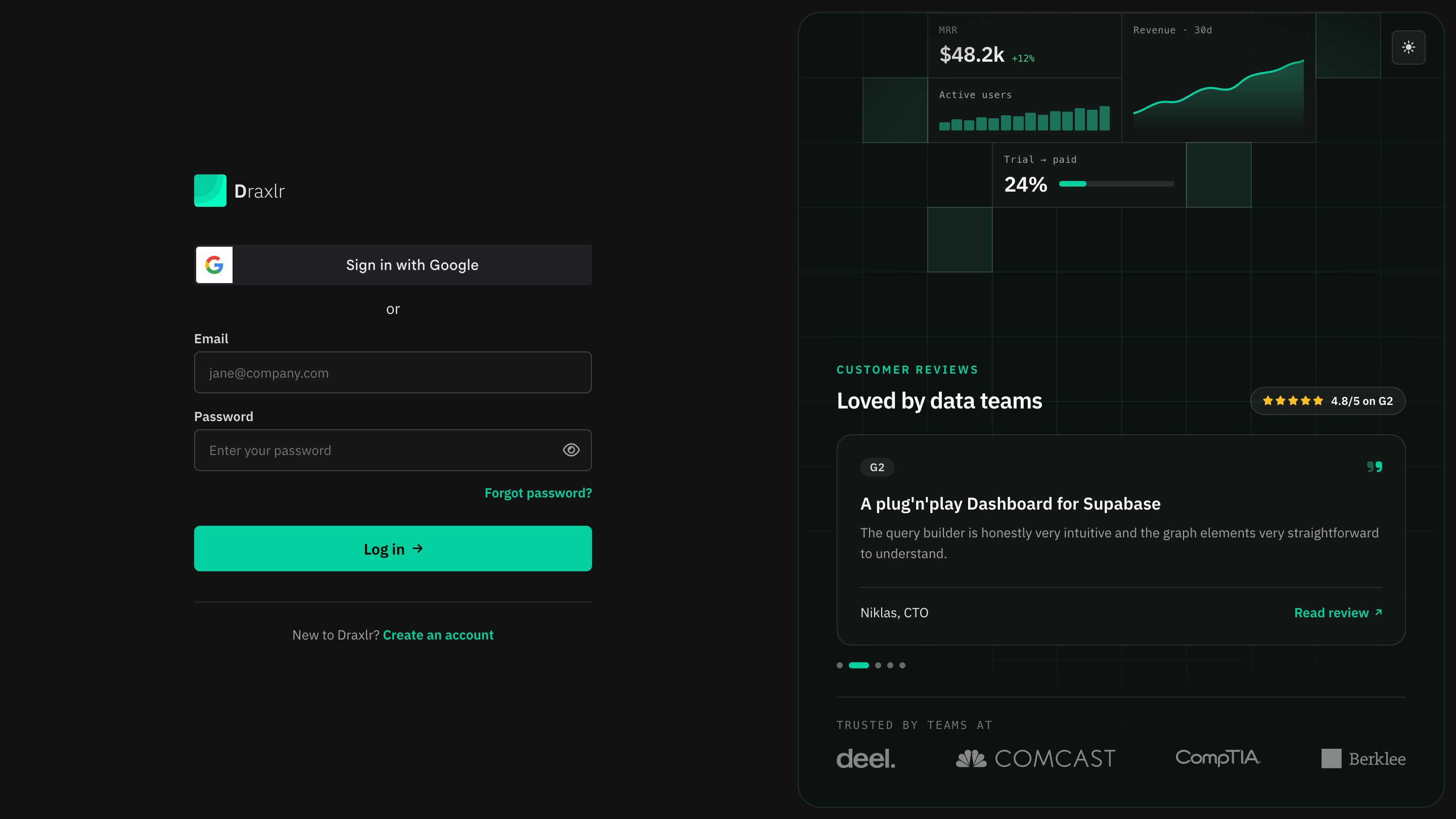
On the sign-in page, click Forgot password?.
Reset your password
Open Forgot password
On the sign-in page, click Forgot password? under the password field.
Send the reset link
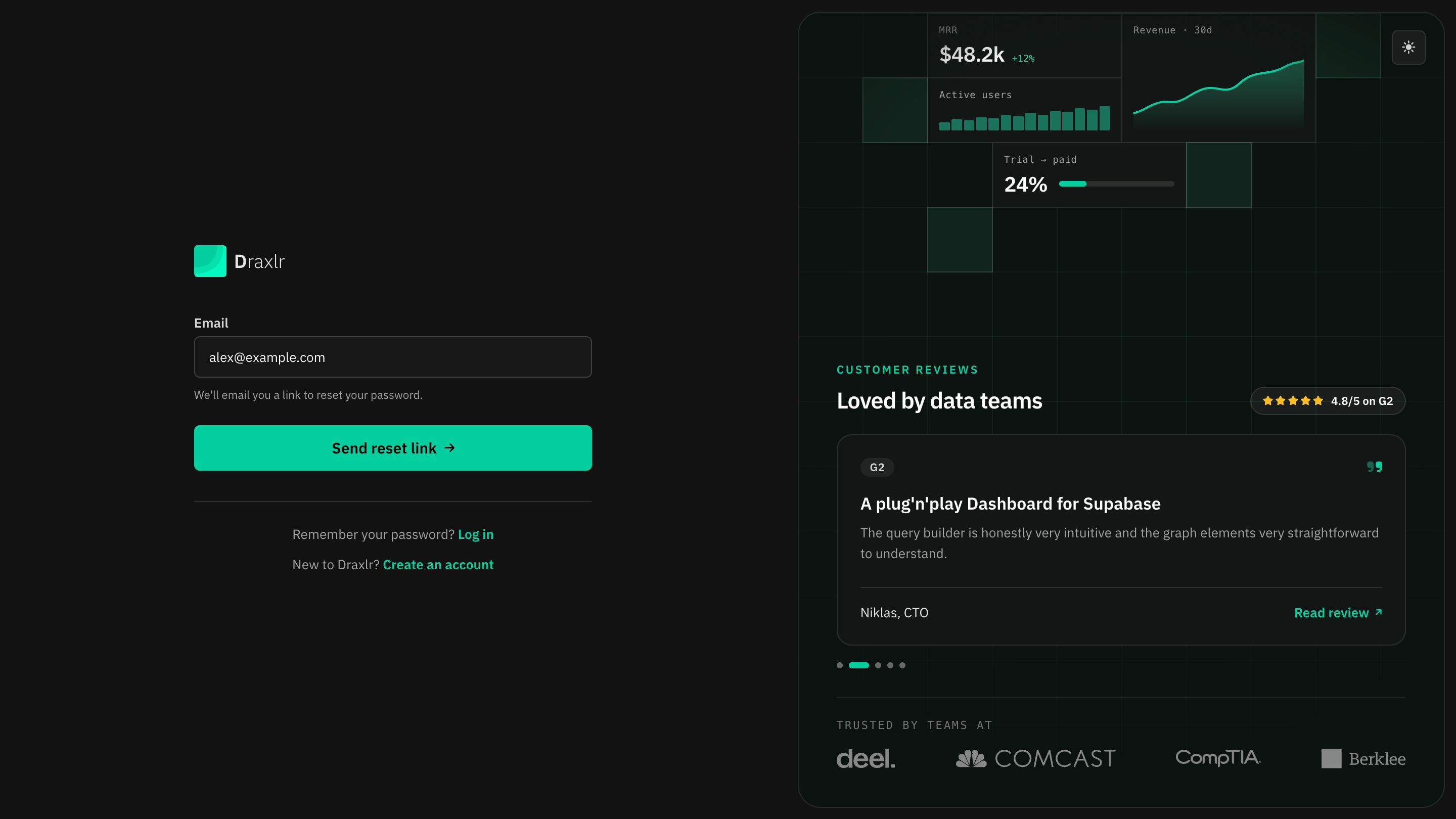
Enter the email you sign in with and click Send reset link. You see Password reset email sent and go back to the sign-in page.
If no account uses that email, you see User not found. Check the email address, or ask your organization's admin which email you were invited with.
Open the link in the email
Open the email from Draxlr and click the link within 60 minutes. It opens a page to set a new password.
Set a new password
Enter the new password in New password and again in Confirm password, then click Update password. Draxlr signs you in.
Password rules
A password needs:
- At least 8 characters
- A number
- A lowercase letter
- An uppercase letter
The checklist under New password shows which rules your password meets. If the two passwords don't match, you see Passwords don't match.
Things to know
- A link works once and expires after 60 minutes. If it has been used or has expired, you see No Account Found or Token Expired. Request a new email from Forgot password?.
- Each new link replaces the previous one. If you request the email more than once, use the link in the most recent email.
- Signed up with Google? Your account doesn't have a password you know. To sign in with your email and a password as well, reset your password to set one. Sign in with Google keeps working.
- Know your current password? Change it from your profile instead. See Change Password.