AI > Edit SQL with AI
Learn how to use Get help from AI in Draxlr's Raw SQL editor to change the query you have open with a plain-English prompt, review the AI's changes, and revert them.
When a raw SQL query is open, you can ask Draxlr AI to change it for you. Describe the change in plain English, and the AI rewrites the query, runs it, and shows you exactly what it changed.
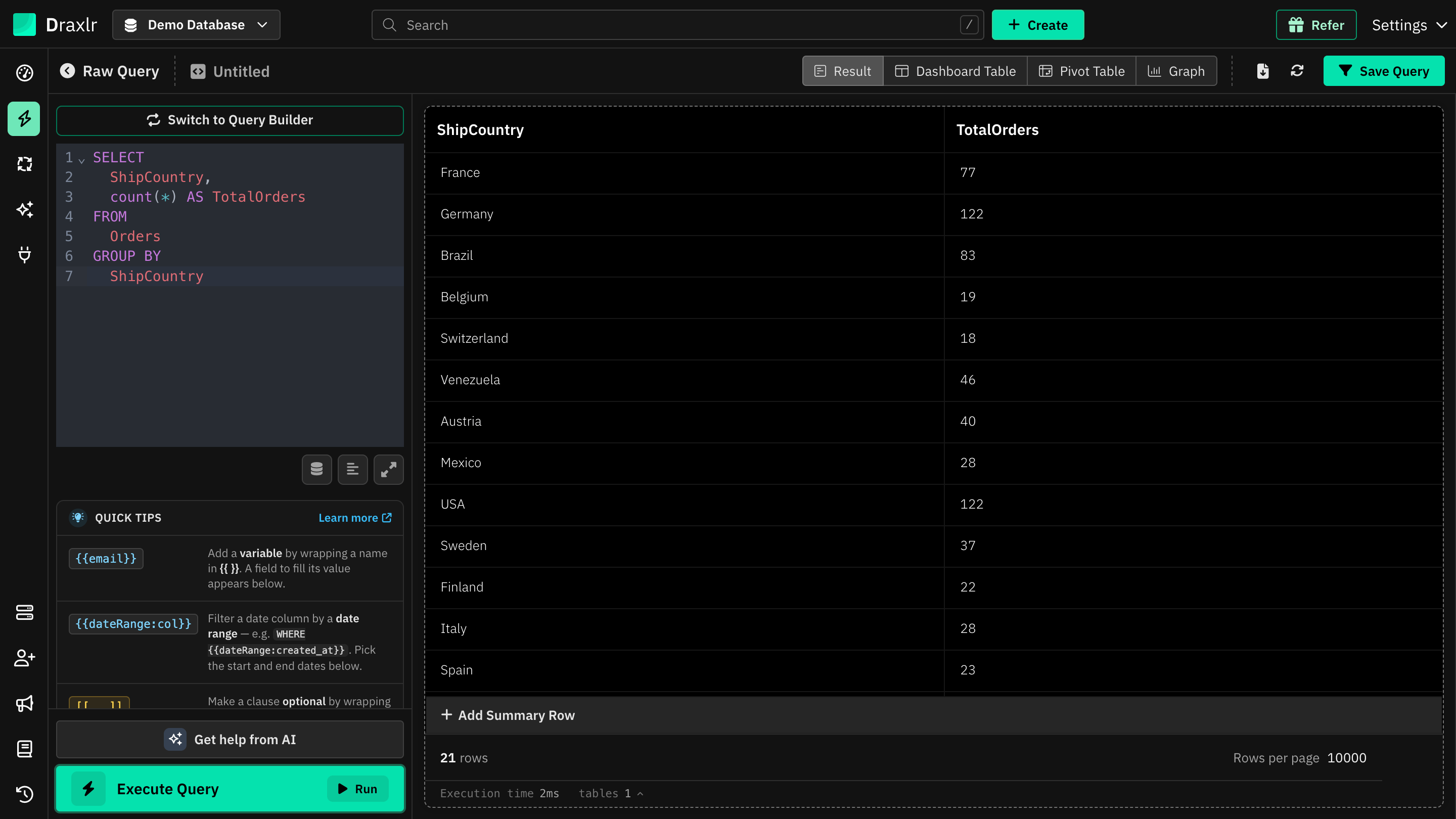
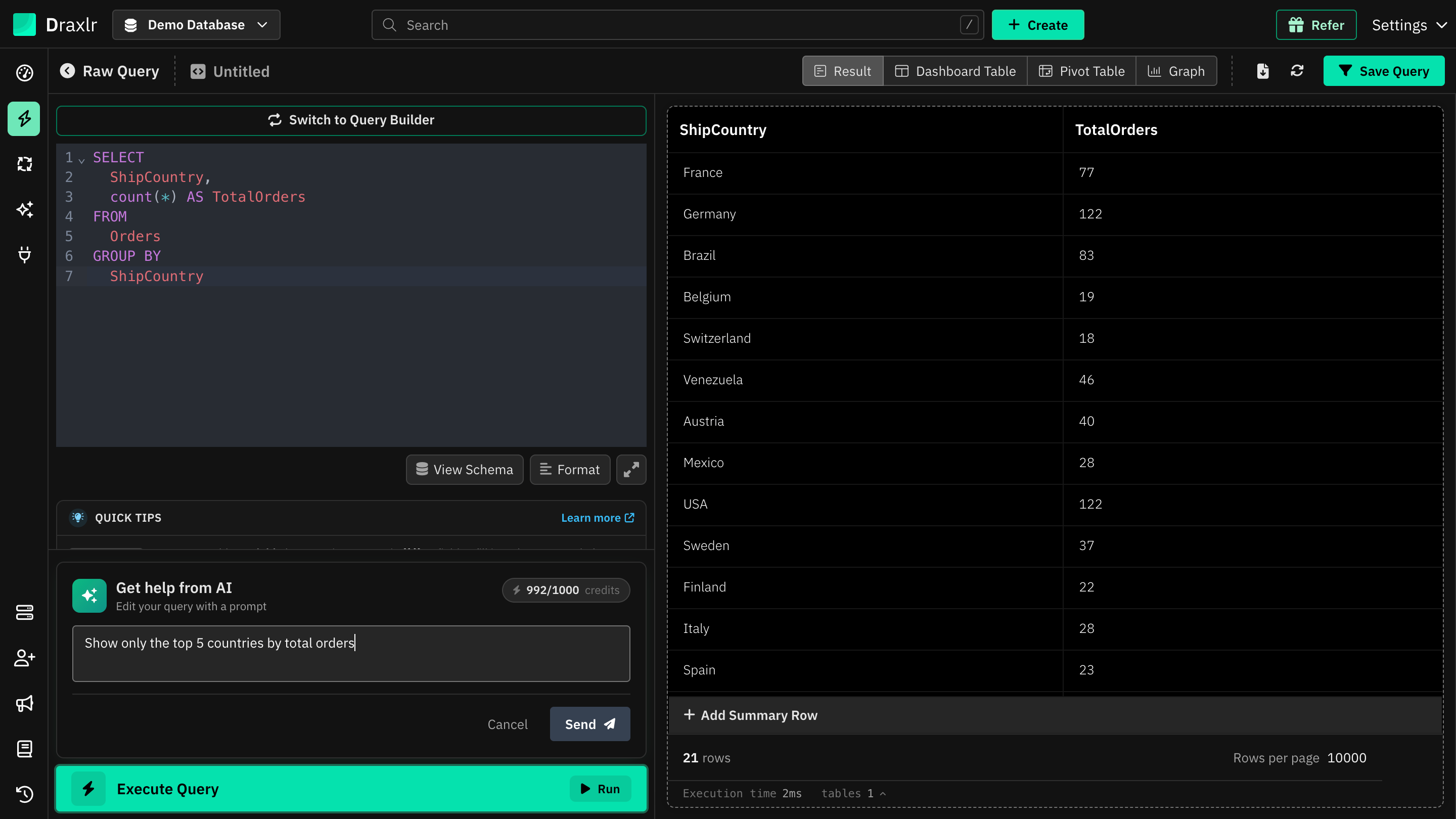
With a query open in the Raw SQL editor, click Get help from AI.
How to Edit a Query with AI
- Open a query in the Raw SQL editor.
- Click Get help from AI below the editor.
- In the Describe how to change this query… box, type what you want, for example:
- "Show only the top 5 countries by total orders"
- "Add the month of the order and group by it"
- "Only include orders shipped to Europe"
- Click Send, or press Ctrl + Enter (Cmd + Enter on Mac).
The AI updates the query in the editor and runs it. If the result suits a different view, such as a chart, the AI can switch it for you.
You can keep sending follow-up prompts to refine the query further. If the AI needs more detail, it replies in the panel, sometimes with suggested replies you can click.
Reviewing and Undoing Changes
After the AI changes your query, two buttons appear in the panel:
- View AI changes opens AI Changes, a line-by-line comparison of the query before and after the AI's edit.
- Revert to original query puts back the query you had before the AI changed it. Draxlr asks you to confirm first, because unsaved AI changes are lost.
You can also keep editing the SQL by hand at any time.
Good to Know
- The panel shows how many AI credits you have left. Each prompt uses AI credits from your plan.
- Variables in your query, such as
{{employeeId}}, keep the values you set unless you ask the AI to change them. - Click Cancel to close the panel.
- If you don't have a query yet, ask Draxlr AI to write one from scratch.