Drill Down > View Data
Learn how to use View Data in Draxlr to see the rows behind any chart or pivot data point on a dashboard, so you can verify numbers and investigate spikes.
View Data shows the underlying rows that make up any data point on a dashboard element. It is the quickest way to go from an aggregated number to the actual records behind it.
Here is a short interactive demo:
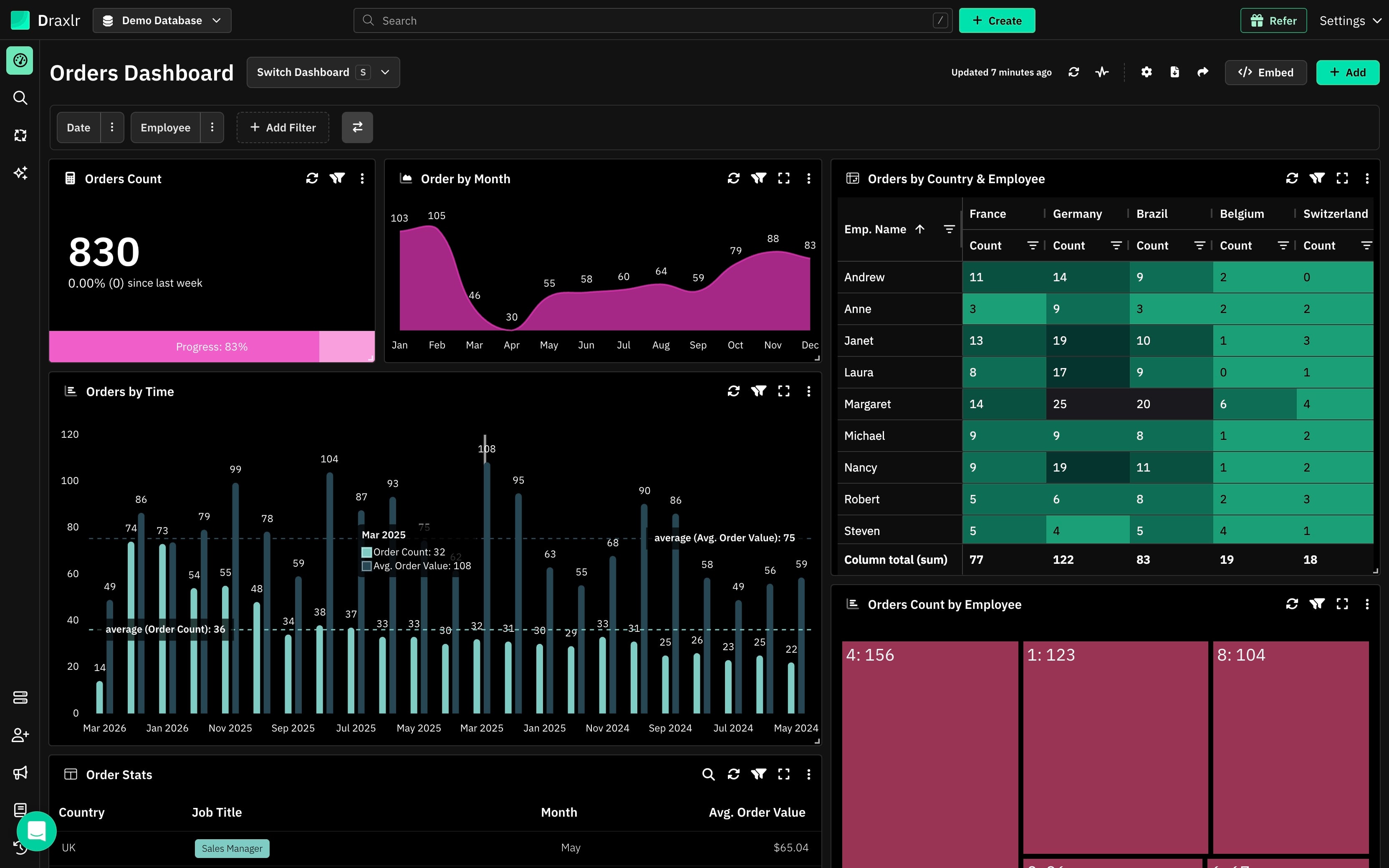
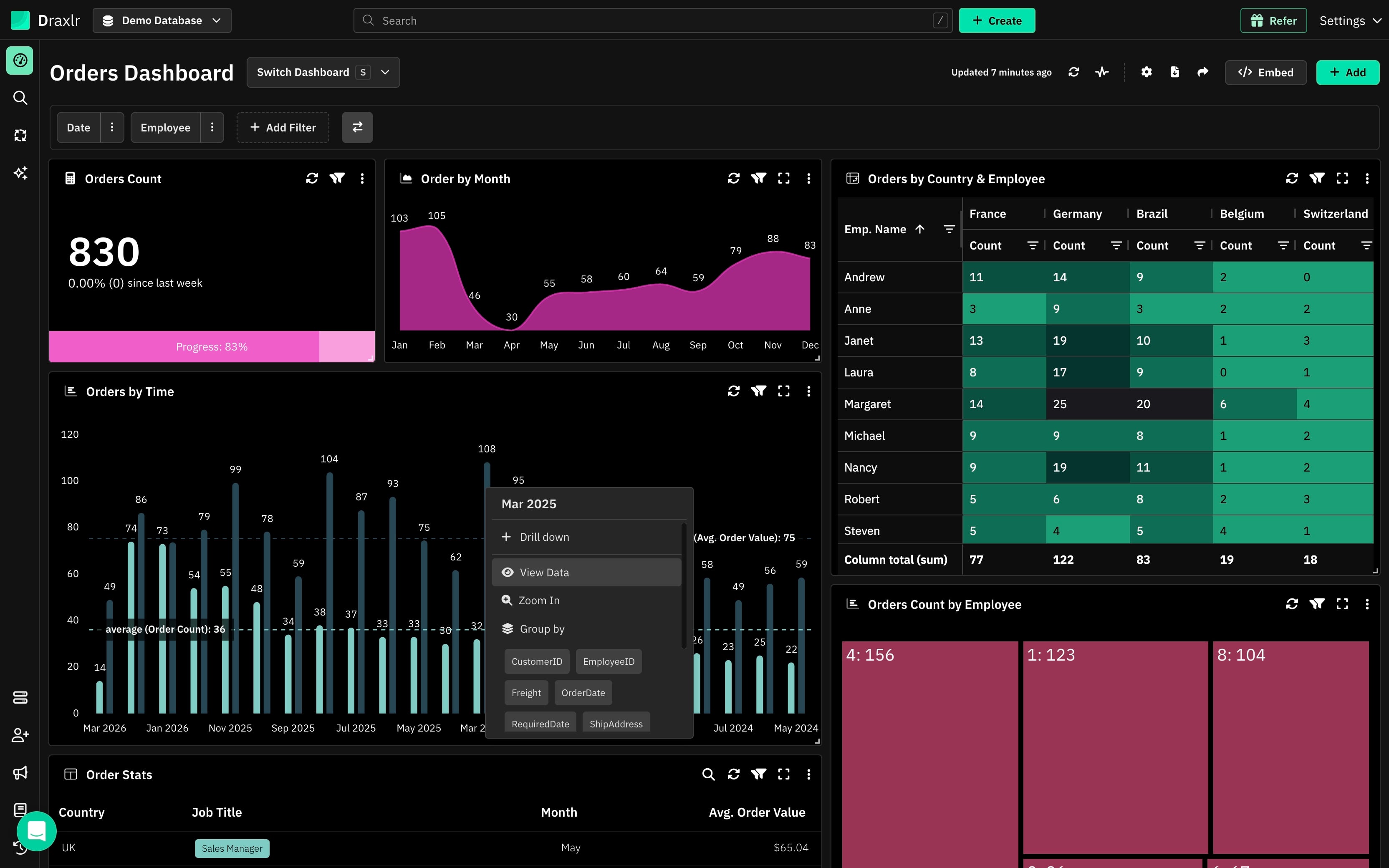
On any Graph/Pivot, click on segment to open the drill down options.
How to View Data
1: Click a Segment
On any graph or pivot, click a segment—a bar, a line point, a pie slice, or a cell.
This opens the drill down options.
2: Select View Data
Click View Data to see the data for that segment.
3: Explore the Underlying Rows
The rows that make up the clicked segment are shown in place of the dashboard element—no popup, you stay right on the dashboard.
For example, clicking the Aug 2025 bar in an Orders by Time chart and selecting View Data shows the individual orders placed in August 2025.
When you are done, use the reset option on the dashboard element to return to the original chart.
When to Use View Data
- Verify an aggregated number by inspecting the records behind it
- Investigate an unexpected spike or dip in a chart
- Answer "which rows are these?" without leaving the dashboard or editing the query