Dashboard > Filters
Learn how Draxlr dashboard filters work, from Standard and Raw SQL Query Variable filters to hiding filters from read-only users and requiring filter selections.
Dashboard filters allow you to interact with your data more effectively by applying dynamic filters to your dashboards.
With filters, you can explore the information that matters most to you, without modifying the underlying queries or datasets.
Types of Dashboard Filters
1. Standard
- Description: Standard filters allow you to filter dashboard items based on column values in their underlying tables.
- Compatibility: Works with all query types, whether created using the Query Builder or written as Raw SQL.
Learn more
2. Raw SQL Query Variable
- Description: These filters let you pass values directly into variables defined within a Raw SQL query.
- Compatibility: Only works with queries written in Raw SQL that contain variables (e.g.,
{{employeeId}}).
Learn more
By combining these two filter types, you can build flexible, interactive dashboards that adapt to your unique data exploration needs.
Hide Filters for Read-only Users
Turn on Hide for read-only users to hide a filter from people who can only view the dashboard. The filter's value is still applied to the dashboard elements, so viewers see the filtered data but can't change the filter.
This works well for filters whose value is filled in for the viewer, such as the child of an interconnected filter with Auto-select single option turned on.

Hide a Filter
Open the filter
Click the filter and choose Edit, or click Add Filter to create a new one.
Turn on Hide for read-only users
At the bottom of the filter settings, turn on Hide for read-only users.
Save the filter
Click Update (or Create for a new filter).
Who Sees a Hidden Filter
| Where the dashboard is viewed | Filter |
|---|---|
| In Draxlr, by members who can edit the dashboard | Shown |
| In Draxlr, by members who can only view the dashboard (for example, Read or Dashboard access) | Hidden |
| In Draxlr, in drill-through views | Hidden for everyone, since they're view-only |
| Full App Embed, under Shared Dashboards | Hidden |
| PDF exports with Show applied filters in PDF turned on | Shown if the person exporting the PDF can see the filter |
| Public URLs and embedded dashboards | Follows the link's or embed's own setting, see below |
Public URLs and embedded dashboards have their own show/hide setting for each filter (Show Filter for public URLs, Visible for embeds). When you create a new public URL or set up a new embed, filters with Hide for read-only users start out hidden, and you can switch them back to shown. Existing public URLs and embed codes keep their current settings.
In Full App Embed, customers don't see the Hide for read-only users option when they add filters to their own dashboards under My Dashboards.
A hidden filter is also left out of the applied filters listed on each dashboard element. If a hidden filter is the child of an interconnected filter, its value is cleared when the parent filter is cleared, because viewers can't clear it themselves.
Not a security control:
Hiding a filter only removes it from view. To limit which rows a member can see, use Row-level Security.
Required Filters
Required filters keep dashboard elements empty until a value is selected. Use them when a dashboard shouldn't show any data until the viewer makes a choice, for example, a state or a city.
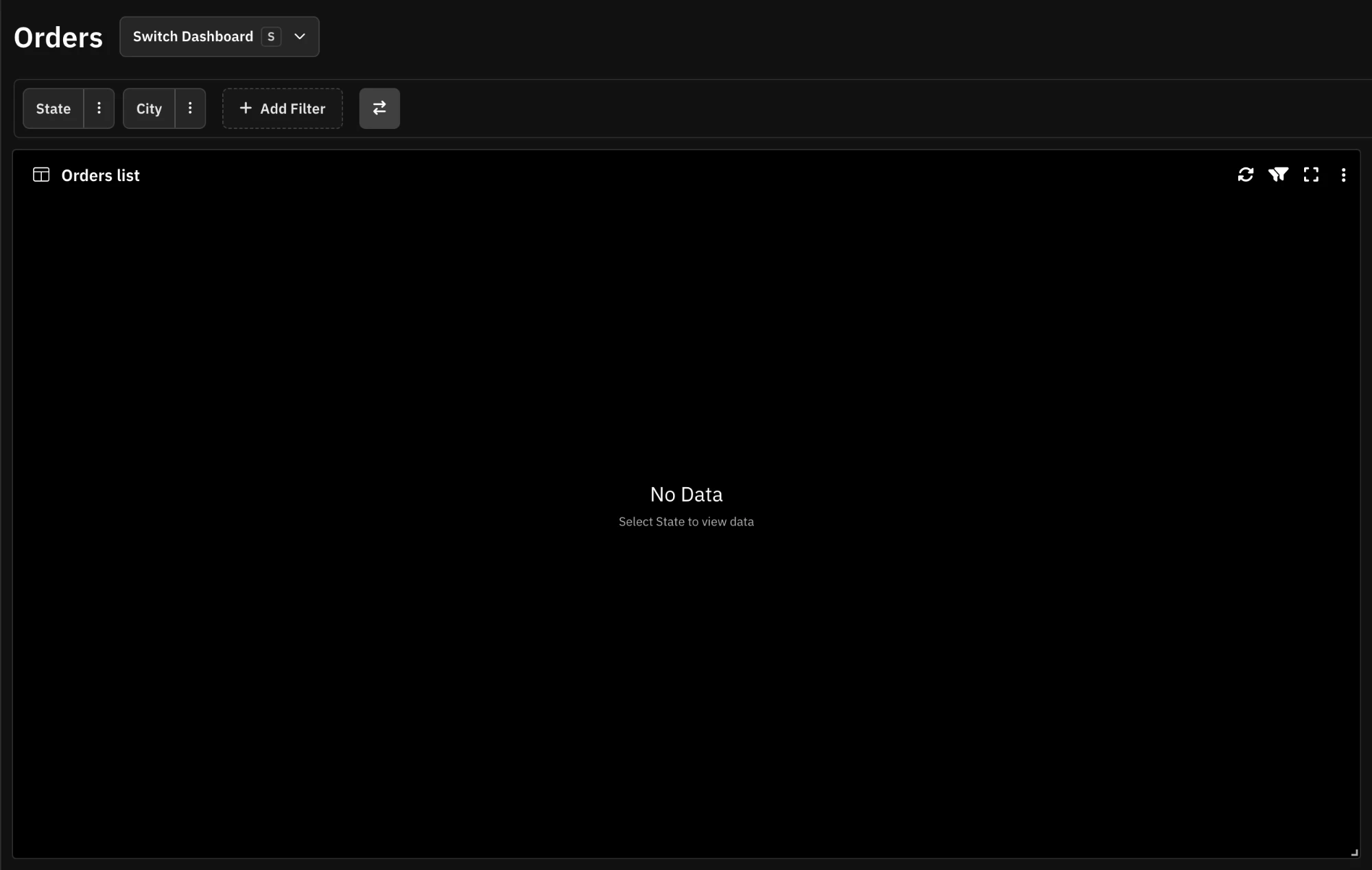
Until every required filter linked to an element has a value, the element shows No Data with a message such as Select State to view data. The message only lists filters the viewer can see, so required filters hidden from them are left out. Draxlr doesn't return any data for the element until then, including cached results.
Set Up Required Filters
Open Dashboard Settings
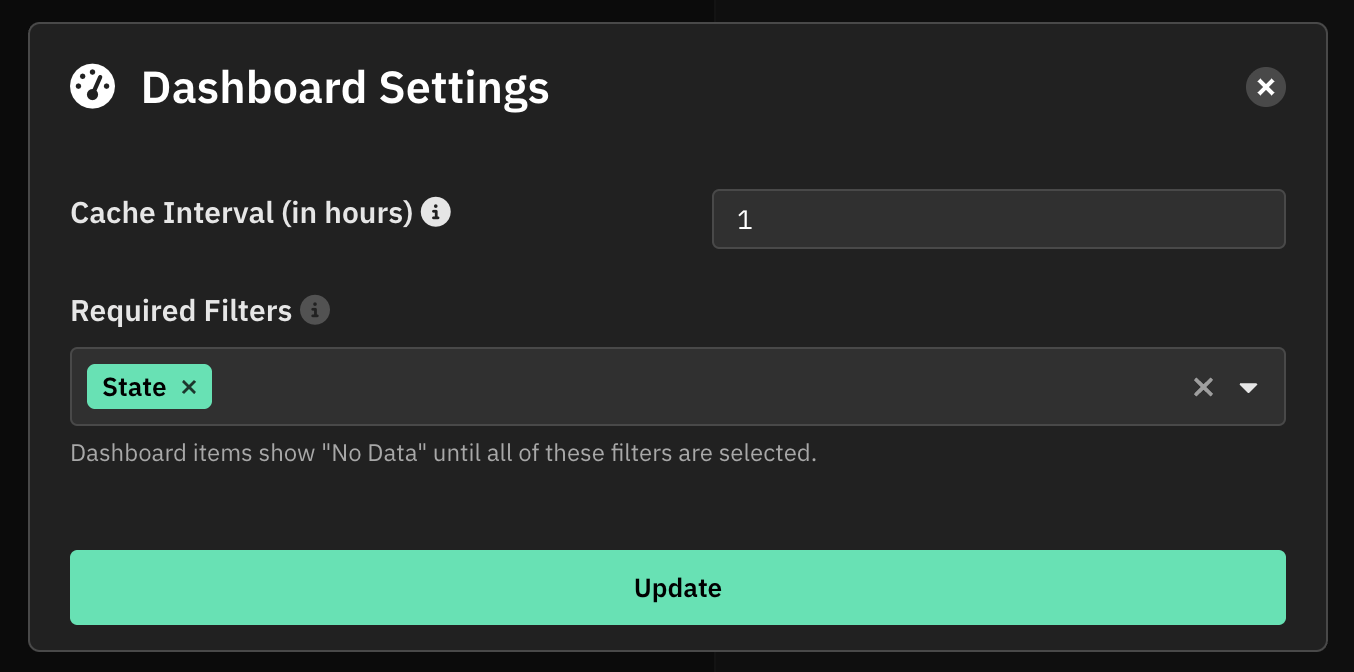
On the dashboard, click the Dashboard Settings (gear) icon in the top bar. Admin and Full access members can open it.
Choose the required filters
Under Required Filters, select one or more of the dashboard's filters. This option appears once the dashboard has at least one filter.
Save
Click Update. The dashboard reloads with the new setting.
How Required Filters Work
- Only linked elements wait. An element waits only for the required filters that are applied to it. Elements that aren't linked to any required filter show data as usual.
- Every linked required filter needs a value. If an element is linked to two required filters, it shows data once both have a value.
- What counts as selected. A Raw SQL Query Variable filter needs a value. A Standard filter needs an operator, plus a value when the operator takes one.
- Pre-applied values count. Filter values pre-applied in a public URL or an embed meet the requirement, so those elements show data straight away.
- It applies wherever the dashboard is shown, including public URLs, embedded dashboards, Full App Embed and exports.
Tip:
Avoid making a filter both required and hidden from read-only users unless its value is filled in automatically, for example, by an interconnected parent filter with Auto-select single option. Otherwise viewers can't select it, and the elements stay empty.