Drill Down > Group By
Learn how to use Group By in Draxlr to break any chart or pivot data point on a dashboard down by another field, without editing the underlying query.
Group By lets you take any data point on a dashboard element and break it down by another field—without editing the underlying query.
Here is a short interactive demo:
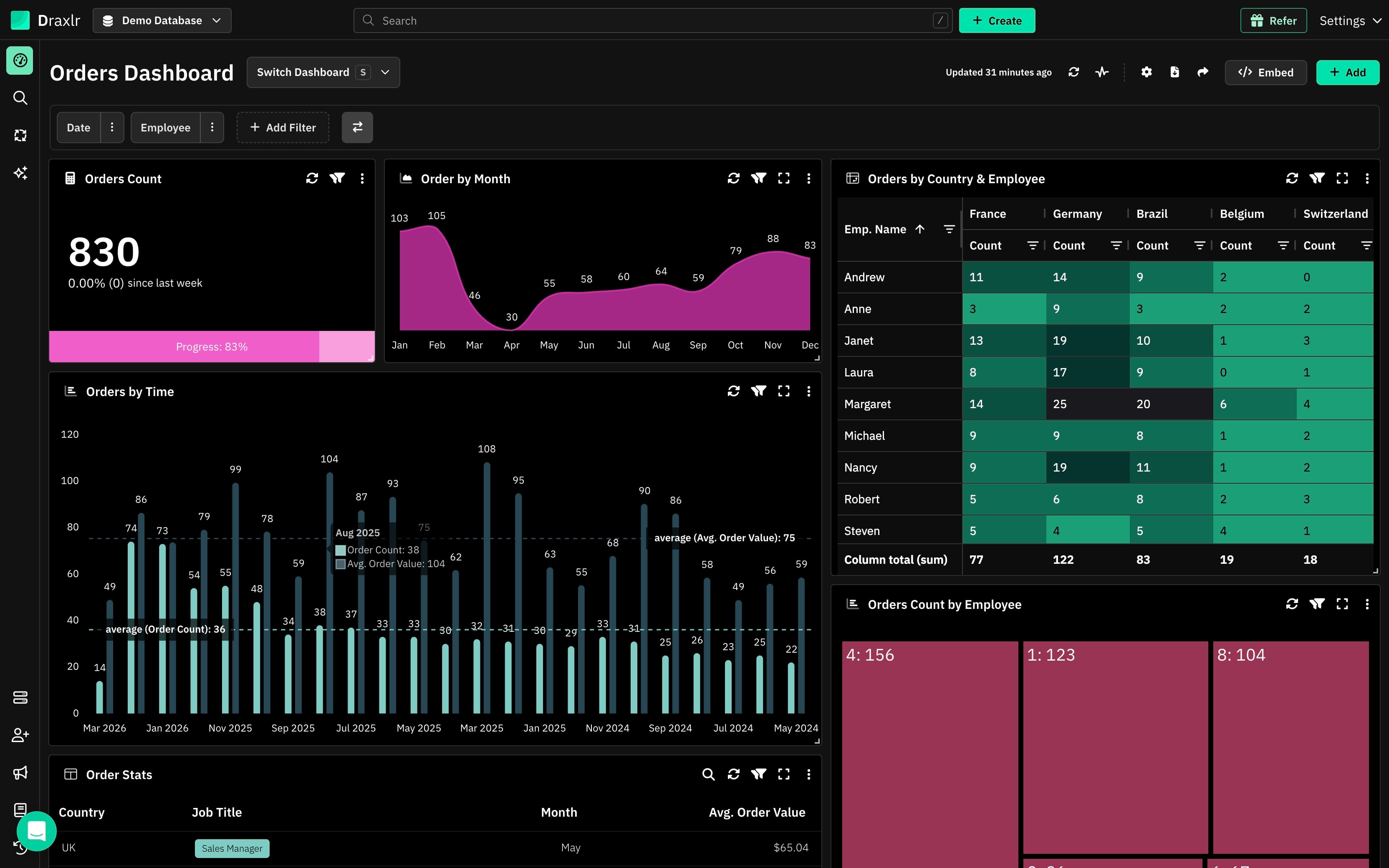
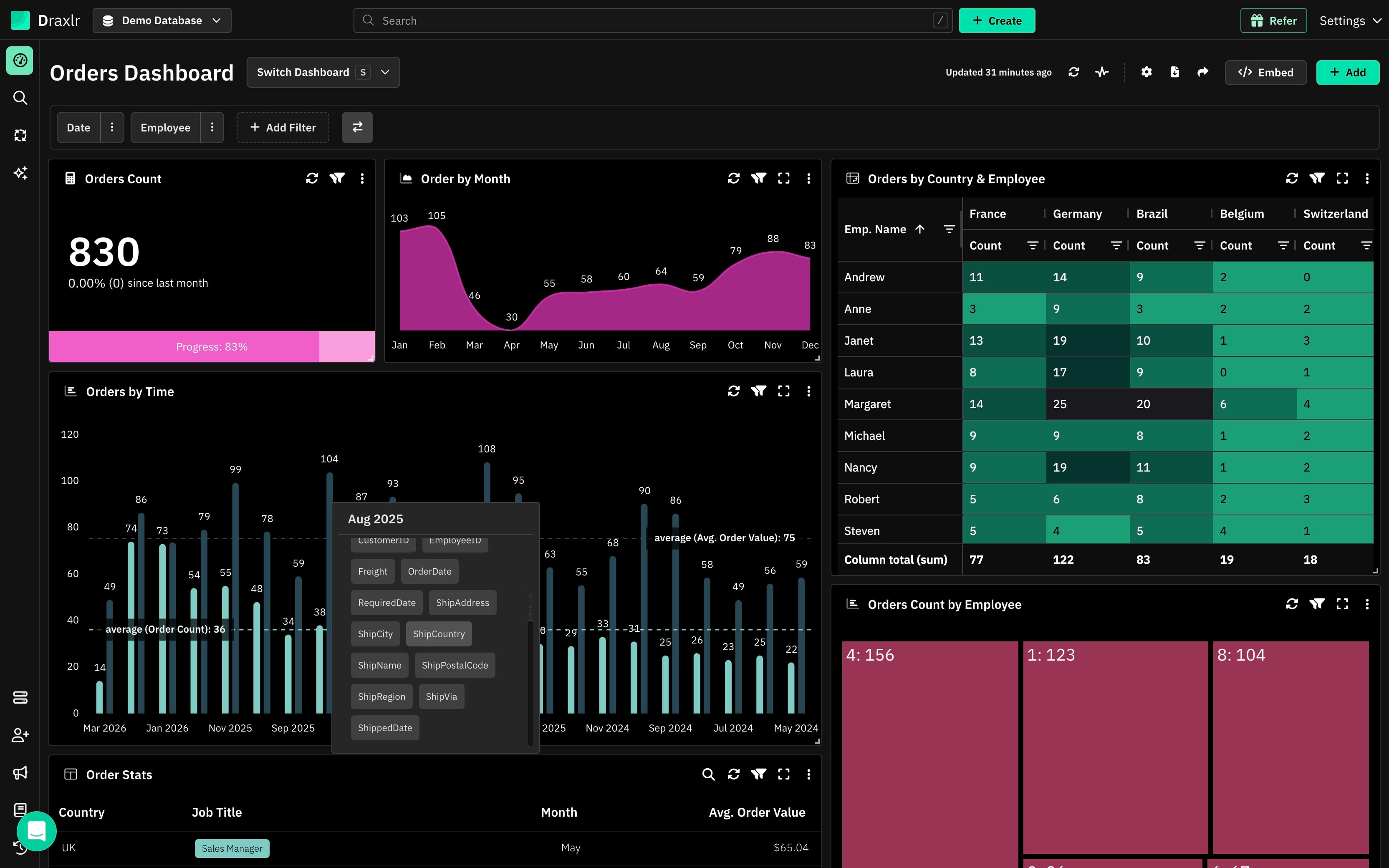
On any Graph/Pivot, click on segment to open the drill down options.
How to Group By
1: Click a Segment
On any graph or pivot, click a segment—a bar, a line point, a pie slice, or a cell.
This opens the drill down options.
2: Pick a Field Under Group By
The Group By section of the menu lists the fields available in the element's underlying tables (e.g., CustomerID, EmployeeID, Freight, OrderDate, ShipAddress).
Click the field on which you want to group the segment's data.
3: View the Breakdown
The breakdown is shown in place of the dashboard element—the clicked value grouped by the selected field.
For example, clicking the Aug 2025 bar in an Orders by Time chart and grouping by country shows August's orders split by country. You can keep going—click a segment of the breakdown and group it by a different field to drill even deeper.
When you are done, use the reset option on the dashboard element to return to the original chart.
When to Use Group By
- Find out what makes up a number—which customers, employees, or categories contribute to it
- Compare segments within a single data point
- Explore a new dimension on the fly without creating another query or chart