Full App Embed > Embed Builder
Configure and preview the full app embed, then copy the code
The embed builder is where you set up Full App Embed. It shows a live preview of what your customers will see and generates the backend and frontend code for your settings.
Open the builder
Open a dashboard
Go to Dashboard and open any dashboard in the database you want to embed.
Click Embed
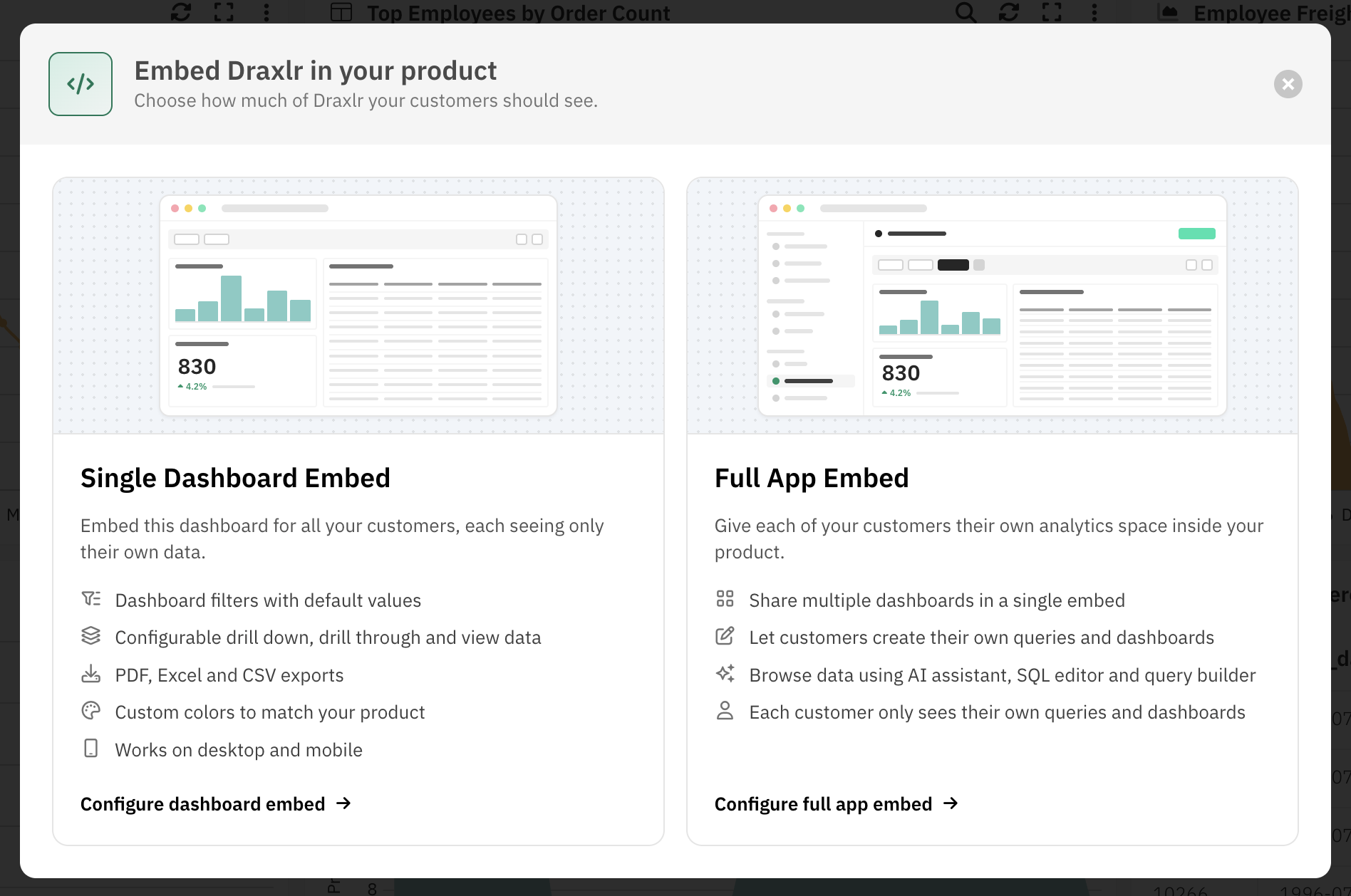
Click Embed at the top right. A window opens with two options: Single Dashboard Embed and Full App Embed.
Choose Full App Embed
Click Configure full app embed. If your plan doesn't include Full App Embedding, click Preview full app embed to try it with your data.
The builder opens with a live preview on the left and Embed Settings on the right. The dashboard you came from is already selected as a shared dashboard.
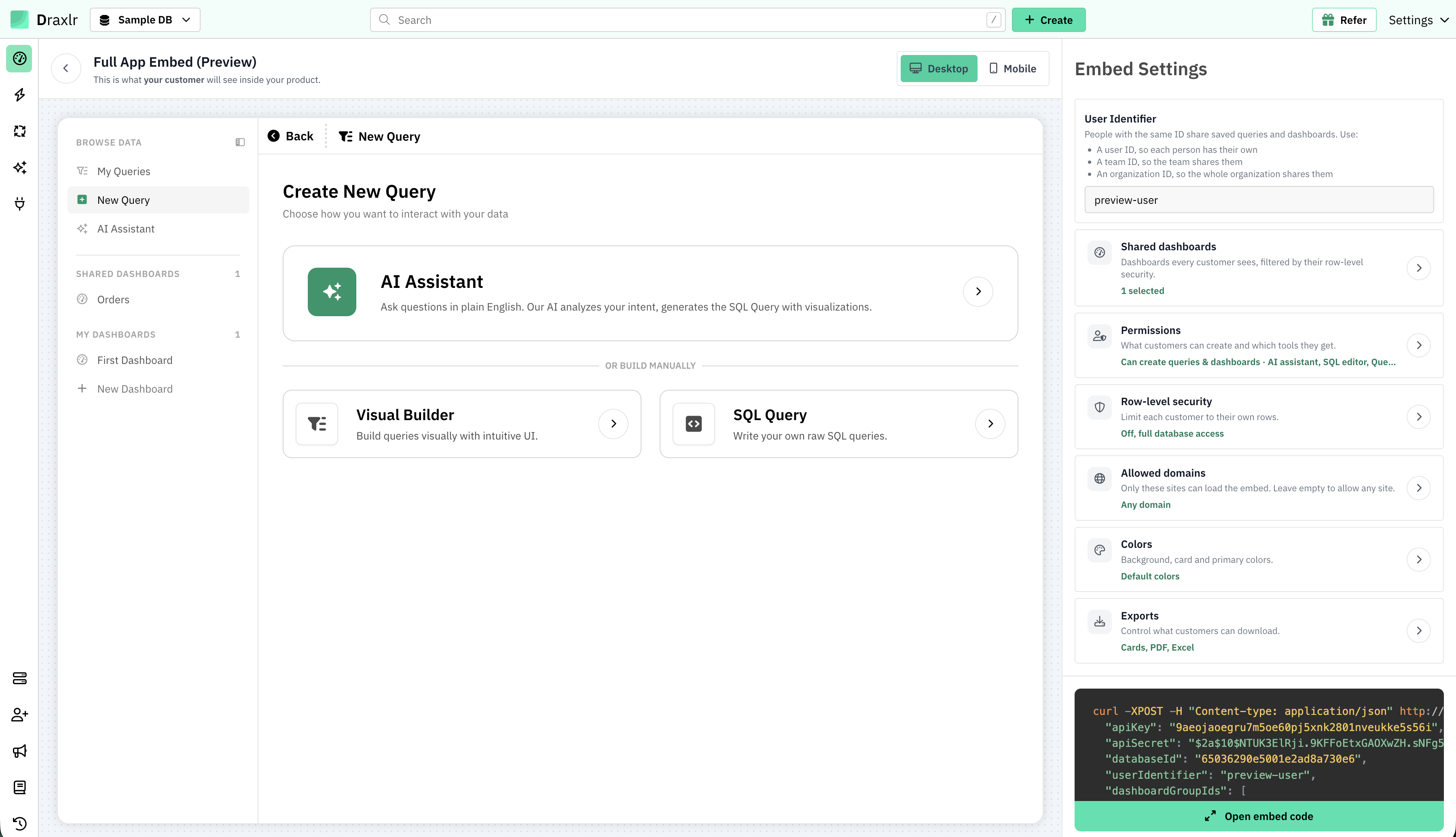
Changes apply when you click Apply:
Each setting opens a panel. Your changes only take effect when you click Apply. Going back without applying discards them. The preview and the code update after you apply.
Preview as user
Enter a user ID to preview the embed as that user. It's sent as userIdentifier and works exactly like the IDs your backend sends: each ID gets its own saved queries, folders and dashboards. Press Enter or click outside the field to update the preview.
On plans without Full App Embedding, this field is replaced by a single sample user for previews.
Shared dashboards
Choose the dashboards every customer sees under Shared Dashboards. Use the search box to find dashboards, or Select all.
Customers can filter, drill into and export shared dashboards, but can't edit them. If you use row-level security, each customer sees them filtered to their own rows.
Permissions
Control what customers can create and which tools they get.
What customers can create
| Option | What it does |
|---|---|
| Create and save queries | Customers can build queries and keep them under My Queries. |
| Create dashboards | Customers can build their own dashboards under My Dashboards. |
Browse data tools
| Tool | What it does |
|---|---|
| AI assistant | Ask questions in plain English and get tables and charts. |
| SQL editor | Write and run SQL queries. |
| Query builder | Build queries visually without SQL. |
If no shared dashboards are selected and nothing can be created, the builder warns you that the embed would be empty.
Row-level security
Pick an RLS group to limit each customer to their own rows. Leave it empty to give customers full access to the database.
After you pick a group, the builder lists the attributes the group's rules filter on, such as an account ID. Enter values to preview the embed as a specific customer. In production, your backend sends these values for each user. Click View group to open the group's settings.
Row-level security needs a plan that includes it. See Row-level Security for how it works with the embed.
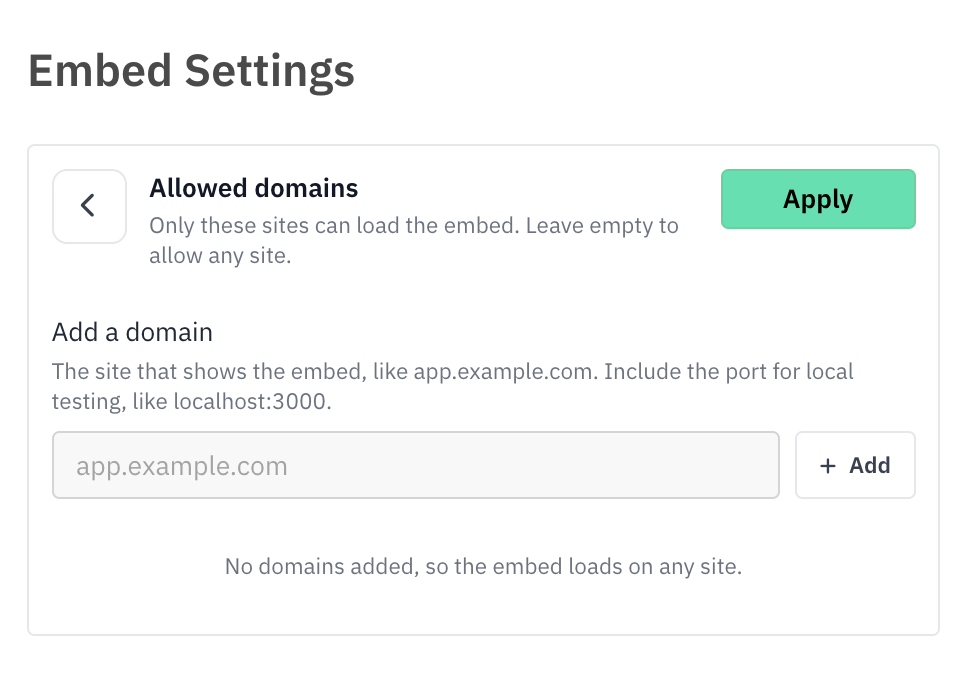
Allowed domains
List the sites allowed to load the embed, such as app.example.com. Leave the list empty to allow any site.
- Domains are saved to the database, not the token, and apply to every token generated after you click Apply.
- Enter the exact host. Add each subdomain separately; wildcards like
*.example.comaren't supported. Include the port for local testing, for examplelocalhost:3000. - Draxlr is always allowed, so the builder preview keeps working.
Colors
| Option | What it does |
|---|---|
| Background color | The embed's page background. Draxlr picks a light or dark theme from this color. |
| Card background color | The background of dashboard cards. |
| Primary color | Your brand color, used for buttons, active states and highlights in place of Draxlr's green. Lighter shades are generated automatically. |
Exports
| Option | What it does |
|---|---|
| PDF export | Download a dashboard as a PDF. |
| Excel export | Download a dashboard's data as an Excel file. |
| CSV export | Download data from individual elements. In the full app embed, this also controls Excel and image downloads from cards and the query editor's export. |
Copy the code
The code panel at the bottom updates with your settings.
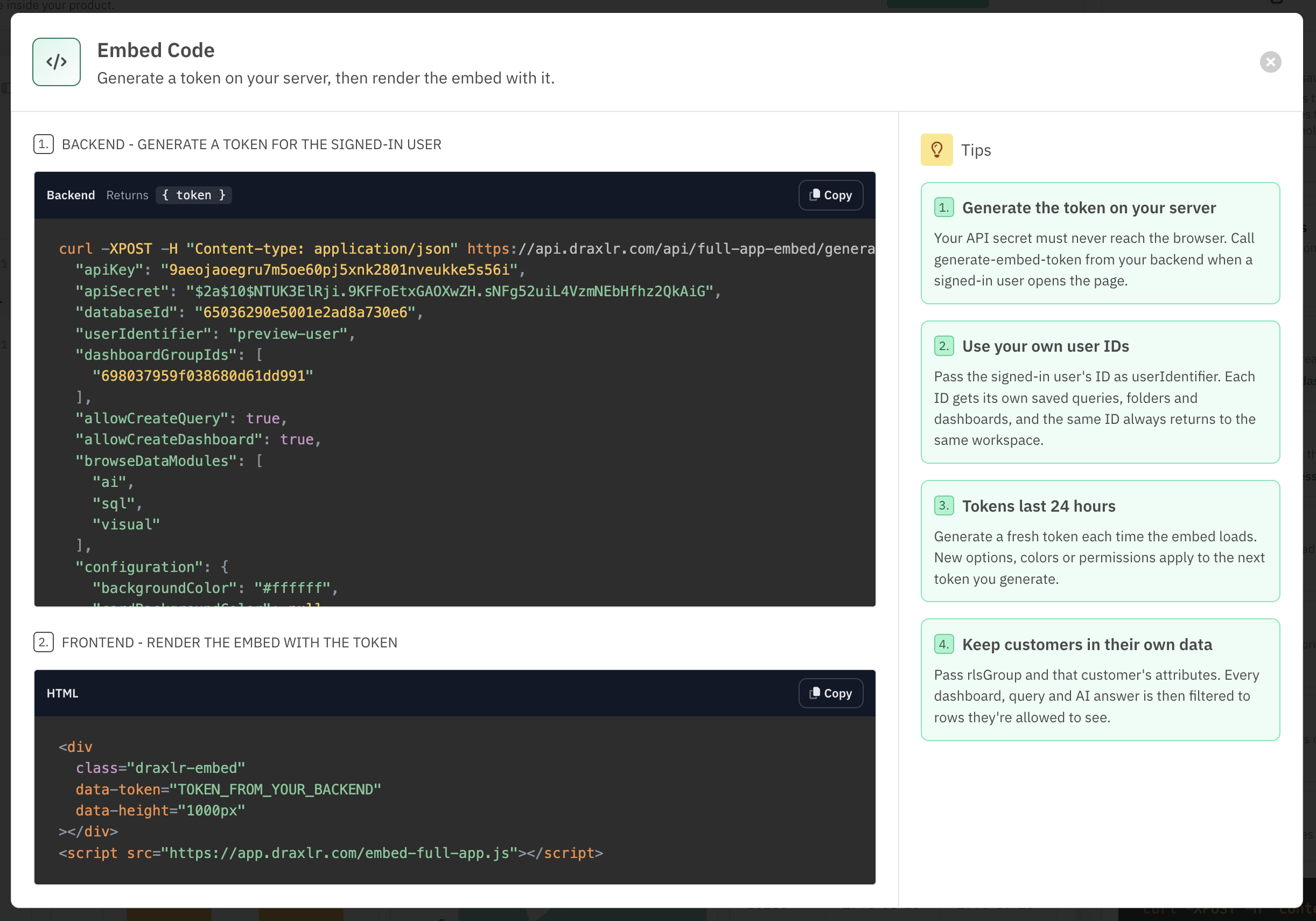
Backend: a curl request to the Generate Token API with your API key, API secret and all the options above. Call it from your server when a signed-in user opens the page, and replace userIdentifier with that user's ID.
Frontend: the HTML snippet that renders the embed. Replace TOKEN_FROM_YOUR_BACKEND with the token from the API.
<div
  class="draxlr-embed"
  data-token="TOKEN_FROM_YOUR_BACKEND"
  data-height="1000px"
></div>
<script src="https://app.draxlr.com/embed-full-app.js"></script>
| Attribute | Default | Description |
|---|---|---|
data-token | Required | The token from the Generate Token API |
data-height | 1000px | Height of the embed |
data-width | 100% | Width of the embed |
Generate a fresh token for each visit:
Tokens last 24 hours. Generate a new one each time the embed loads, so users always get your latest settings.
On plans without Full App Embedding, the code panel is hidden and replaced with an upgrade option.