Add Dashboard Element > Text
Add a text block to a Draxlr dashboard for headings, notes and instructions, formatted with headings, bold, lists, links, quotes, code and colors.
A text block adds headings, notes or instructions to a dashboard, such as a section title or a note on how to read the numbers next to it.
Here is an interactive demo:
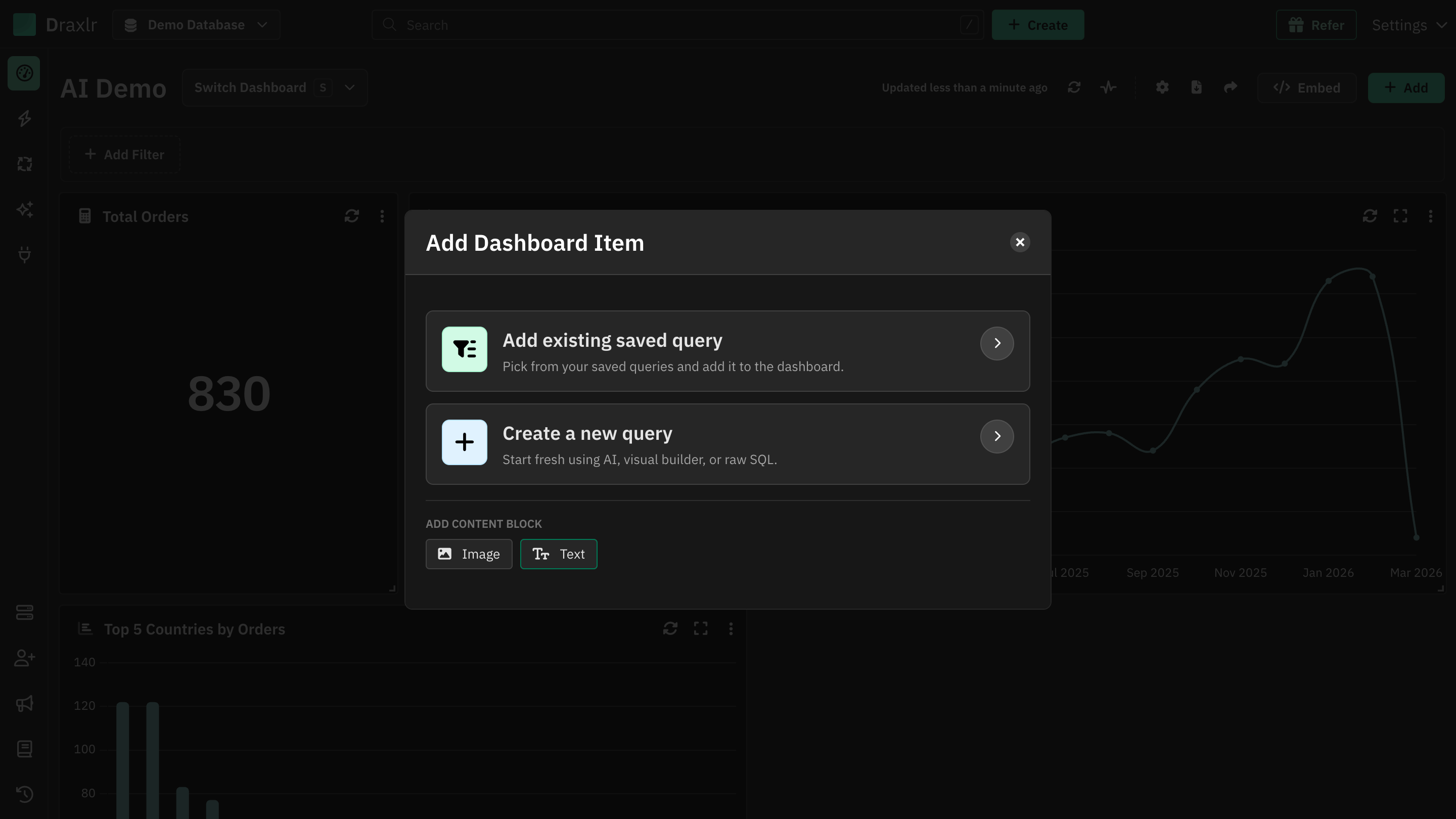
On the dashboard, click Add. Under Add content block, click Text.
Add a text block
Open Add Dashboard Item
Open the dashboard and click Add in the top right corner.
Choose Text
Under Add content block, click Text. An editor opens.
Write your content
Type your text and format it with the toolbar. See Formatting below.
Click Add Dashboard Item
The text block appears on the dashboard. If the editor is empty, Draxlr shows Please provide content for the text field.
Formatting
The toolbar has these options, from left to right:
| Option | What it does |
|---|---|
| Normal / headings | Turns a line into a heading, from Heading 1 to Heading 6, or back to normal text. |
| Bold, Italic, Underline | Styles the selected text. |
| Numbered and bulleted lists | Starts a list. |
| Alignment | Aligns the paragraph left, center, right or justified. |
| Quote | Formats the paragraph as a quote. |
| Code | Formats the text as a code block. |
| Link | Turns the selected text into a link. |
| Text color | Changes the color of the selected text. |
| Clear formatting | Removes formatting from the selected text. |
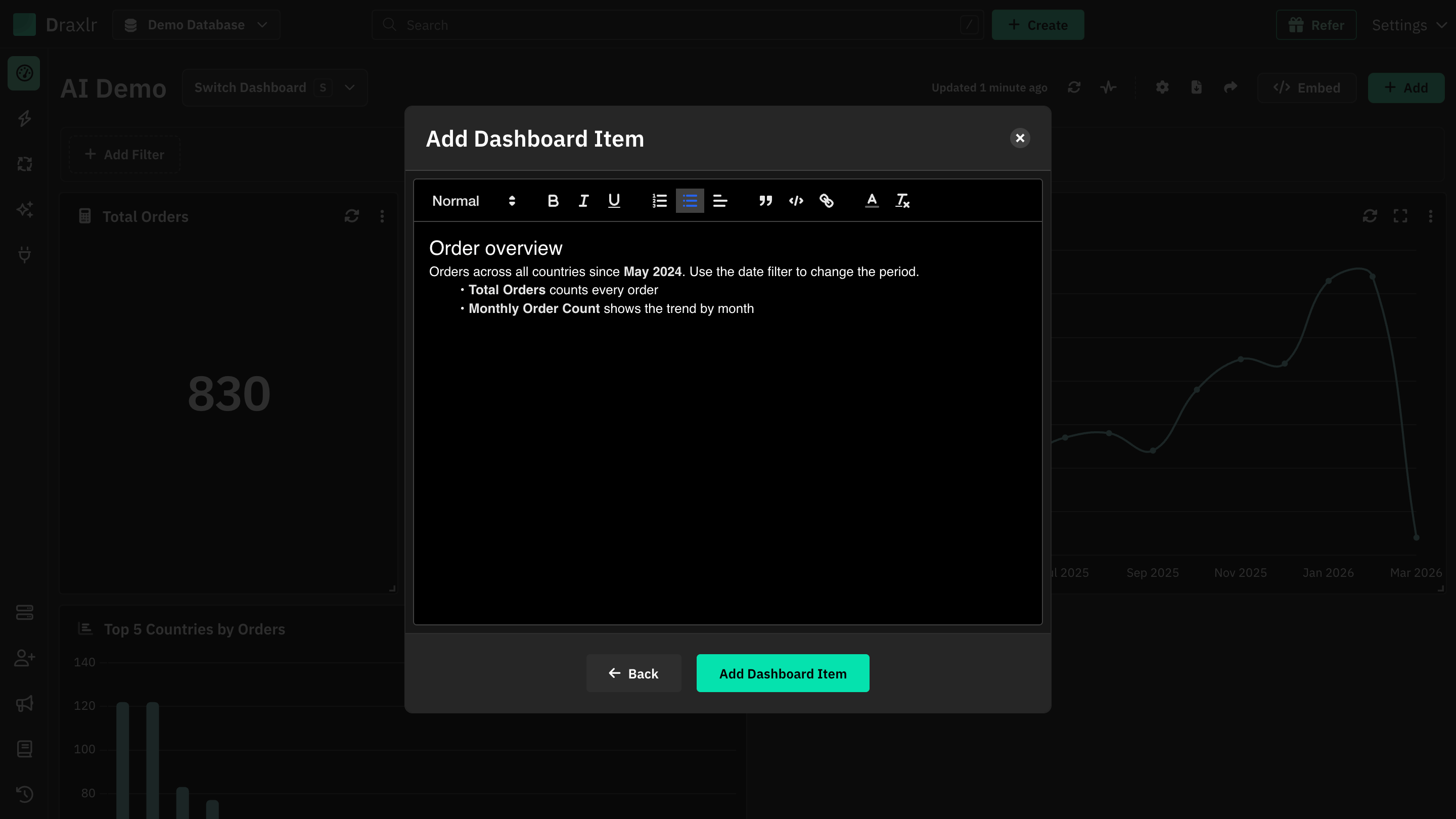
How text blocks look
- A text block has no title bar or border, so it blends into the dashboard.
- Text that doesn't fit is cut off. Drag the block's corner to make it bigger.
- To move a text block, drag it by its text. Saved query elements are dragged by their title bar instead.
- Text blocks show on public URLs, embedded dashboards and in PDF exports, the same as on the dashboard.
Text color in light and dark mode:
Text uses the dashboard's text color, so it stays readable in light and dark mode. Black and white from the color tool also follow the theme. Other colors stay as you picked them, so choose ones that work on both light and dark backgrounds.
Edit or remove a text block
Hover over the block to show its menu (⋮):
- Edit opens the editor with the current text. Make your changes and click Update Dashboard Item.
- Remove deletes the block after you confirm.
Only members who can edit the dashboard see the menu.