Custom Drill Down > Dashboard
Learn how to set up a dashboard drill down in Draxlr that opens another dashboard in a popup, or filters the current one, by mapping clicked values to filters.
The Dashboard drill down opens another dashboard in a popup—or filters the current dashboard—using the clicked row's data.
Use it to connect a high-level overview to a detailed dashboard, with the context of the clicked data point carried over as filters.
Here is a short interactive demo:
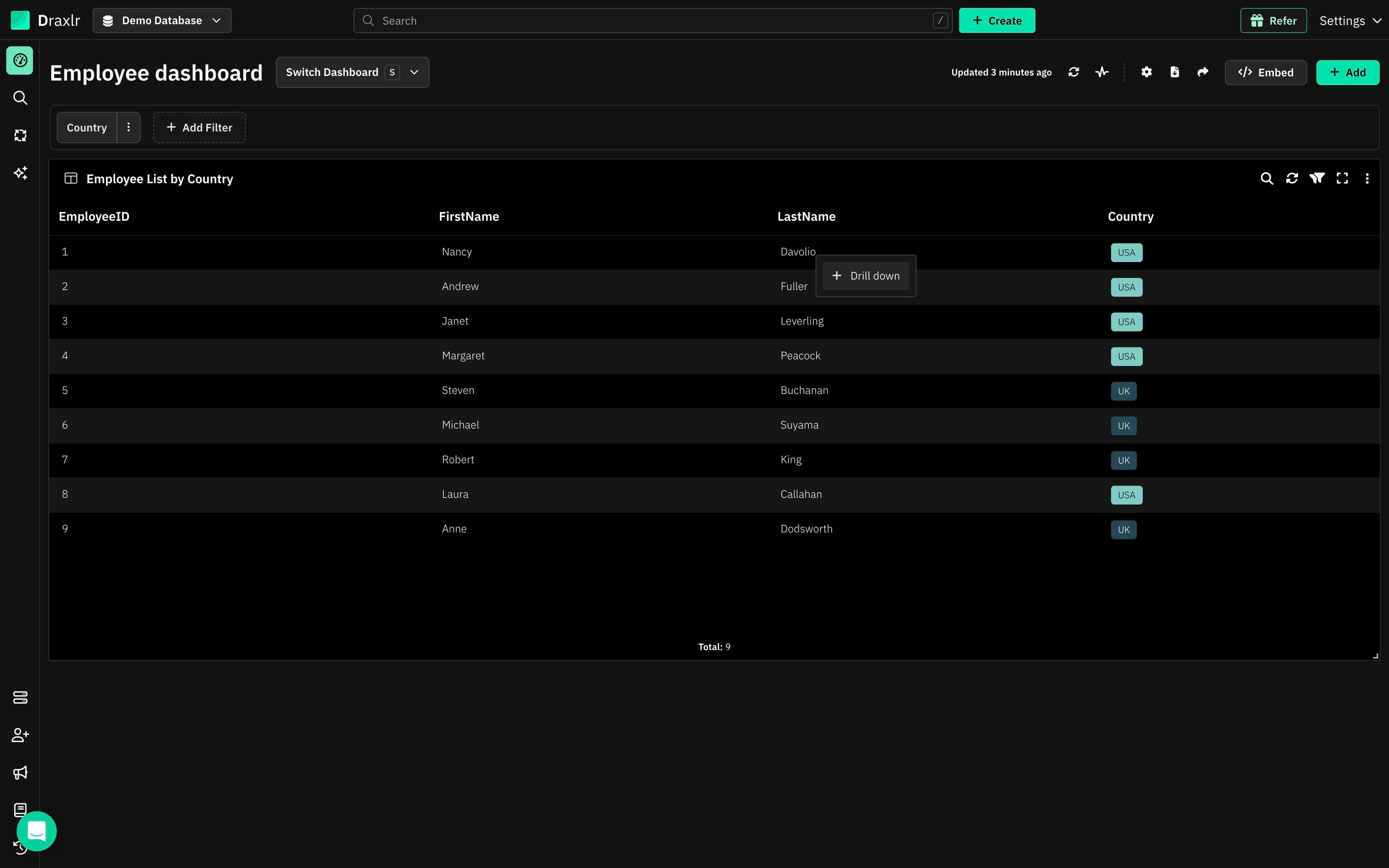
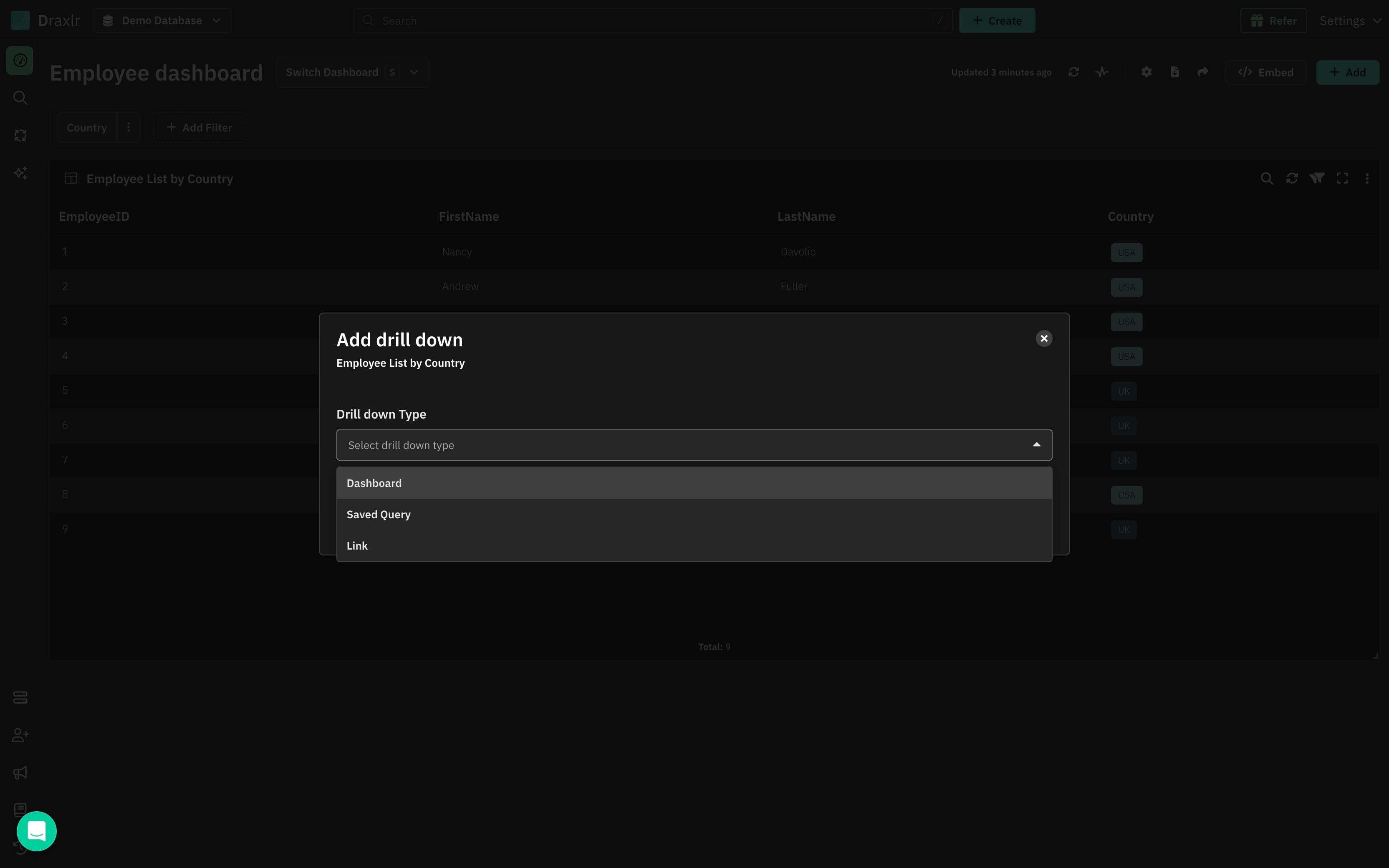
Click on any data segment to create a new Drill down.
How to Create a Dashboard Drill Down
1: Click a Data Segment
Click any data segment on the dashboard element and select + Drill down from the menu.
This opens the Add drill down modal.
2: Select Dashboard as the Drill Down Type
In the Drill down Type dropdown, choose Dashboard.
3: Select the Target Dashboard
Select a dashboard from the dropdown to configure the drill down action.
You can pick any of your dashboards—including the one you are on, marked (Current).
4: Pass Clicked Segment Columns to Dashboard Filters
Give the drill down a descriptive name (e.g., KPIs)—this is the label shown in the drill down menu.
Then map the columns from the clicked segment to the Dashboard Filters of the target dashboard:
- Clicked Row (Source): a column from the clicked segment (e.g.,
Orders.OrderDate__month) - Dashboard Filter (Target): the filter on the target dashboard that should receive the value (e.g.,
Order Date)
The Example Value column shows a preview of the value that will be passed, based on the segment you clicked (e.g., 2025-08).
Click + Add Mapping to map additional columns.
5: Save
Once the setup is complete, hit Save.
6: Use the New Drill Down
Click any segment on the element and select the drill down by name from the menu.
7: Dashboard Opens with Filters Applied
The target dashboard opens in a popup, with its filters applied from the clicked segment—so it is already scoped to the value you clicked.
Note:
If you use the current dashboard in the drill down, it simply applies the filters—without any popup.
Summary
- Open another dashboard in a popup, or filter the current one
- Pass clicked segment columns into dashboard filters via mappings
- Preview passed values with the Example Value column
- The drill down appears by name in the element's drill down menu