Custom Drill Down > Saved Query
Learn how to set up a Saved Query drill down in Draxlr that shows a detailed query in the dashboard element, scoped to the clicked row and dashboard filters.
The Saved Query drill down shows a Saved Query in the dashboard item, optionally passing values from the clicked row as filters or variables.
Use it to reveal a detailed breakdown—built as a separate Saved Query—right inside the dashboard element, scoped to the data point that was clicked.
Here is a short interactive demo:
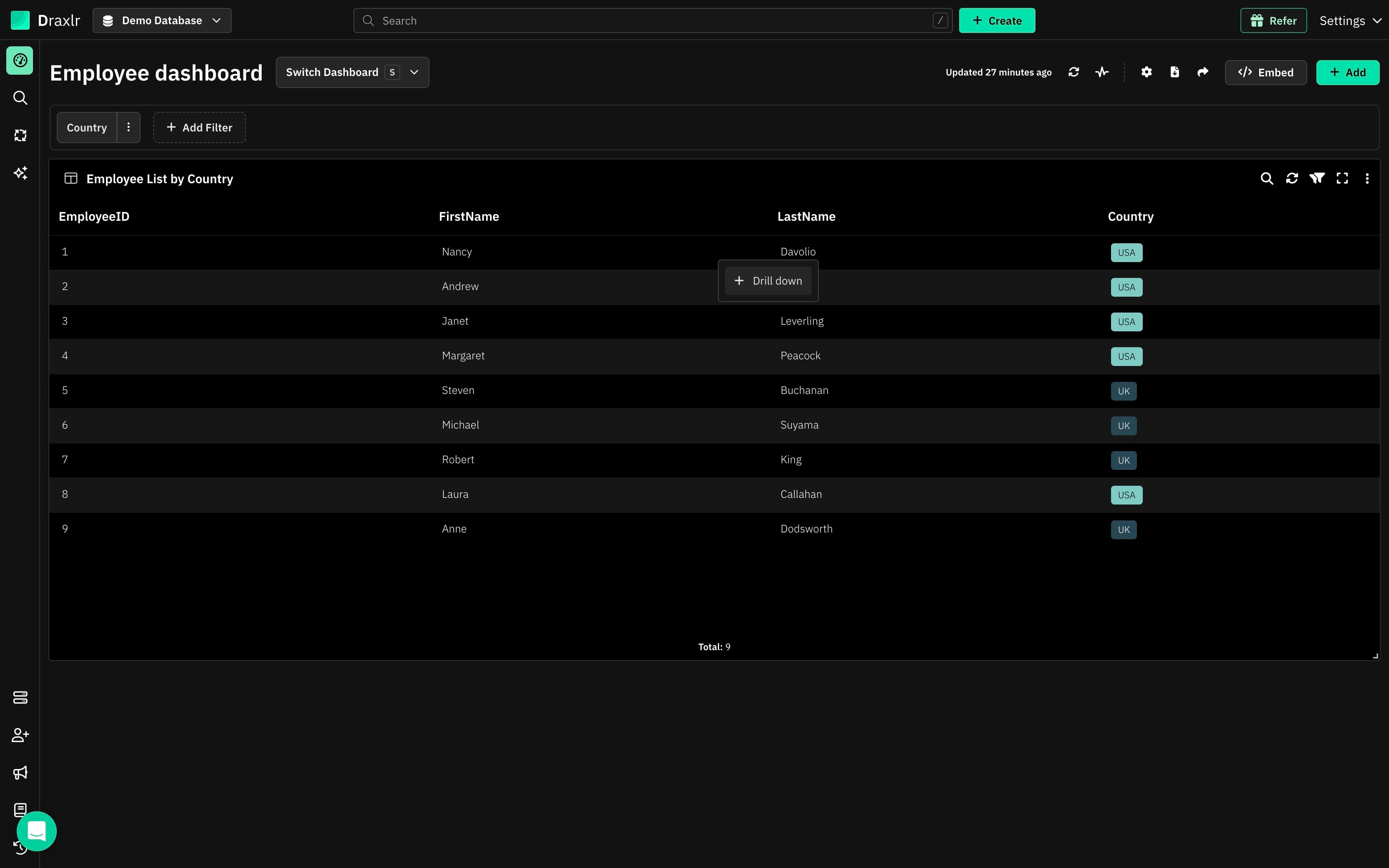
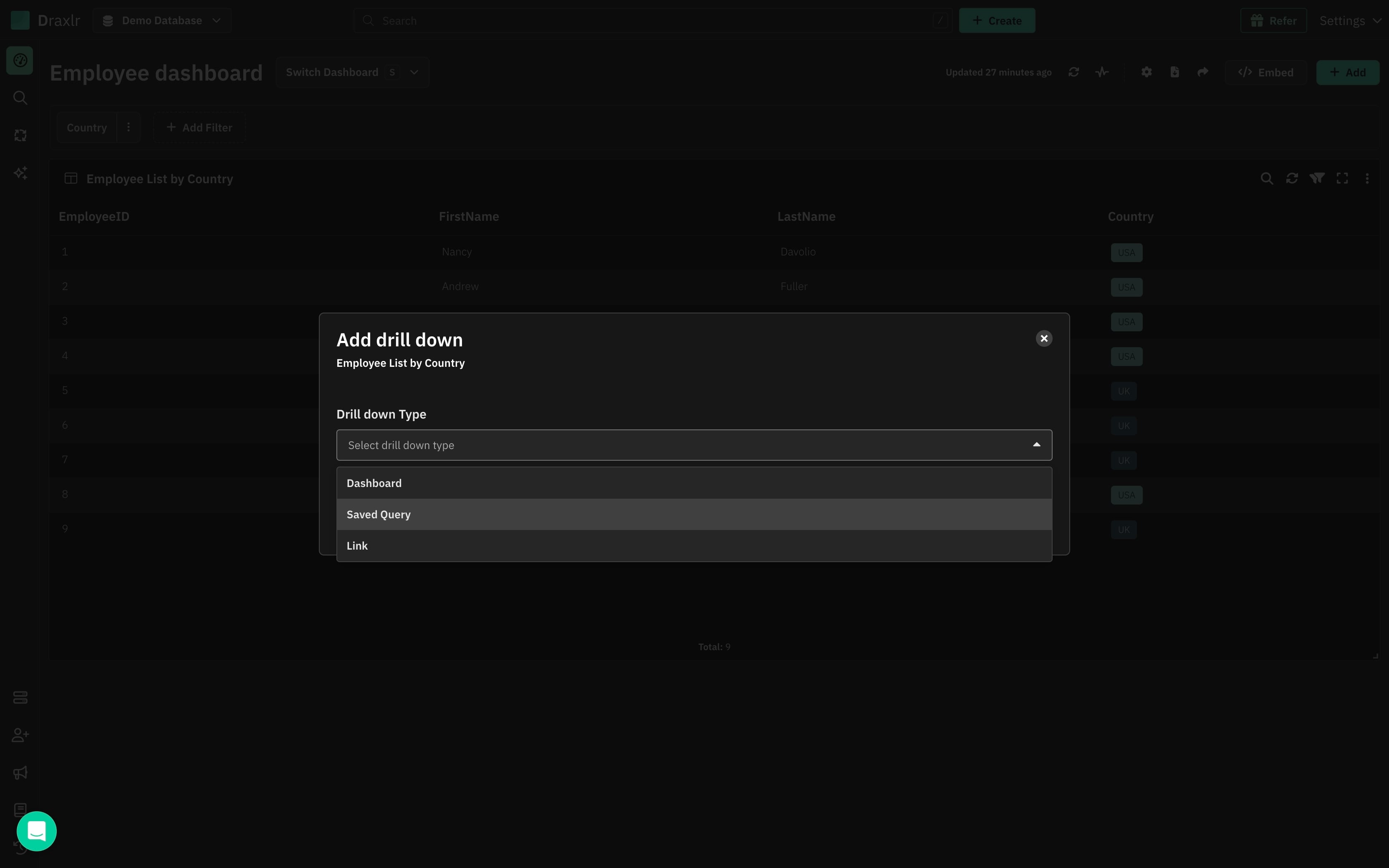
Click on any data segment to create a new Drill down.
How to Create a Saved Query Drill Down
1: Click a Data Segment
Click any data segment on the dashboard element and select + Drill down from the menu.
This opens the Add drill down modal.
2: Select Saved Query as the Drill Down Type
In the Drill down Type dropdown, choose Saved Query.
3: Select the Saved Query
Select a Saved Query from the dropdown to configure the drill down action.
Use the View Query link to open the selected query and double-check what it returns.
4: Pass Values into the Saved Query Fields
Give the drill down a descriptive name—this is the label shown in the drill down menu.
Then pass column values and current dashboard filters from the clicked segment into the Saved Query fields for filtering:
Map Clicked Row Values → Saved Query Filters
- Clicked Row (Source): a column from the clicked segment
- Saved Query Field (Target): the field in the Saved Query that should be filtered by the value
The Example Value column shows a preview of the value that will be passed, based on the segment you clicked.
Map Dashboard Filters → Saved Query Filters
- Dashboard Filter (Source): a filter on the dashboard (e.g., Order Date)
- Saved Query Field (Target): the field in the Saved Query that should receive the filter's value
Click + Add Mapping in either section to map additional values.
5: Save
Once the setup is complete, hit Save.
6: Use the New Drill Down
Click any segment on the element and select the drill down by name from the menu.
7: Saved Query Opens with Filters Applied
The Saved Query opens in the dashboard item with the applied filters—scoped to the clicked segment and the dashboard's active filters, according to your mappings.
Summary
- Show a Saved Query inside the dashboard item
- Scope its results to the clicked segment via clicked row mappings
- Keep results consistent with the dashboard via dashboard filter mappings
- Preview passed values with the Example Value column