Custom Drill Down > Link
Learn how to create a link drill down in Draxlr that opens a URL in a new tab, filling placeholders in the link with values from the clicked dashboard row.
The Link drill down opens a link in a new tab and can optionally include values from the clicked row in the URL.
Use it to connect dashboard data to the rest of your stack—open the matching record in your CRM, an admin panel, an issue tracker, or any other tool.
Here is a short interactive demo:
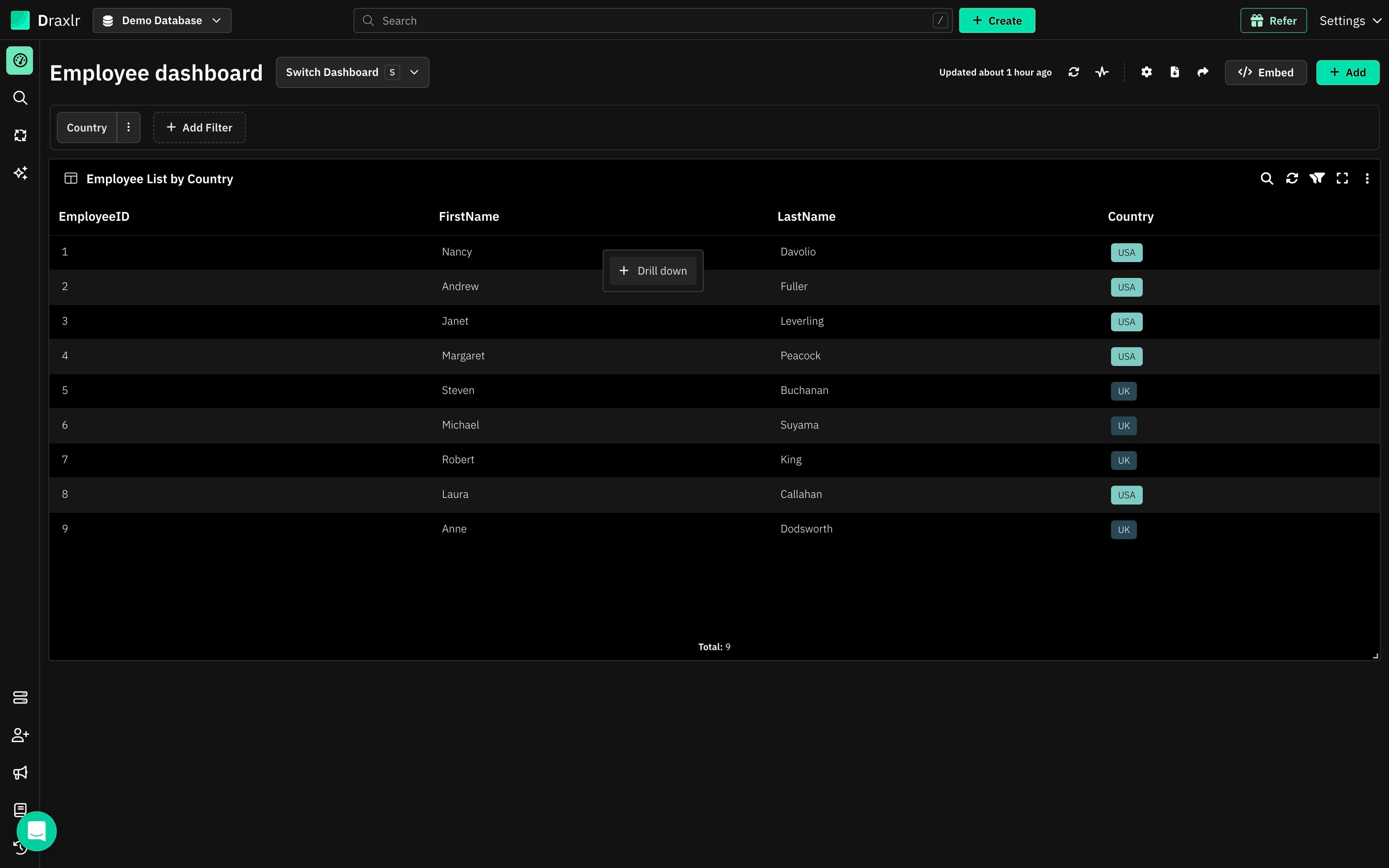
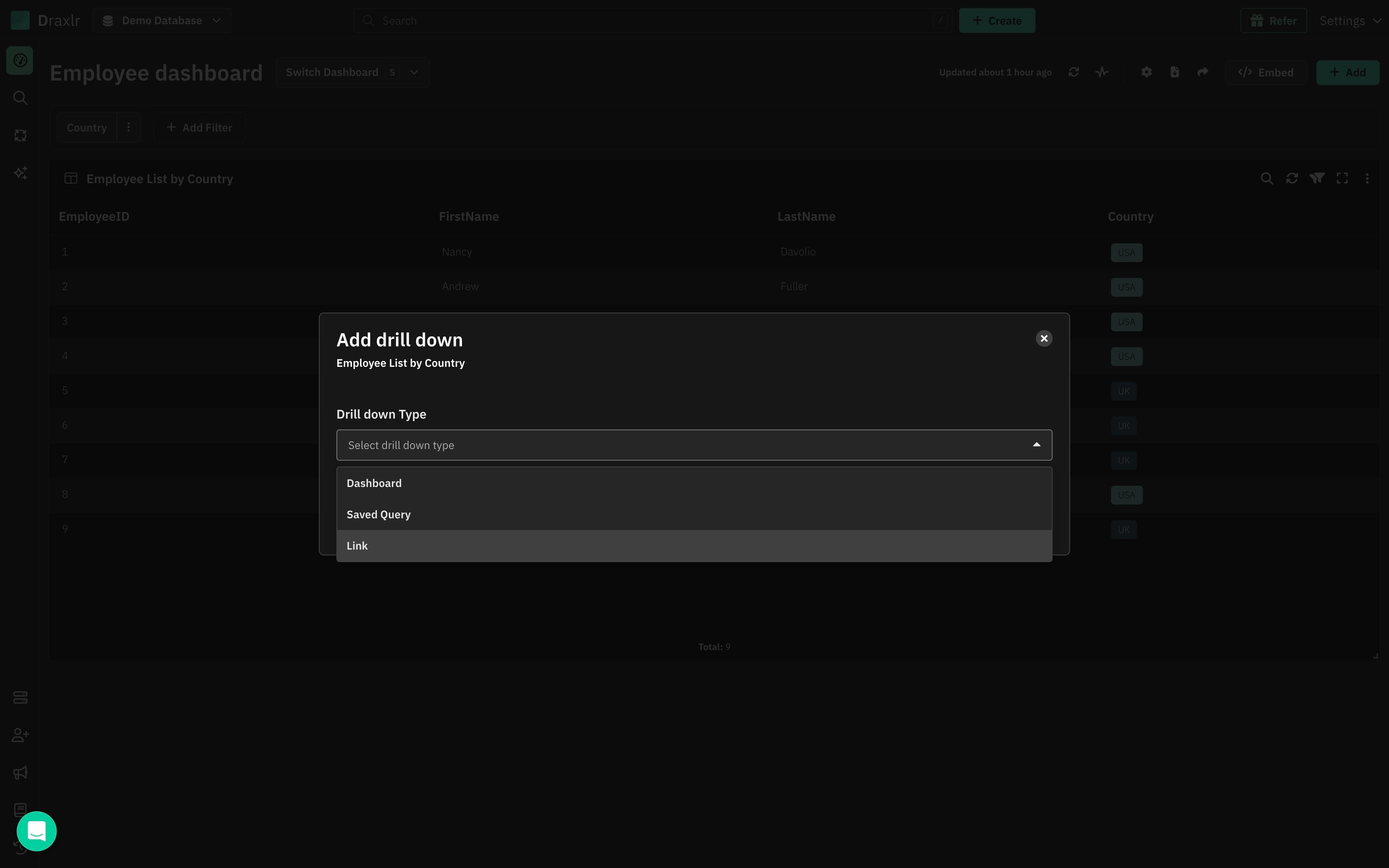
Click on any data segment to create a new Drill down
How to Create a Link Drill Down
1: Click a Data Segment
Click any data segment on the dashboard element and select + Drill down from the menu.
This opens the Add drill down modal.
2: Select Link as the Drill Down Type
In the Drill down Type dropdown, choose Link.
3: Enter the Drill Down Name
Give the drill down a descriptive name.
This is the label shown in the drill down menu when someone clicks a data segment.
4: Enter the Link
Type the URL to open in the Link field.
To include values from the clicked row, use the column names in double braces like {{fieldName}}. Each placeholder is replaced with the clicked row's value when the link opens.
For example:
https://example.com/customers/{{CustomerID}}/orders
Clicking a data segment for customer ALFKI and selecting this drill down opens https://example.com/customers/ALFKI/orders.
5: Save
Once the setup is complete, hit Save.
6: Use the New Drill Down
Click any segment on the element and select the drill down by name from the menu.
The link opens in a new tab, with all {{fieldName}} placeholders replaced by values from the clicked row.
Summary
- Open any URL in a new tab from a clicked data segment
- Insert clicked row values into the URL with
{{fieldName}}placeholders - Connect dashboards to your CRM, admin panels, and other tools