Drill Down > Zoom In
Learn how Zoom In works on Draxlr time-series charts, moving from year to month, date, hour and minute, with each step scoped to the period you clicked.
Zoom In moves a time-based chart one level deeper in time. Click a data point to go from years to months, from months to days, and beyond—each zoom scoped to the period you clicked.
Note:
Zoom In is only available on time-series graphs.
Here is a short interactive demo:
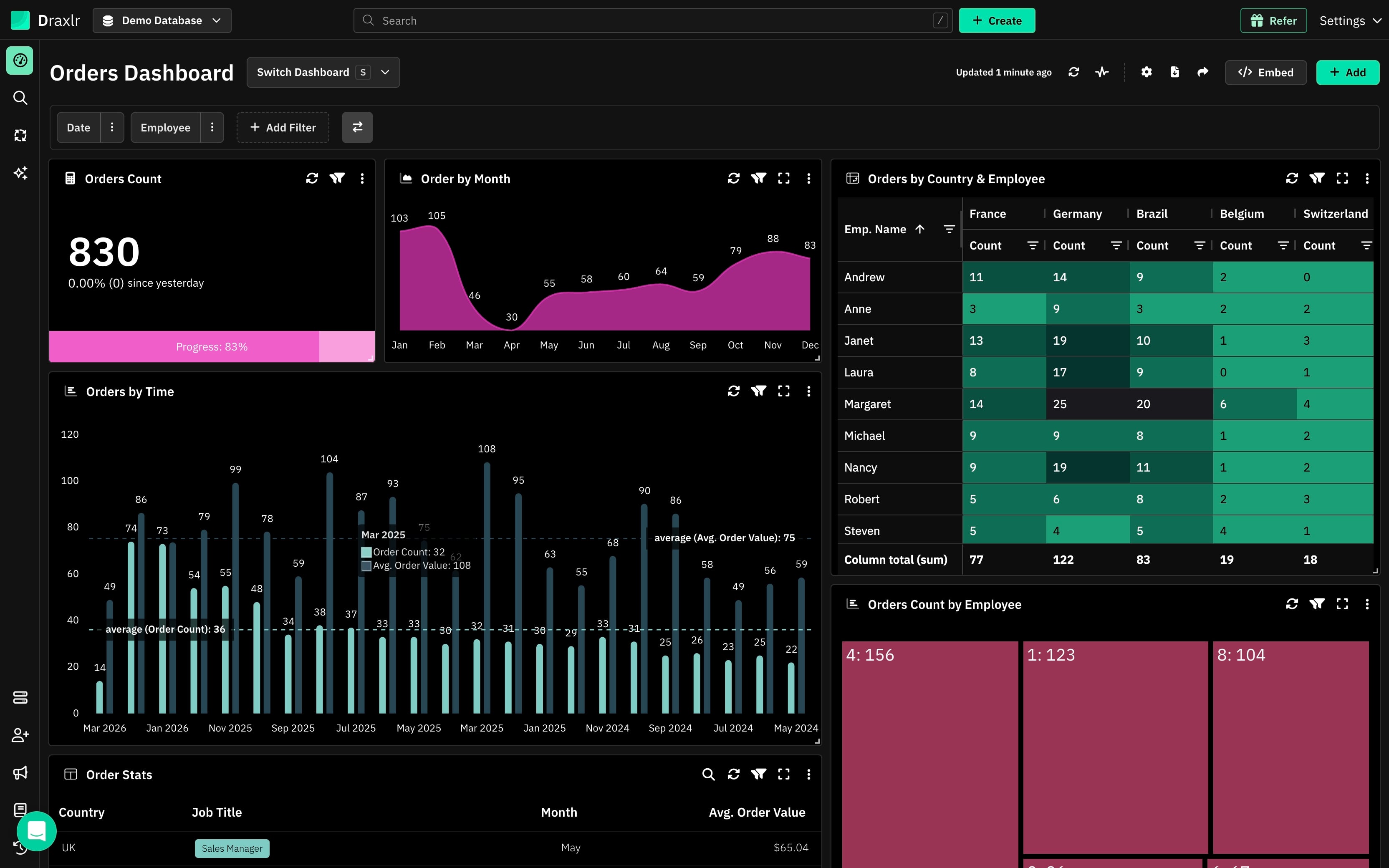
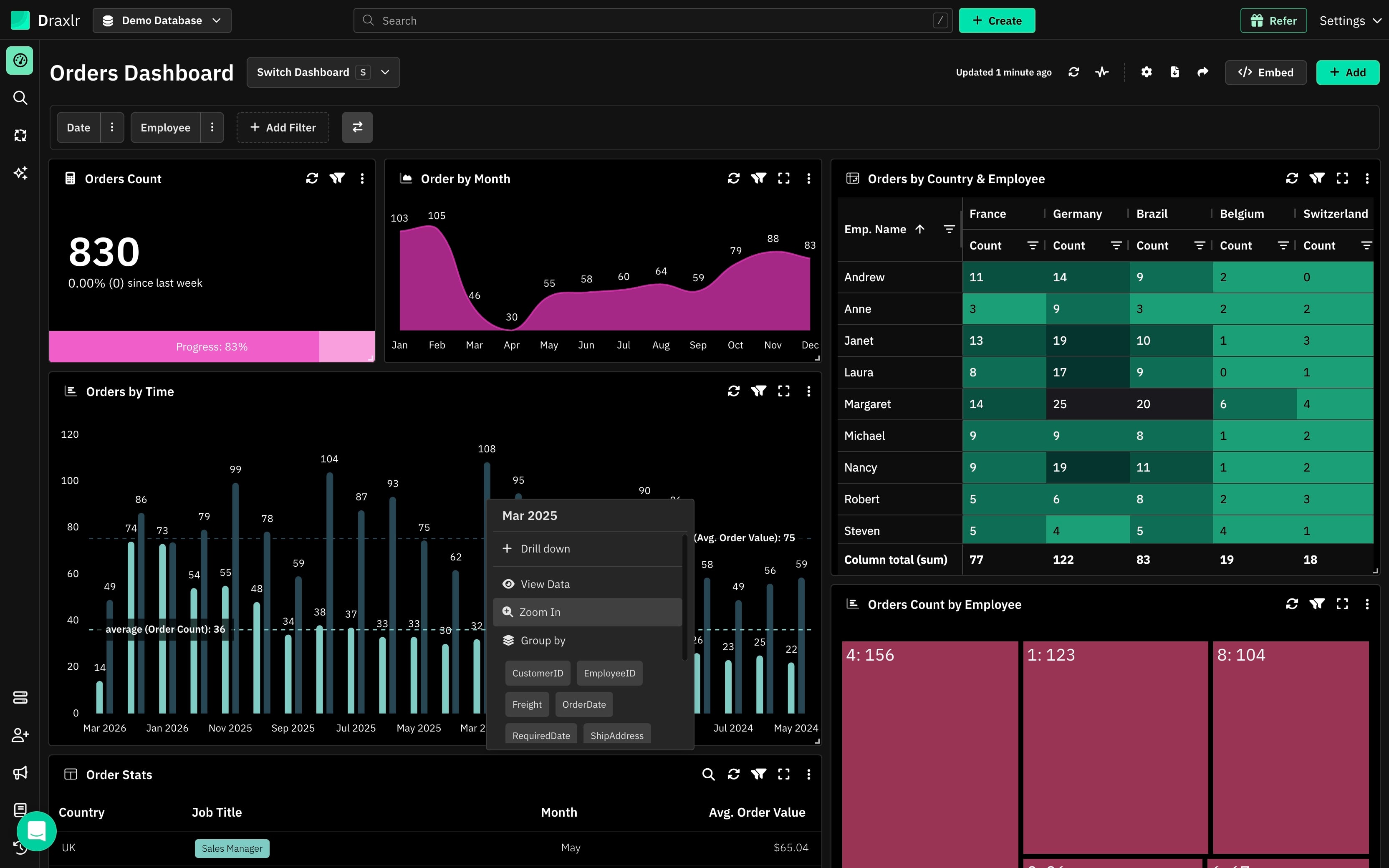
On any Graph/Pivot, click on segment to open the drill down options.
Time Levels
Zoom In always moves to the next level of time:
Year → Month → Date → Hour → Minute
- Clicking a year shows its months
- Clicking a month shows its dates
- Clicking a date shows its hours
- Clicking an hour shows its minutes
Date fields can be zoomed down to the Date level. Date Time fields can be zoomed all the way down to the Minute level.
How to Zoom In
1: Click a Segment
On any graph or pivot, click a segment of a time-series element—for example, the Mar 2025 bar in an Orders by Time chart grouped by month.
This opens the drill down options.
2: Select Zoom In
Click Zoom In to dig deeper on the time-series data.
3: View the Next Time Level
The chart redraws in place of the dashboard element at the next time level, scoped to the period you clicked.
In the example above, Mar 2025 is now broken down by the days of the month. You can zoom in further for more granularity—click a day to see its hours, and so on.
When you are done, use the reset option on the dashboard element to return to the original chart.
When to Use Zoom In
- Trace a trend from a yearly overview down to the exact day or hour it changed
- Investigate a spike in a specific period without changing the query's date grouping
- Move through time levels naturally—each click narrows both the period and the granularity