Version History
See earlier versions of a saved query in Draxlr, with who changed it and when, and open a past version to check it or save it as a new query.
Version History keeps earlier versions of a saved query. Each time someone saves a change to the query, Draxlr keeps a copy of the query as it was before, so you can see who changed it, when, and what it looked like.
Here is an interactive demo:
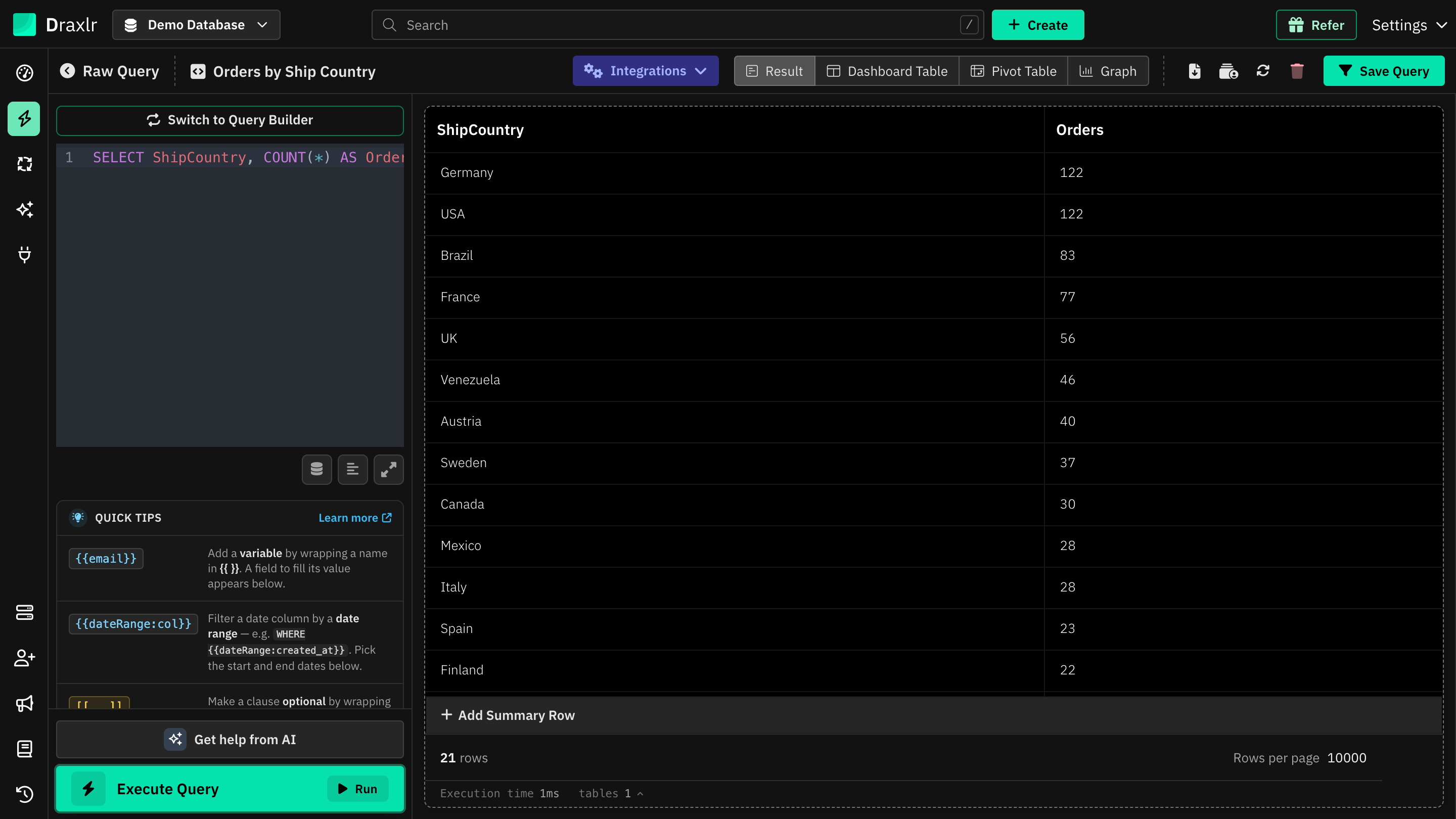
Open a saved query and click the Version History icon in the toolbar.
Open Version History
Open a saved query
In Browse Data, open a query from Saved Queries. Version History is only available for saved queries.
Click Version History
Click the Version History icon in the toolbar at the top right, next to Refresh Query.
Review the versions
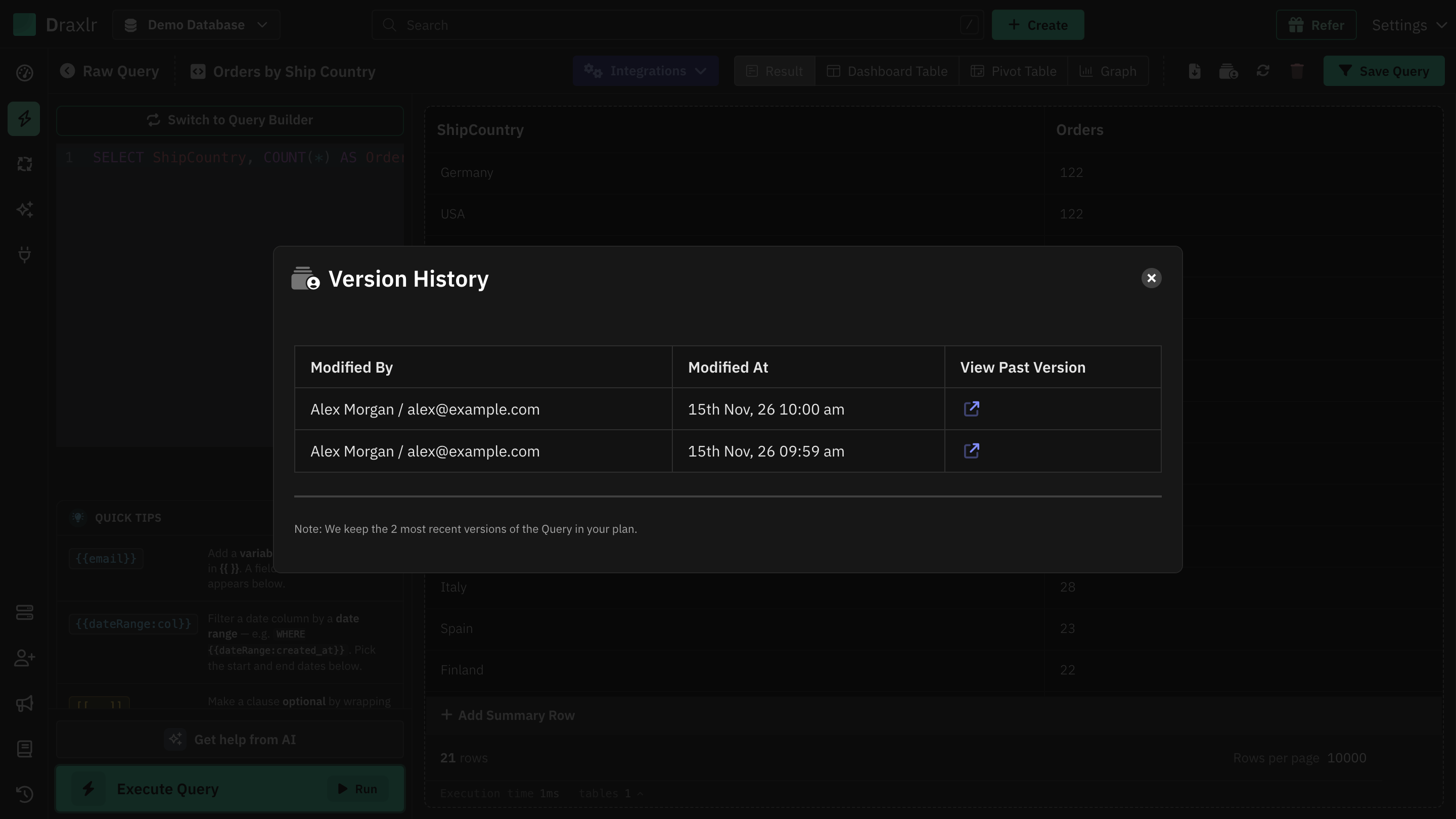
The Version History window lists the versions, newest first:
| Column | What it shows |
|---|---|
| Modified By | The name and email of the member who saved the change |
| Modified At | When the change was saved, in your time zone |
| View Past Version | A link that opens the query as it was before that change, in a new tab |
If no changes have been saved since the query was created, you see No history available for this query.
Use a past version
A past version opens in a new tab as a copy of the query, with the banner You have unsaved changes in your Query. You can run it, check its results and switch between views as usual. Opening it doesn't change the saved query.
- To keep it as a separate query, click Save Query and save it under a new name.
- To put the saved query back the way it was, make the same changes in the saved query and click Save Query, then Update Query.
Saving a past version never replaces the original saved query.
What adds a version
A version is added when you save a change to the query itself:
- For a Query Builder query, a change to its steps, such as a filter, join, sort or aggregate.
- For a Raw SQL query, a change to its SQL or its variables.
Renaming the query, editing its description, moving it to another folder or changing how its results are displayed, such as Graph settings, doesn't add a version.
Things to know
- Your plan sets how many versions are kept. When a new version is added, the oldest one beyond that number is removed. The note at the bottom of the window shows the number for your plan.
- Anyone who can open the saved query can see its Version History.
- Deleting a saved query removes its Version History too. See Saved Queries Management.