Query Builder > Cell Actions
Learn how to click any cell in your Draxlr query results to quickly filter by its value or open the full row details.
Click any cell in your results table to open a menu with two quick actions:
- Add Filter
- View Row Details
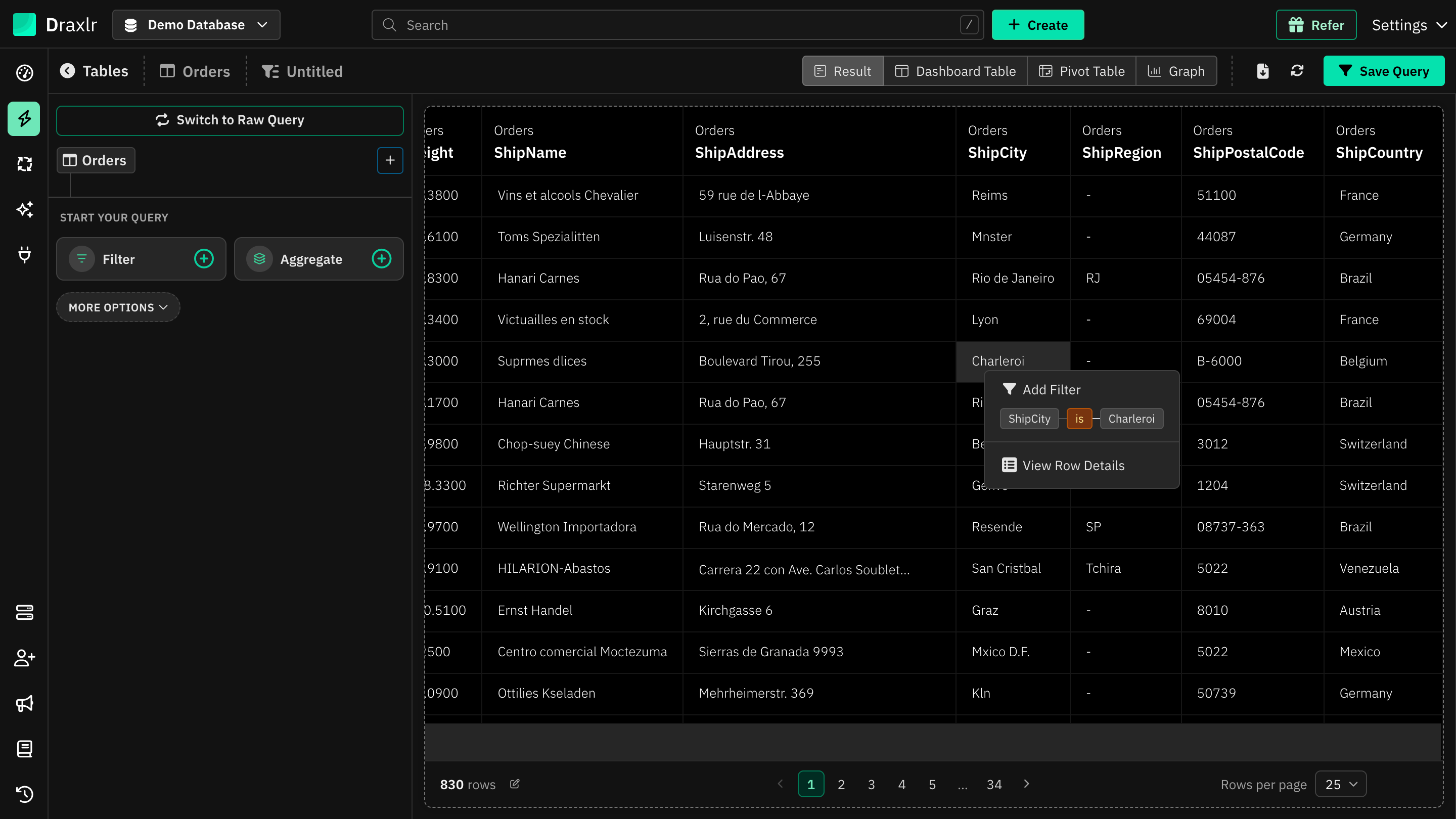
1. Add Filter
Filter your results by the value you clicked, without setting up the filter yourself.
-
What it does:
The menu shows a preview of the filter, made from the cell's column, a matching operator and the cell's value (e.g.,ShipCityisCharleroi). -
How to use:
Click a cell, then click Add Filter. The Add Filter dialog opens with the table, column, operator and value already filled in. Change anything you need, then click Execute.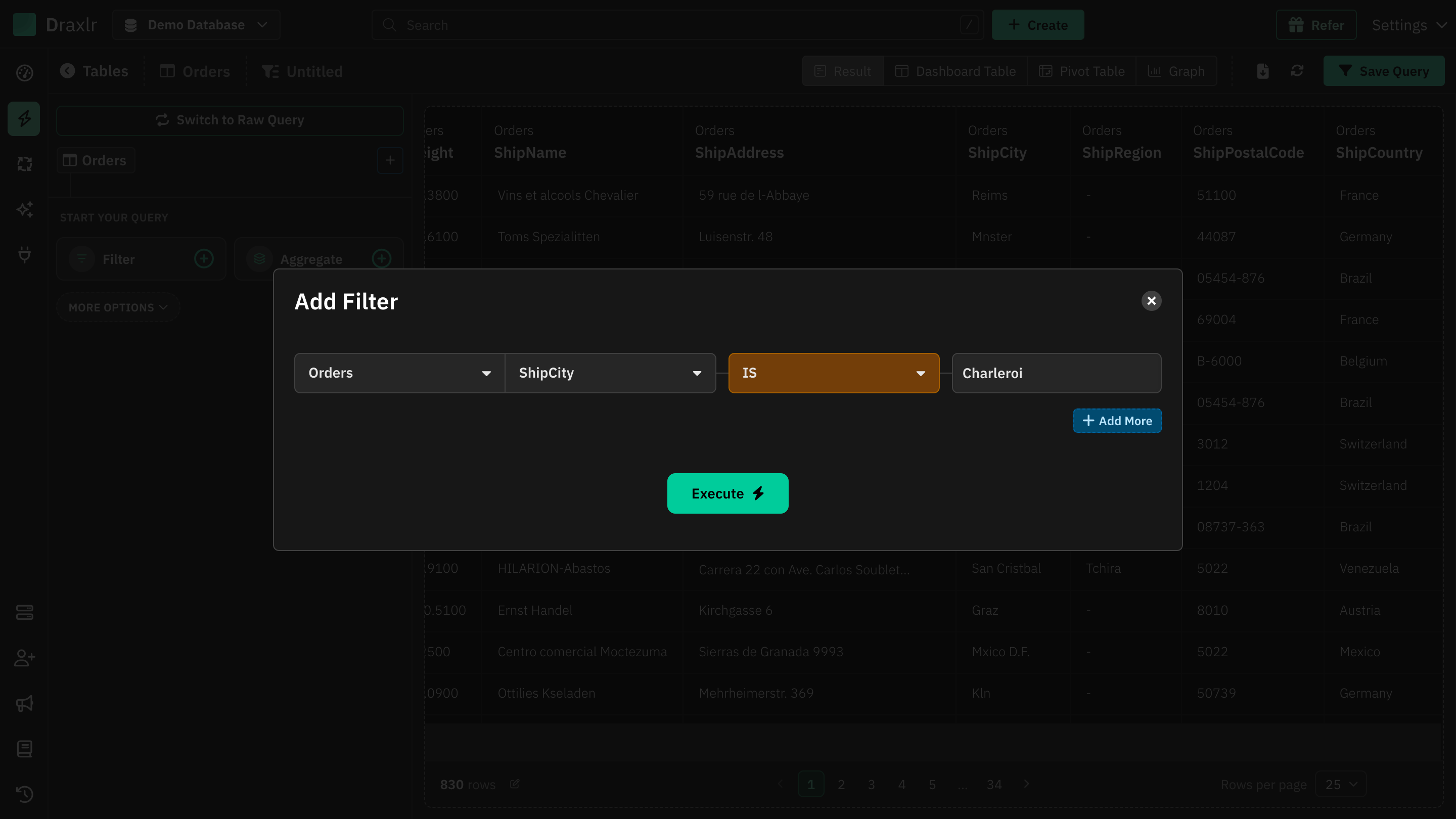
The operator is picked from the column's data type:
| Data type | Operator |
|---|---|
| Text | is (blank for an empty value) |
| Number | = |
| Date, Time, Date-Time, Year | on |
| Boolean | is_true or is_false |
| UUID | is |
| Any column with a NULL value | null |
Note: Add Filter shows up only when you're exploring data in Browse Data, and only for columns with one of the data types above. For other columns, like JSON or arrays, use the Filter dialog.
2. View Row Details
See every value in the row you clicked, along with the tables it's connected to.
- How to use:
Click a cell, then click View Row Details. The Row Details window opens for that row.
See Row Details to learn what the window shows and how to open related records.
Tips
- To copy text from a cell without opening the menu, select the text first.
- Press Esc or click anywhere outside the menu to close it.
- To filter, sort or summarize a whole column instead, use the table header actions.