Dashboard > Cache Interval
Set how long a Draxlr dashboard keeps its cached data before fetching fresh data from your database, with Cache Interval in Dashboard Settings.
Draxlr caches each dashboard's data, so the dashboard opens quickly and doesn't run every query each time someone looks at it. The Cache Interval sets how old that data can get before Draxlr fetches it again. It's 1 hour by default.
The top bar shows how old the data is, such as Updated 15 minutes ago.
How it works
When you open a dashboard, or come back to its browser tab, Draxlr checks when its data was last updated:
- If the data is older than the cache interval, every element fetches fresh data from your database.
- Otherwise, the dashboard shows the cached data.
For example, with a cache interval of 1 hour, a dashboard last updated 20 minutes ago opens with the cached data. One last updated 2 hours ago refreshes when it opens.
A few cases work differently:
- Filters applied: when you come back to the tab, the check is skipped while dashboard filters are applied or an element's variables are changed. Applying a filter already fetches the filtered data.
- RLS members: members with RLS access always get fresh data when they open the dashboard.
Change the cache interval
Open Dashboard Settings
Open the dashboard and click the Dashboard Settings (gear) icon at the top right.
Enter the interval
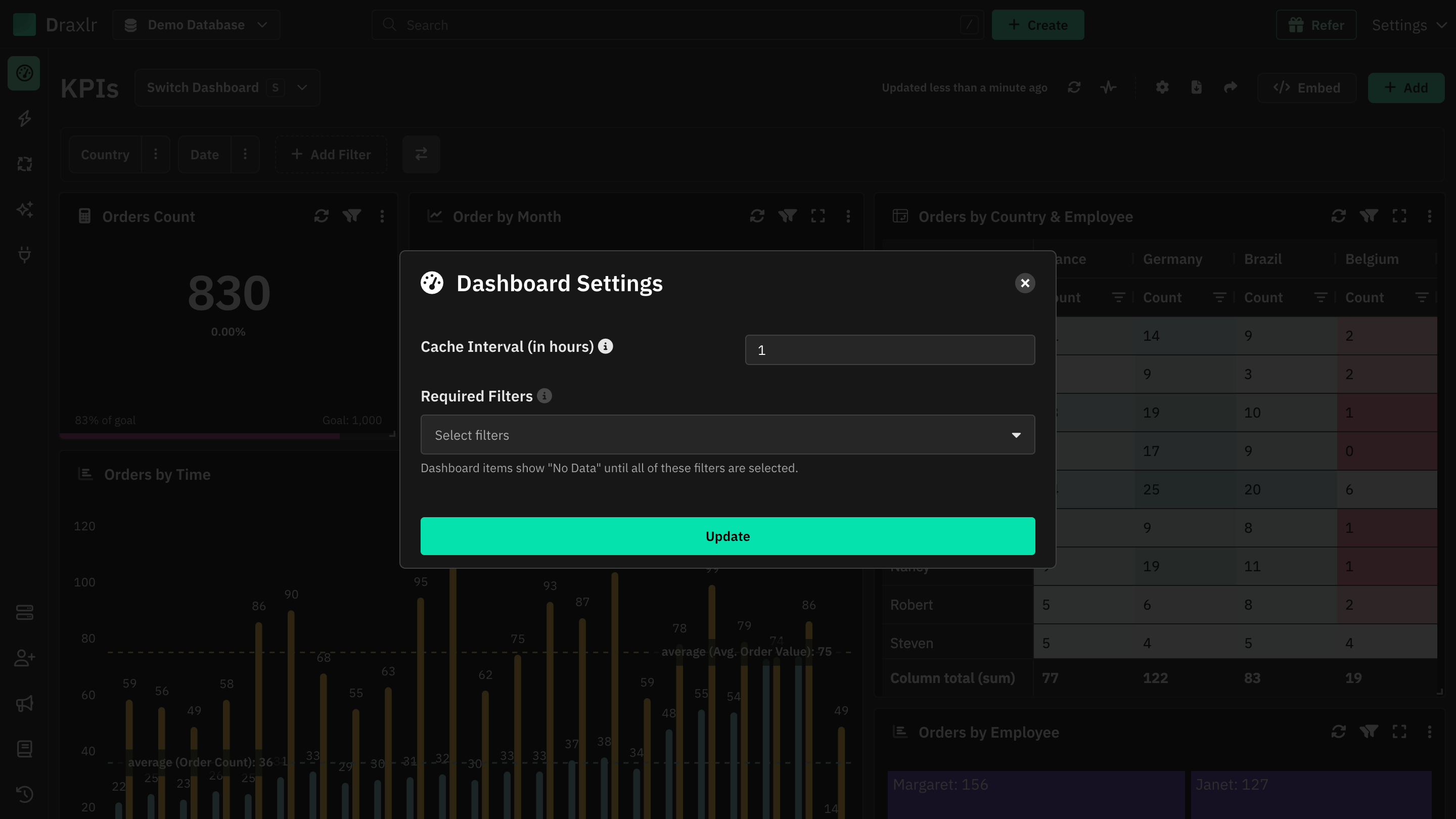
In Cache Interval (in hours), enter how many hours the data can be cached:
- Use decimals for less than an hour, such as
0.5for 30 minutes. Values go in steps of 0.05 hours (3 minutes). - Enter
0to fetch fresh data every time the dashboard is opened.
Click Update
Draxlr shows Dashboard settings updated. The new interval applies the next time the dashboard is opened.
- Only members with Admin or Full access see the gear icon.
- The dashboard needs at least one element. Until then, the window shows Please add a dashboard item to use this feature.
- The same window has Required Filters, which keep elements empty until a filter is selected. See Required Filters.
Get fresh data any time
You don't have to wait for the cache interval to pass:
- Click the refresh icon next to Updated … at the top right to refresh every element. Its tooltip says Fetch Latest Data.
- Click the refresh icon in an element's header to refresh only that element.
- Turn on Live Mode to refresh the dashboard automatically every few minutes.
Manual refresh needs a plan that includes it. On other plans, the refresh icon is turned off and its tooltip says Manual Refresh is not available in your plan.
Tips
- Slow or heavy queries: use a longer interval, such as
6or24, so the queries don't run every hour. - Numbers that change often: use a short interval, such as
0.25(15 minutes), or turn on Live Mode on a screen you keep open.