Dashboard > PDF/Excel Download
Download a whole Draxlr dashboard as a PDF or an Excel file, or a single element as Excel, CSV or an image, with the filters you've applied.
You can download a whole dashboard as a PDF or an Excel file, or a single element as Excel (xlsx), CSV or an Image. Downloads use the dashboard as you see it, with the filters you've applied.
Download the whole dashboard
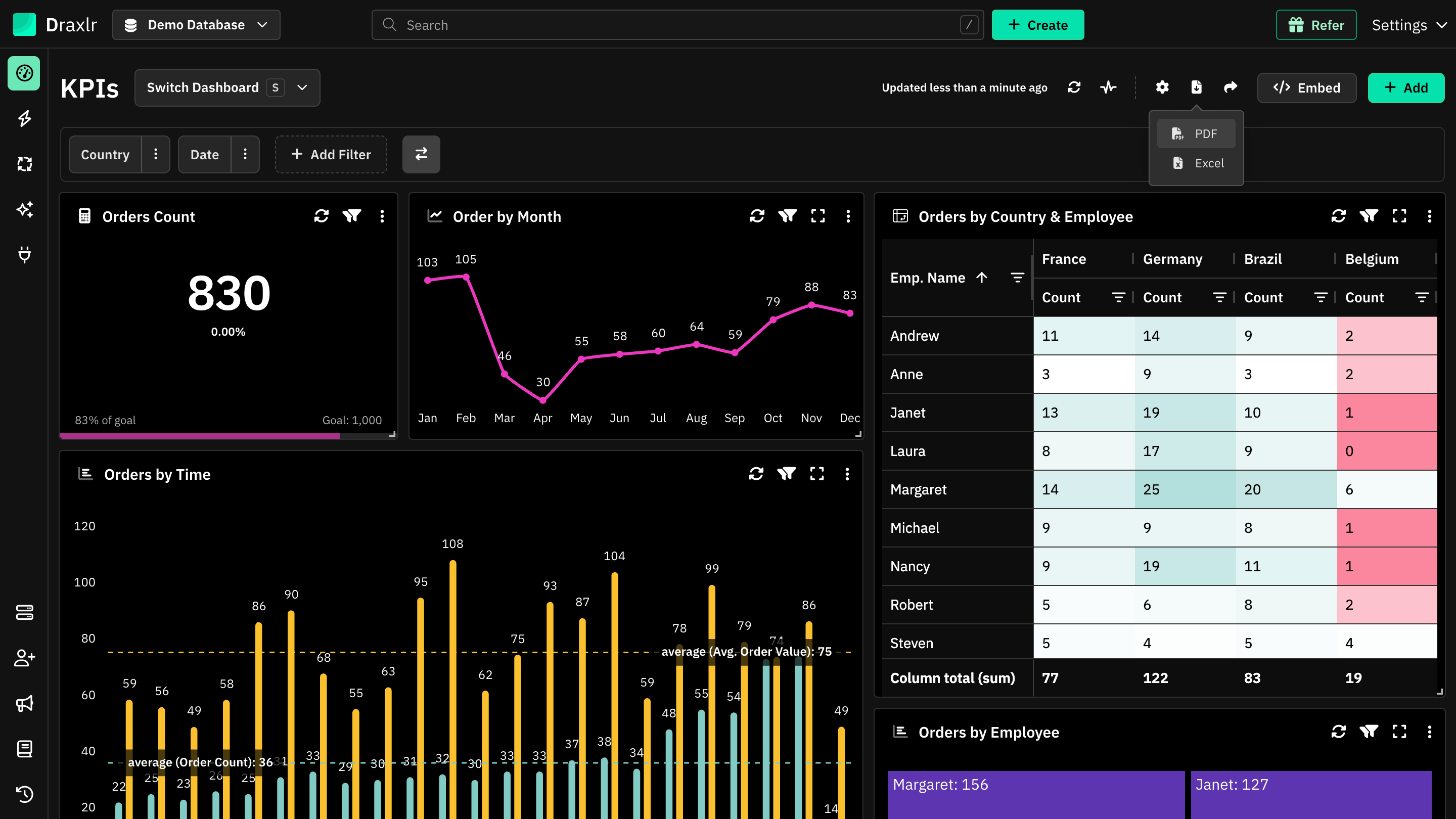
Open the export menu
Open the dashboard and click the Export Dashboard icon at the top right, next to the gear icon.
Choose PDF or Excel
Click PDF or Excel. While the file is being made, the icon shows a spinner and its tooltip says Exporting Dashboard.
The file downloads as the dashboard's name followed by - Draxlr, such as KPIs - Draxlr.pdf.
The PDF shows the dashboard's elements as they're laid out, in the theme you're using in Draxlr, dark or light.
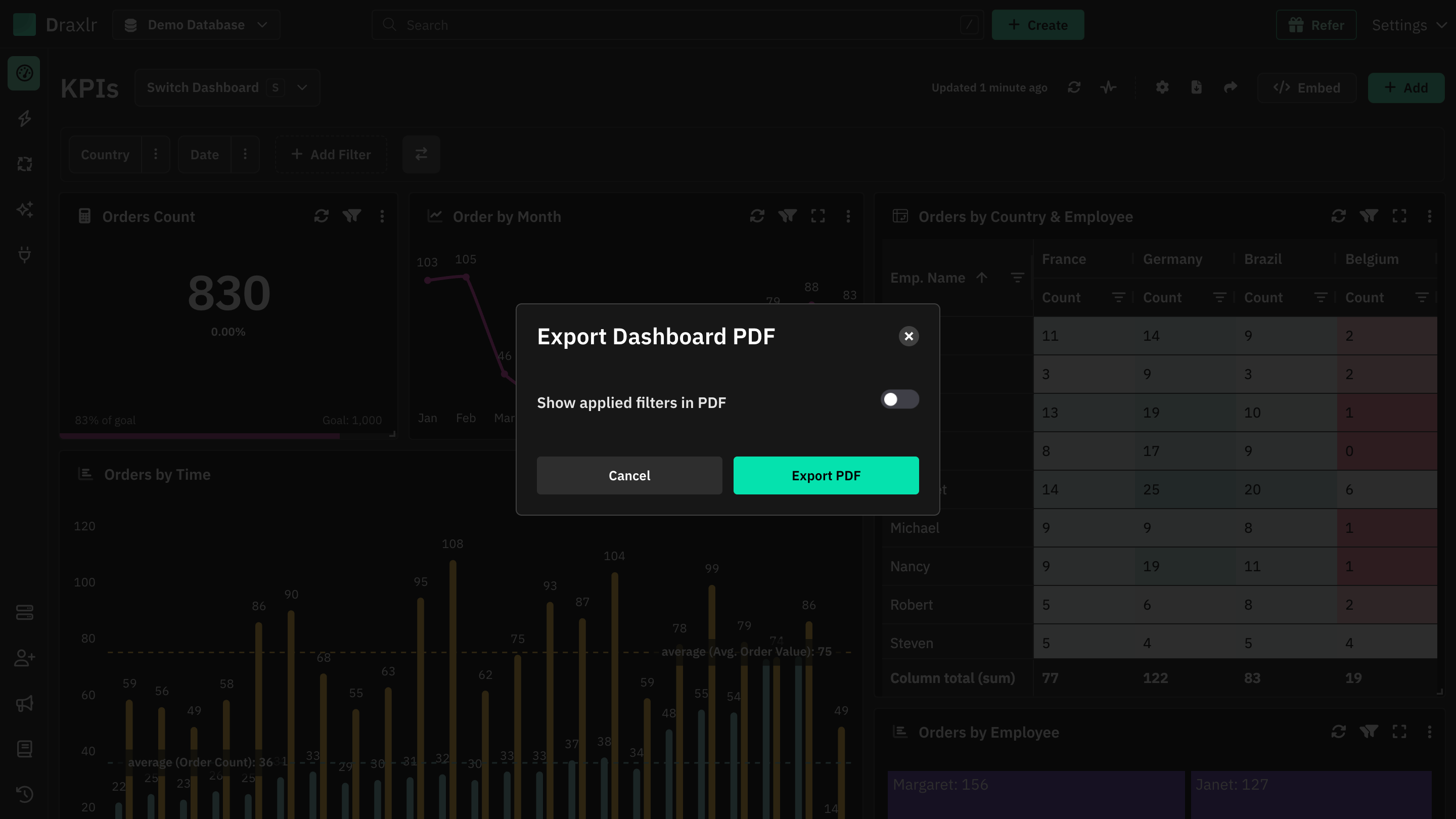
If the dashboard has filters, the Export Dashboard PDF window opens first. Turn on Show applied filters in PDF to include the filters in the PDF, then click Export PDF. Without filters, the download starts right away.
Excel
The Excel file has one sheet for each element, named after the element, in the order the elements were added. Each sheet has all the element's rows, not only the rows shown on the dashboard. Text and image blocks are left out.
What's included
Both formats use:
- The dashboard filters you've applied.
- Variables you've changed on an element.
- The sort you've set on a table.
Members with RLS access get only the rows they're allowed to see.
Download a single element
Open the element's menu (⋮) and choose a format:
| Option | Downloads |
|---|---|
| Excel (xlsx) | The element's data as an Excel file. |
| CSV | The element's data as a CSV file. |
| Image | The chart as a PNG image. Available for charts, except calendar charts. |
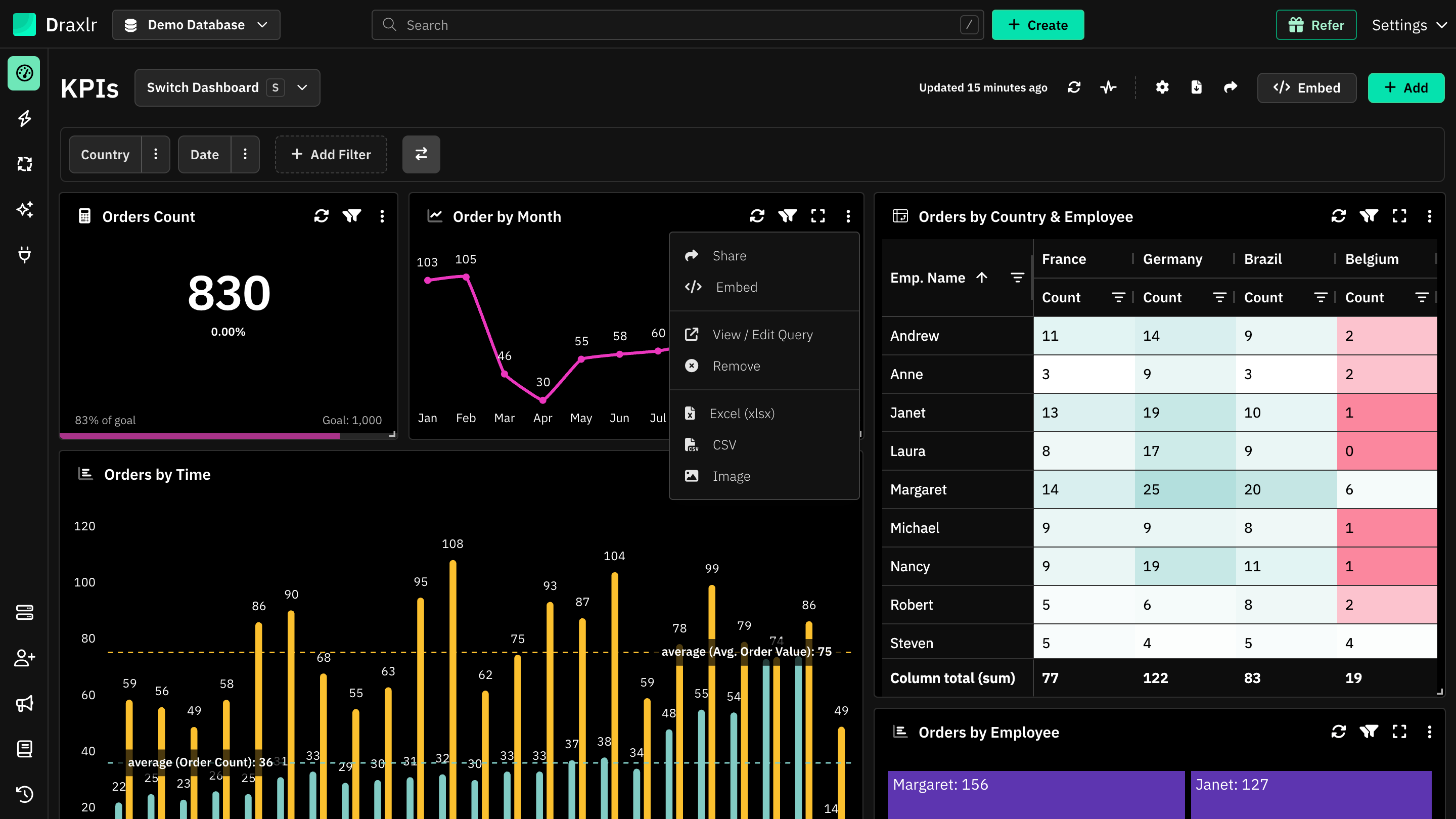
The file is named after the element, such as Order by Month - Draxlr.csv. Excel and CSV use the filters you've applied, any variables you've changed, the sort you've set and, for tables, your search. If you've drilled down, the file has the drilled-down data.
See Dashboard Element Options for the element's other options.
Other ways to export
- Embedded dashboards: choose whether viewers can download a PDF, Excel or CSV in the embed builder's Exports.
- By email: send the dashboard on a schedule with Email Schedules.
- From your AI assistant: ask it to export the dashboard with the MCP server's Export Dashboard.
- Saved queries: export a query's results from Explore. See Export.