Dashboard > Live Mode
Turn on Live Mode in Draxlr to refresh every dashboard element automatically every few minutes, for wall displays and dashboards you keep open.
Live Mode keeps a dashboard up to date on its own. Draxlr fetches fresh data for every element as soon as you turn it on, then again every few minutes while the dashboard stays open. Use it for TV screens, wall displays or any dashboard you leave open to watch your numbers.
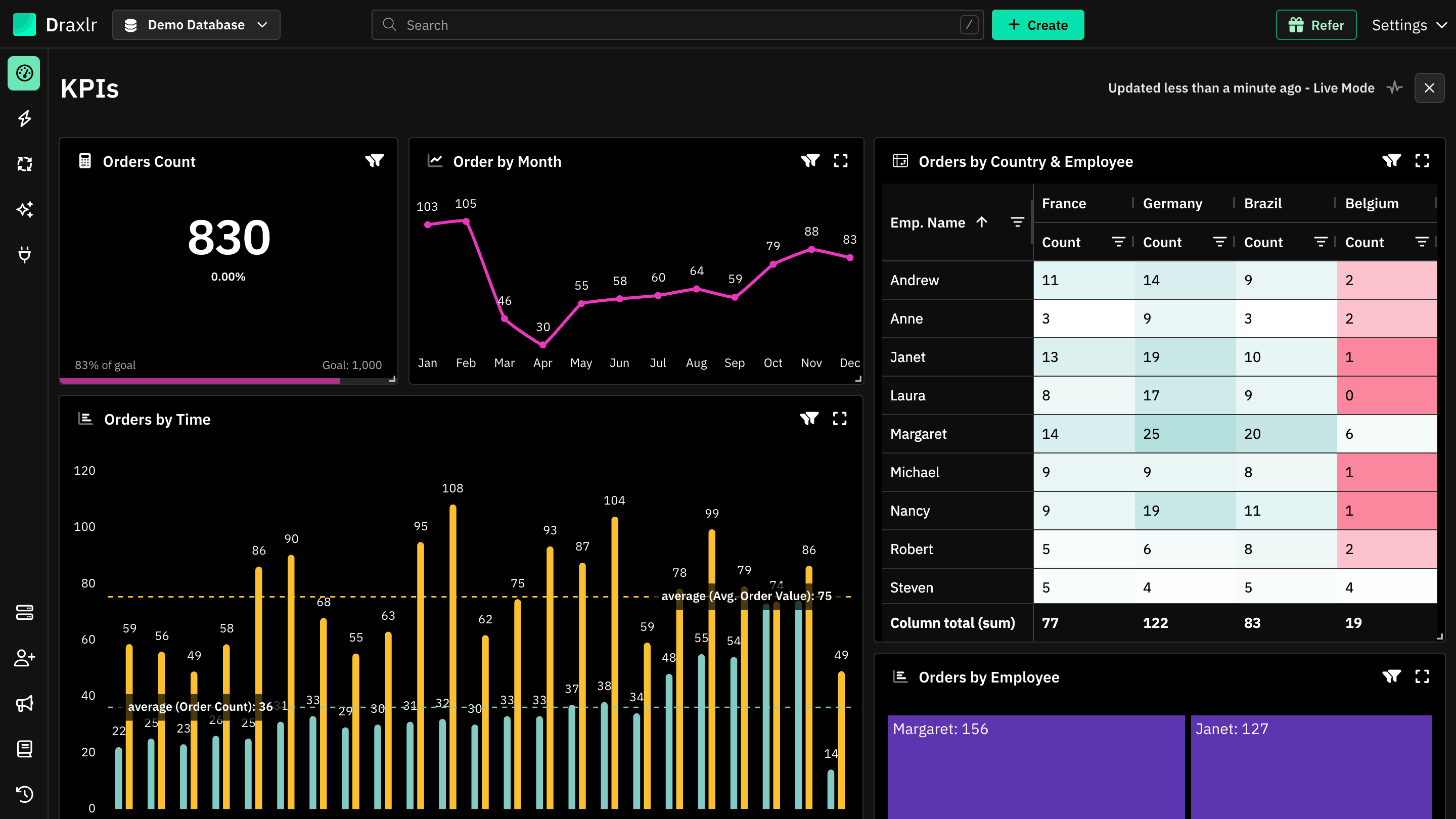
Turn on Live Mode
Open the dashboard
Go to Dashboard and open the dashboard you want to watch.
Click the Live Mode icon
At the top right, click the pulse icon next to the refresh icon. Its tooltip says Enter Live Mode.
Every element refreshes right away. The top bar then shows Updated … - Live Mode with a pulsing icon. Hover over it to see how often the dashboard refreshes, such as Refreshes every 10 minutes. The interval depends on your plan.
To turn it off, click the × next to Live Mode.
What changes in Live Mode
Live Mode gives a clean, read-only view of the dashboard:
- The filter bar is hidden.
- The toolbar shows only the Live Mode status and the × to exit. Settings, export, share, embed and Add are hidden.
- Elements hide their refresh icon and menu (⋮). You can still expand an element and open its filters panel.
- The dashboard's name can't be edited.
Things to know
- It runs in your browser tab: Live Mode refreshes only while the dashboard is open in that tab. It ends when you leave the dashboard or reload the page, and it doesn't change the dashboard for anyone else.
- Clear filters first: the Live Mode and refresh icons are hidden while dashboard filters are applied or an element's variables are changed. Clear them to turn on Live Mode.
- Each refresh runs the queries: every refresh runs all the elements' queries on your database, the same as clicking the refresh icon.
- Plans: Live Mode needs a plan that includes manual refresh. On other plans, the icon is turned off and its tooltip says Live Mode is not available in your plan.
- Empty dashboards: the Live Mode icon appears once the dashboard has at least one element.
To control how long data is cached when Live Mode is off, see Cache Interval.