Dashboard > Dashboard Element Options
Use the icons and menu on each Draxlr dashboard element to refresh it, see its filters, expand it, share or embed it, open its query, download it or remove it.
Each element on a dashboard has icons in its header and a menu (⋮) with more options.
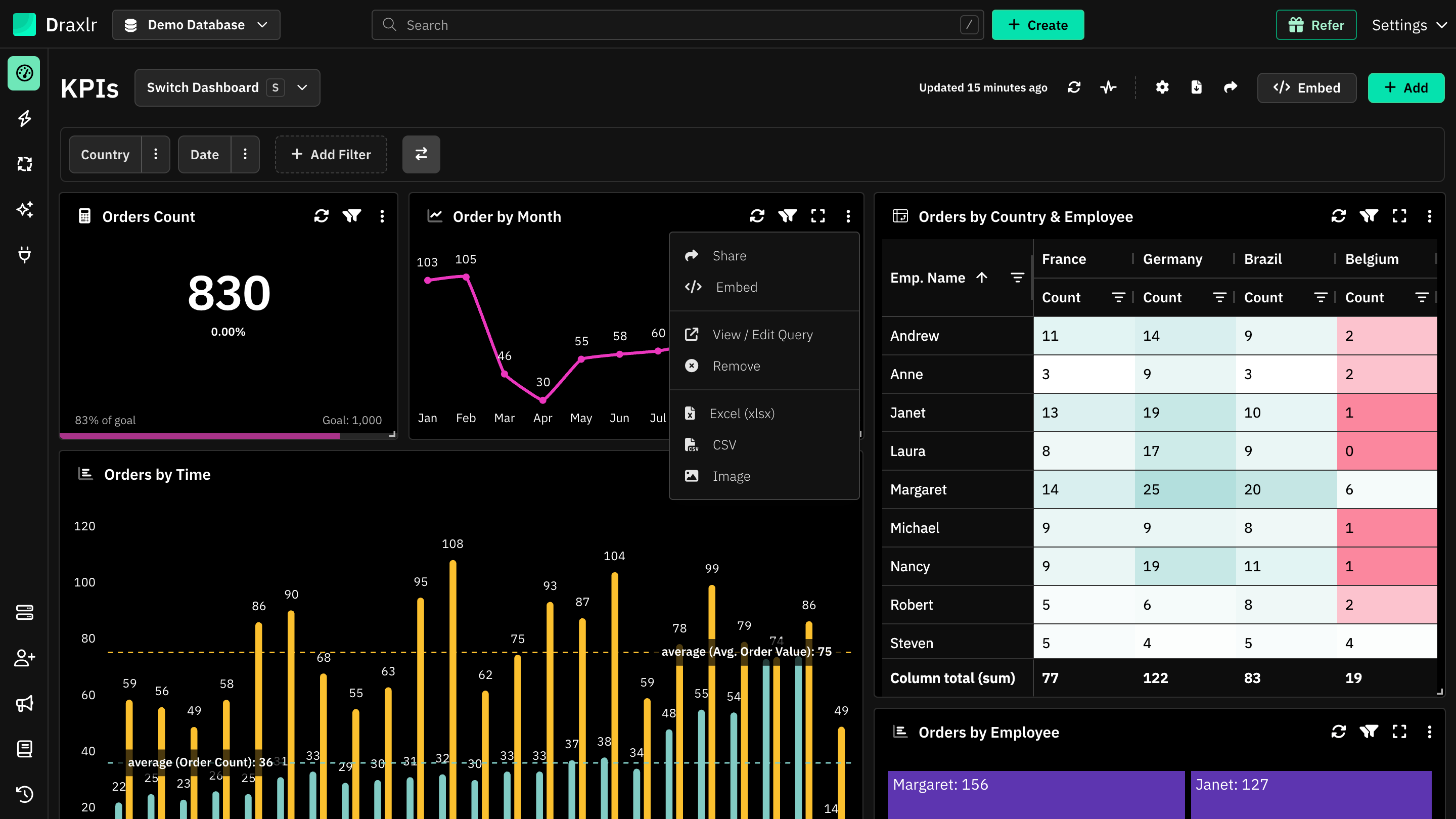
Header icons
| Icon | What it does |
|---|---|
| Fetch Latest Data (refresh) | Runs the element's query again and shows fresh data. Hidden while dashboard filters are applied or a search is active. |
| Show Filters (filter) | Opens Filters & variables. See Filters and variables below. |
| Search (magnifying glass) | Searches the element's rows. Appears on elements shown as a Table or Result. |
| Expand | Opens the element full screen. Click Shrink to go back. Not shown on number cards. |
| Dashboard Options (⋮) | Opens the menu. See Menu options below. |
| Reset | Appears after you drill down. Takes the element back to its original view. |
When you open a dashboard through a dashboard drill down, its elements also show View Query, which opens the query in Explore, and Export CSV.
Filters and variables
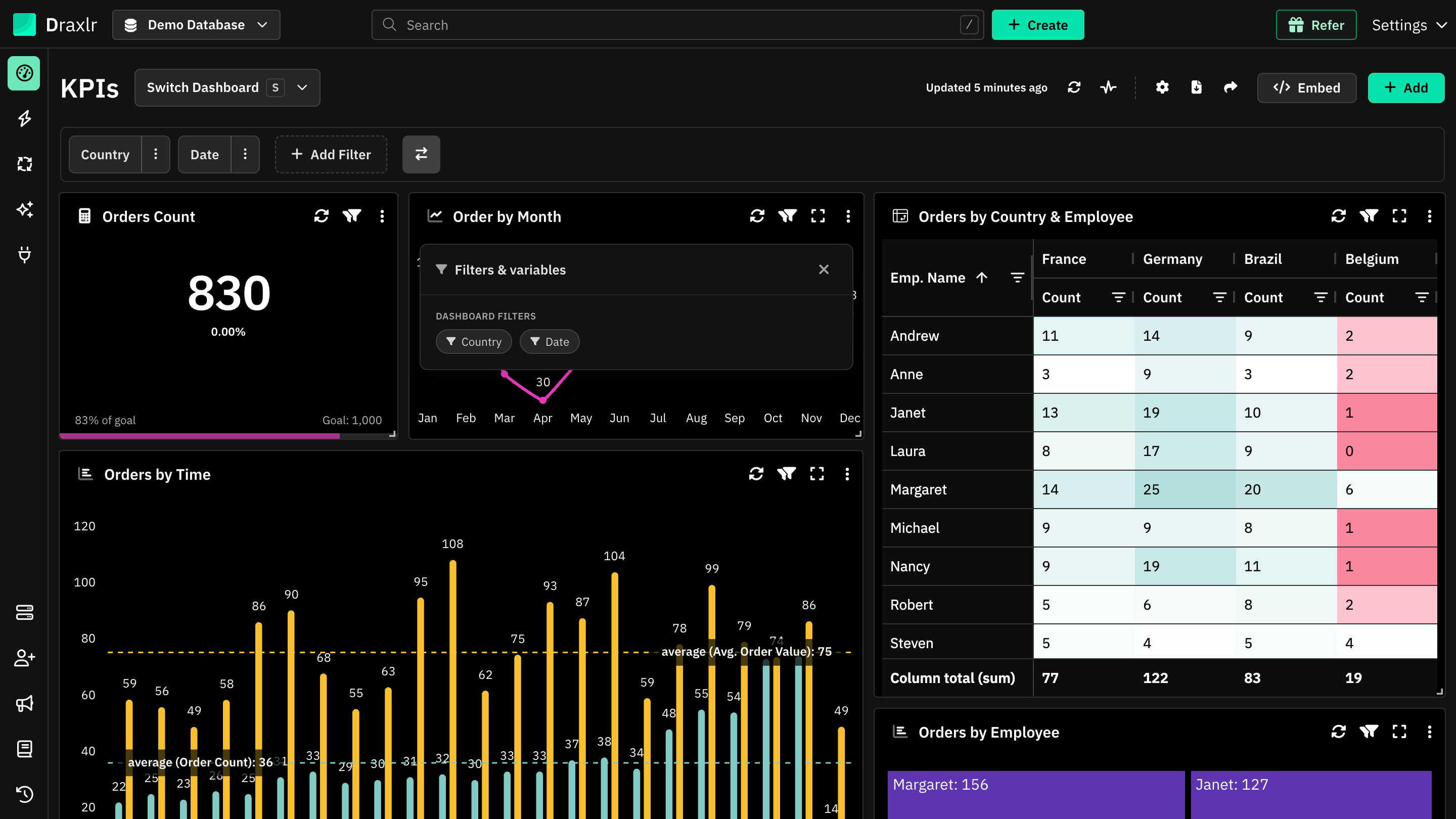
The Show Filters icon opens a panel with:
- Dashboard Filters: the dashboard filters linked to the element. Filters that are applied are shown in green, and the icon itself turns green.
- Variables: for Raw SQL elements with variables, the current value of each variable. Change a value to update only this element.
Menu options
| Option | What it does |
|---|---|
| Share | Creates a public URL for this element only. See Public URL. |
| Embed | Opens the embed builder for this element. See Embed Dashboard Element. |
| Edit with AI | Opens Draxlr AI to change the element. Appears on Raw SQL elements created by Draxlr AI, when no filters are applied and you haven't drilled down. |
| View / Edit Query | Opens the element's saved query in Explore, in a new tab. |
| View Filtered Query | Appears when dashboard filters are applied. Opens the query with the filters added. |
| View Drilled Query | Appears after you drill down. Opens the drilled-down query. |
| Edit | Edits the content of a text or image block. |
| Remove | Removes the element from the dashboard, after you confirm. The saved query isn't deleted. |
| Excel (xlsx), CSV | Downloads the element's data. See PDF/Excel Download. |
| Image | Downloads the chart as a PNG image. Available for charts, except calendar charts. |
Who sees which options
- View / Edit Query, Edit and Remove need edit rights on the dashboard. Members with Read-only or Dashboard access don't see them.
- Embed needs a plan that includes Embedding and Admin or Full access.
- Share and Embed aren't shown to members with Dashboard or RLS access.
- In Live Mode, the menu and the refresh icon are hidden.
See Access Levels for what each member can do.
Move and resize elements
Members who can edit the dashboard can change its layout on a large screen:
- Move: drag an element by its header. Text and image blocks are dragged by their content.
- Resize: drag the element's bottom-right corner.
To add elements, see Add Dashboard Element.