Embed Dashboard > Embed Dashboard Element
Embed a single chart, table or number card from a Draxlr dashboard in your app, with its own filters, drill downs, CSV export and appearance.
To show one chart, table or number card in your app instead of a whole dashboard, embed a single dashboard element. You set it up in the same embed builder as a dashboard, with a preview of only that element.
Here is a short interactive demo:
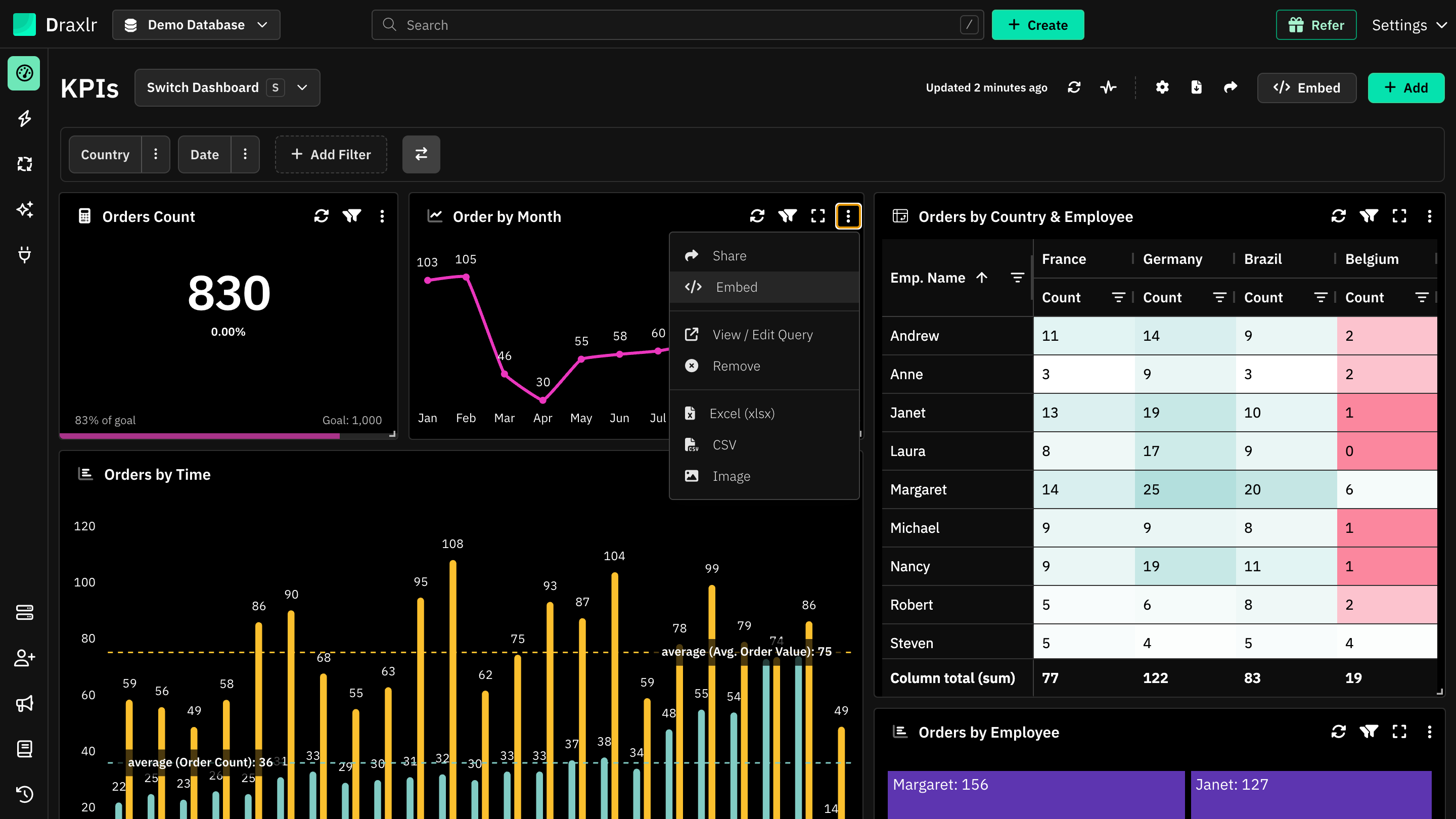
On the dashboard, open the element's menu (⋮) and choose Embed.
Open the builder
Open the dashboard
Go to Dashboard and open the dashboard with the element.
Choose Embed in the element's menu
Click the element's menu (⋮) and choose Embed.
The builder opens with a live preview of the element on the left and Embed Settings on the right. Use Desktop and Mobile at the top to preview both layouts.
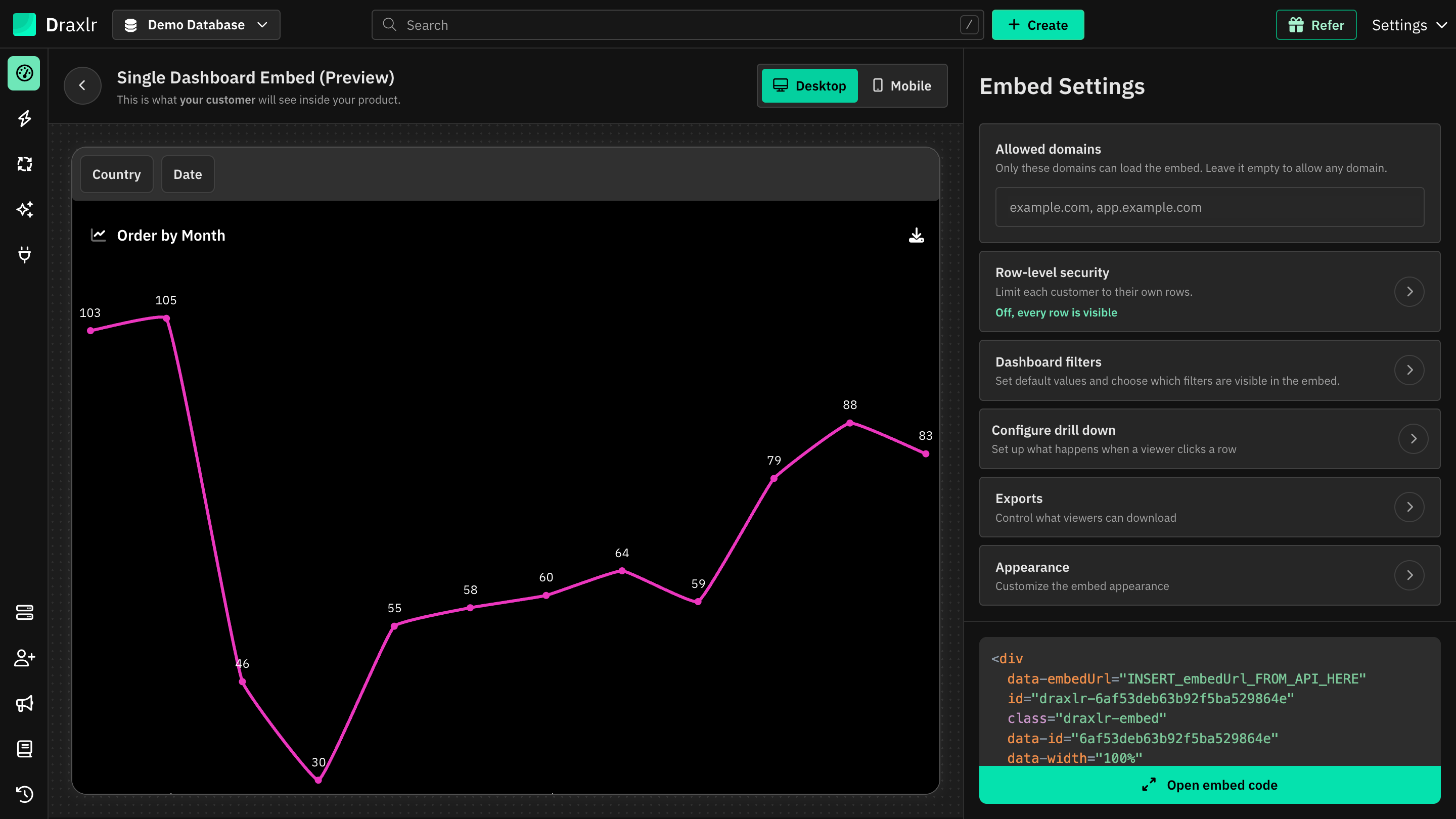
Settings for an element
Allowed domains and Row-level security work the same as for a dashboard. See Allowed domains and Row-level security.
The other settings are adjusted for a single element:
| Setting | For an element |
|---|---|
| Show dashboard header | Not available. |
| Dashboard filters | Lists only the dashboard filters linked to the element. Viewers see them above the element. |
| Raw query variables | Appears instead of Dashboard filters for Raw SQL elements with variables and no linked filters. Enter a value for each variable. |
| Configure drill down | Appears when the element supports drill downs. Set it up the same way as for a dashboard. See Configure drill down. |
| Exports | Only CSV export. PDF and Excel export are for whole dashboards. |
| Appearance | Under colors, only Dashboard Item background is available. See Appearance. |
| Other options | Appears for elements shown as a Table (not Result). Choose a Timezone to show the table's dates in that time zone. |
As with a dashboard, changes in a panel apply when you click Apply.
Copy the code
Click Open embed code at the bottom of the settings. The code works the same as for a dashboard, with these differences:
data-idis the element's ID, and theidisdraxlr-YOUR_ELEMENT_ID.- The embed has a fixed height set by
data-height,600pxby default. Change it to fit your page. - With the backend API, your server requests the embed URL from
/api/dashboard/generate-embed-url/YOUR_ELEMENT_ID. See Generate Embed URL API.
The element's ID is also the last part of the builder's URL, after the dashboard's ID.
To embed several elements on one page, open the builder for each element and add each embed's code. Add the <script> tag only once.
Requirements
- Plan: your plan must include Embedding.
- Access: members with Admin or Full access see Embed in the element's menu.
- Elements: any element built from a query, such as a chart, table or number card, can be embedded. Text and image blocks can't.
To embed the whole dashboard instead, see Embed Builder.