Embed Dashboard > Embed Builder
Use the Draxlr dashboard embed builder to preview the embed and set allowed domains, row-level security, filters, drill downs, exports and appearance, then copy the code.
The embed builder is where you set up a dashboard embed. It shows a live preview of what your customers will see and generates the code for your settings.
Here is a short interactive demo:
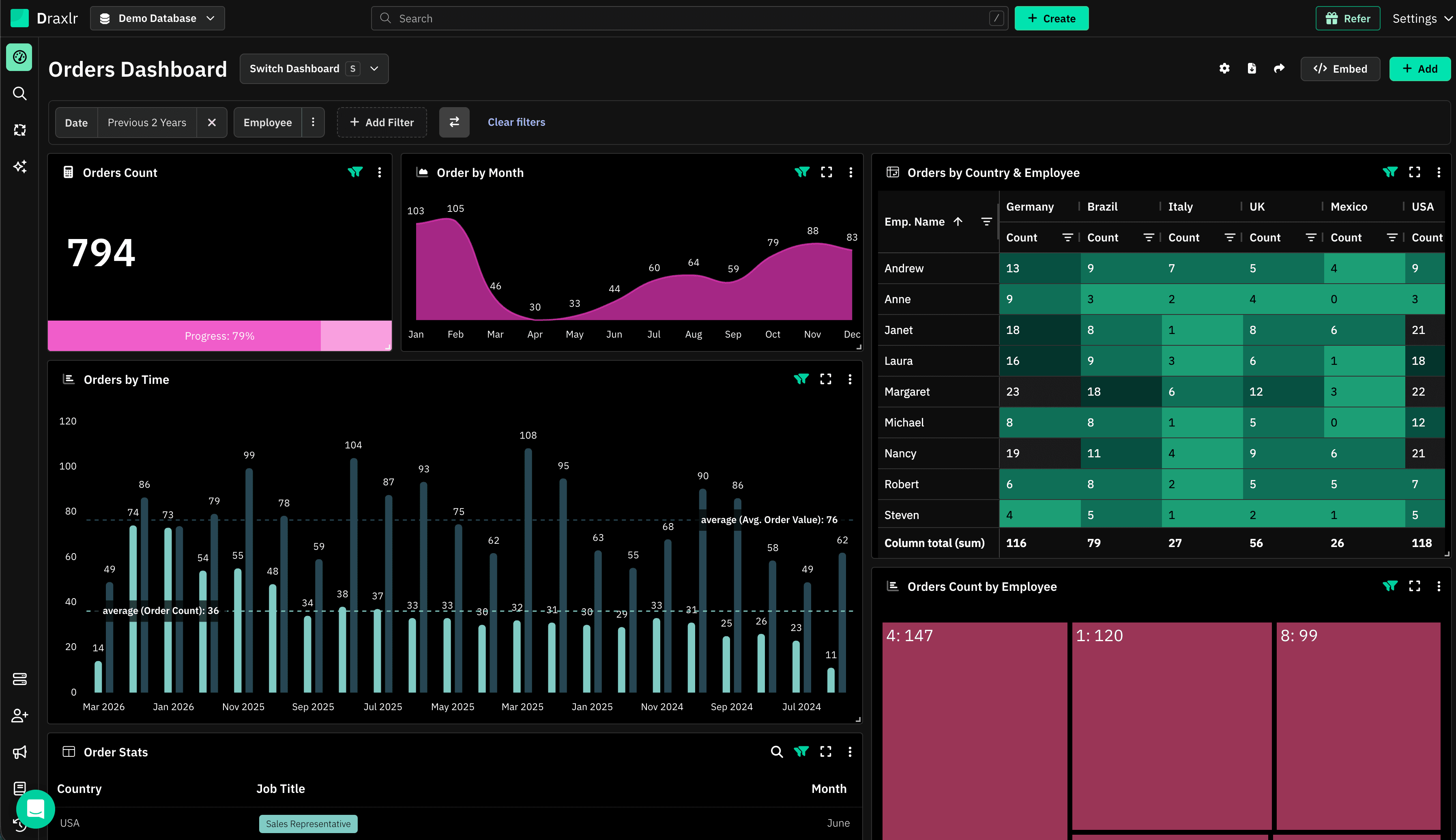
Open the dashboard and click Embed at the top right.
Open the builder
Open a dashboard
Go to Dashboard and open the dashboard you want to embed.
Click Embed
Click Embed at the top right. A window opens with two options: Single Dashboard Embed and Full App Embed.
Choose Single Dashboard Embed
Click Configure dashboard embed.
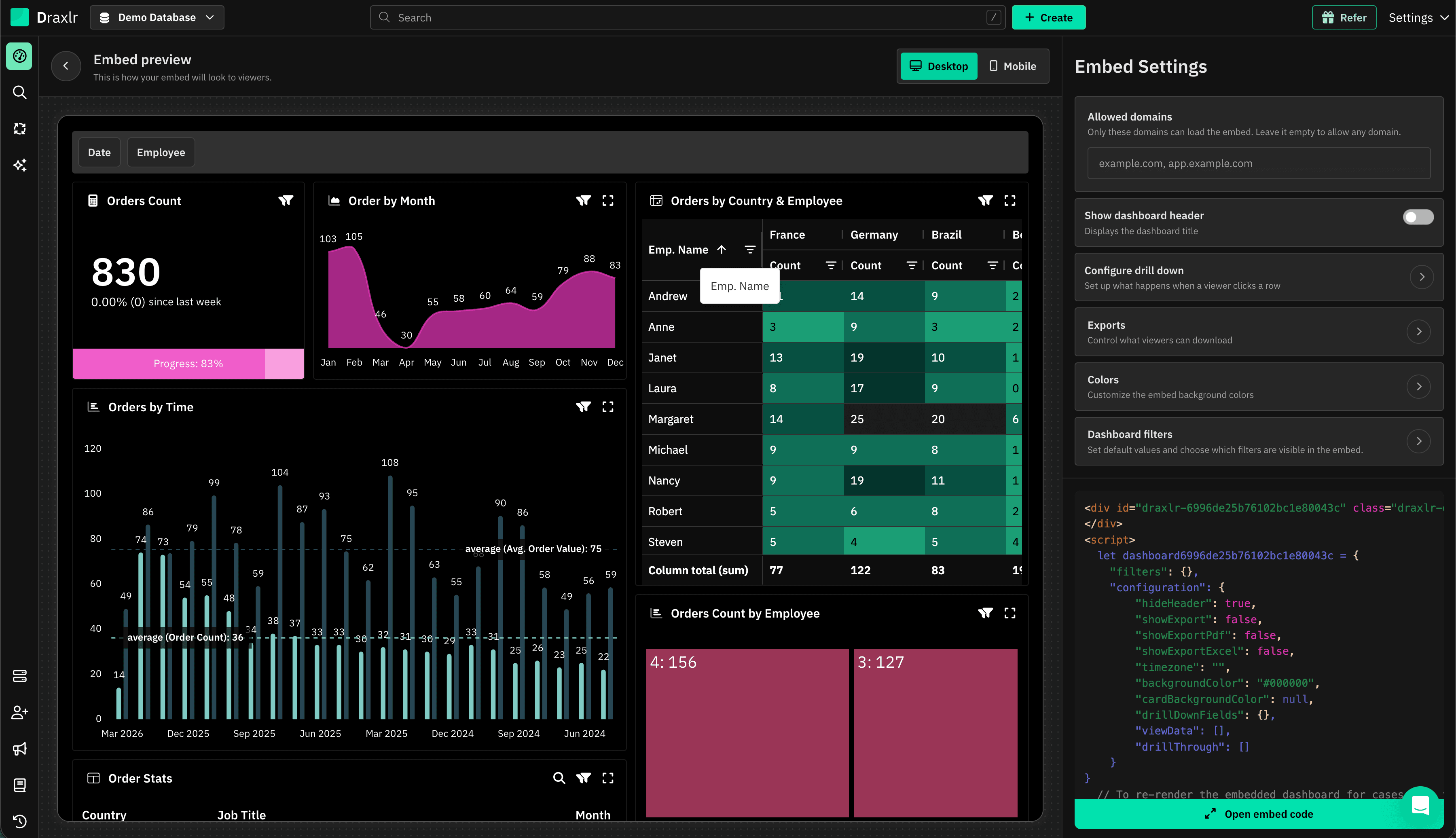
The builder opens with a live preview on the left and Embed Settings on the right. Use Desktop and Mobile at the top to preview both layouts.
Changes apply when you click Apply:
Dashboard filters, Configure drill down, Exports, Appearance and Row-level security open a panel. Changes take effect only when you click Apply. Going back without applying discards them. The preview and the code update after you apply.
Allowed domains
List the sites allowed to load the embed, such as app.example.com. Leave the list empty to allow any site.
- Domains are saved to the dashboard as soon as you add or remove one.
- Enter the host only, such as
example.com, withouthttps://or a path. Add each subdomain separately. - Draxlr is always allowed, so the builder preview keeps working.
- On any other site, the embed shows Access Denied.
- With the backend API, the list is written into each embed URL when it's generated, so a change applies to embed URLs generated after it. Frontend-only embeds check the list each time they load.
Row-level security
Pick an RLS group to limit each customer to their own rows. Leave it empty to show every row.
After you pick a group, the builder lists the attributes the group's rules filter on, such as an account ID. Enter values to preview the embed as a specific customer. In production, your backend sends these values for each customer. Click View group to open the group's settings.
Selecting a group turns on Use backend API, and it stays on while a group is selected. See Row-level Security.
Show dashboard header
Shows the dashboard's name at the top of the embed. It's off by default.
Dashboard filters
Lists the dashboard's filters with three columns:
| Column | What it does |
|---|---|
| Visible | Click the eye icon to hide the filter. A hidden filter isn't shown to viewers, but its default value still applies. |
| Filter | The filter's name. |
| Default value | The operator and value applied when the embed opens. Filters with a Dropdown List show its values here. |
After you pick an operator, Hide operator appears. Check it to show viewers only the value, so they can change the value but not the operator.
Viewers can change visible filters in the embed. To keep a value fixed, set it and hide the filter.
Tip: build your own filter UI:
Hide every filter, then drive the dashboard from your own inputs by passing filter values when you generate the embed URL.
Configure drill down
Choose what viewers can do when they click a data point. Each element on the dashboard has a row:
| Column | What it does |
|---|---|
| Group by fields | The fields viewers can group a data point by. Leave it empty to turn off Group by. |
| View data | Lets viewers see the rows behind a data point. |
| Drill down | Lets viewers use the element's custom drill downs. |
View data and Drill down are on for every element that supports them. Elements that don't support an option show Not supported:
| Element | Group by | View data | Drill down |
|---|---|---|---|
| Graph | Yes | Yes | Yes |
| Pivot Table | No | Yes | Yes |
| Computed Card | No | Yes | Only with View data on |
| Result and Table | No | No | Yes |
Group by and View data also aren't available for Raw SQL elements whose SQL Draxlr can't parse.
Exports
| Option | What it does |
|---|---|
| PDF export | Download the whole dashboard as a PDF. |
| Excel export | Download the dashboard's data as an Excel file. |
| CSV export | Download data from individual elements. |
All three are on by default.
Appearance
Set the embed's colors, fonts and custom CSS. See Appearance.
Copy the code
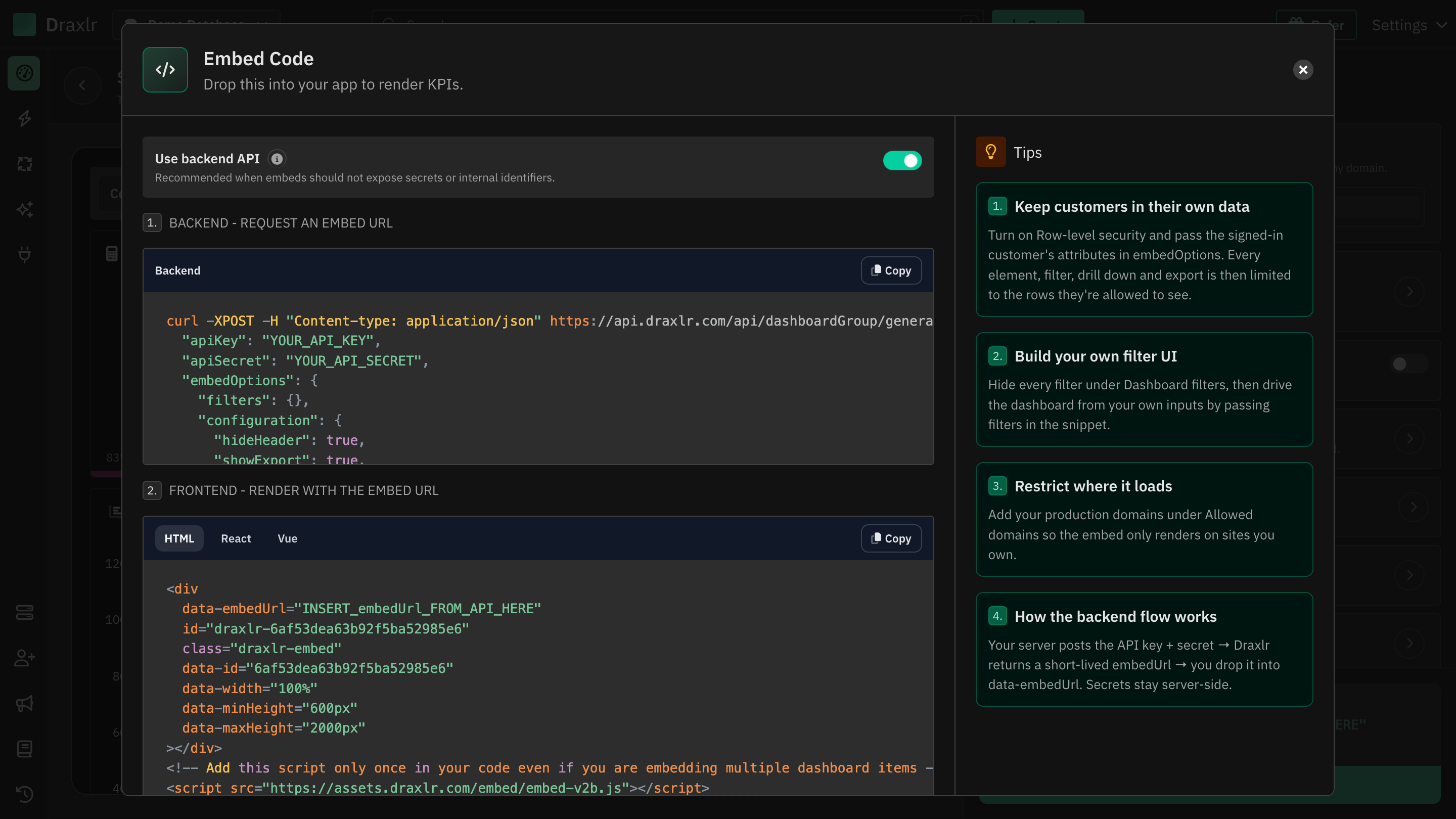
Click Open embed code at the bottom of the settings. The Embed Code window shows the code for your current settings.
With the backend API
Use backend API is on by default. The window shows two parts:
- Backend - request an embed URL: a
curlrequest to the Generate Embed URL API with your API key, API secret and settings. Call it from your server each time a signed-in user opens the page. - Frontend - render with the embed URL: the code that renders the embed, for HTML, React or Vue. Replace
INSERT_embedUrl_FROM_API_HEREwith theembedUrlfrom the API.
| Attribute | Description |
|---|---|
data-embedUrl | The embedUrl from the Generate Embed URL API |
data-id | The dashboard's ID. Also used in the id as draxlr-YOUR_DASHBOARD_ID |
data-width | Width of the embed. Default: 100% |
data-minHeight | Minimum height. Default: 600px |
data-maxHeight | Maximum height. Default: 2000px. The embed grows to fit the dashboard up to this height |
data-height | Fixed height, used for single element embeds. Default: 600px |
Add the <script> tag once per page, even if you embed several dashboards or elements.
Frontend only
Turn off Use backend API to get code that works without a backend. The snippet includes your API key and secret and your settings, and requests an embed URL from the browser each time the page loads. To re-render the embed after changing its filters, call draxlr.render().
Your API secret is visible:
Frontend-only code puts your API key and secret in your page's HTML. Use it only for internal pages. Row-level security isn't available without the backend API.
Embed a single element
To embed one element instead of the whole dashboard, open the element's menu (⋮) on the dashboard and choose Embed. The builder opens with a preview of that element, and some settings change. See Embed Dashboard Element.
Tips
- Keep customers in their own data: turn on row-level security and pass the signed-in customer's attributes. Every element, filter, drill down and export is then limited to their rows.
- Restrict where it loads: add your production domains under Allowed domains so the embed only renders on sites you own.
- Copy the code again after changes: settings aren't saved in Draxlr, only in the code you copy.