Dashboard Filter > Standard
Learn how to create a Standard dashboard filter in Draxlr, pick its data type, map it to a table and field in each dashboard element, and filter items built with the Query Builder or Raw SQL.
Standard dashboard filters filter dashboard items by the values in a column, such as a city, a status or an order date. They work with items built in the Query Builder and with Raw SQL items that Draxlr can read.
Here is an interactive demo of creating and using a Standard filter:
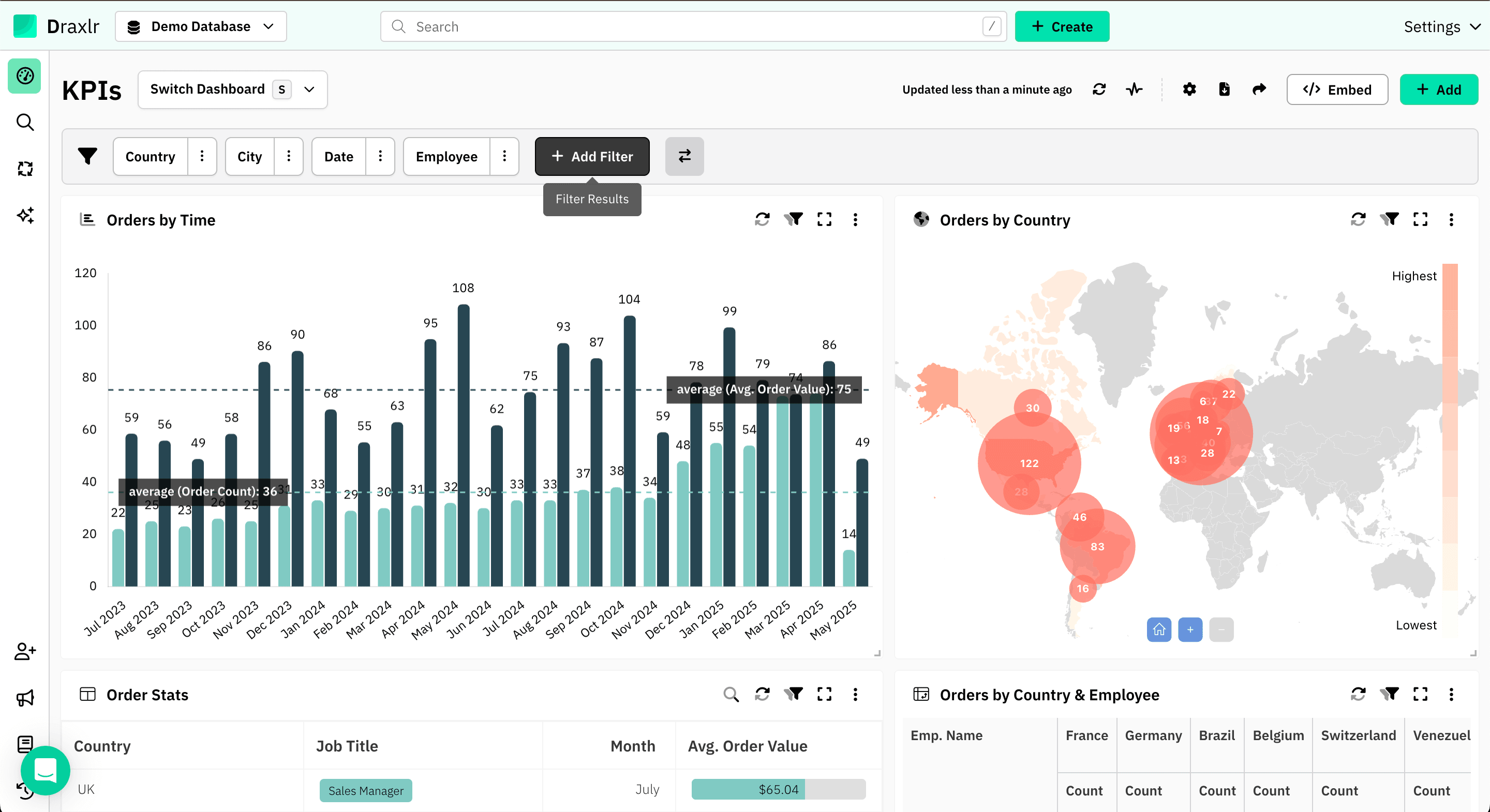
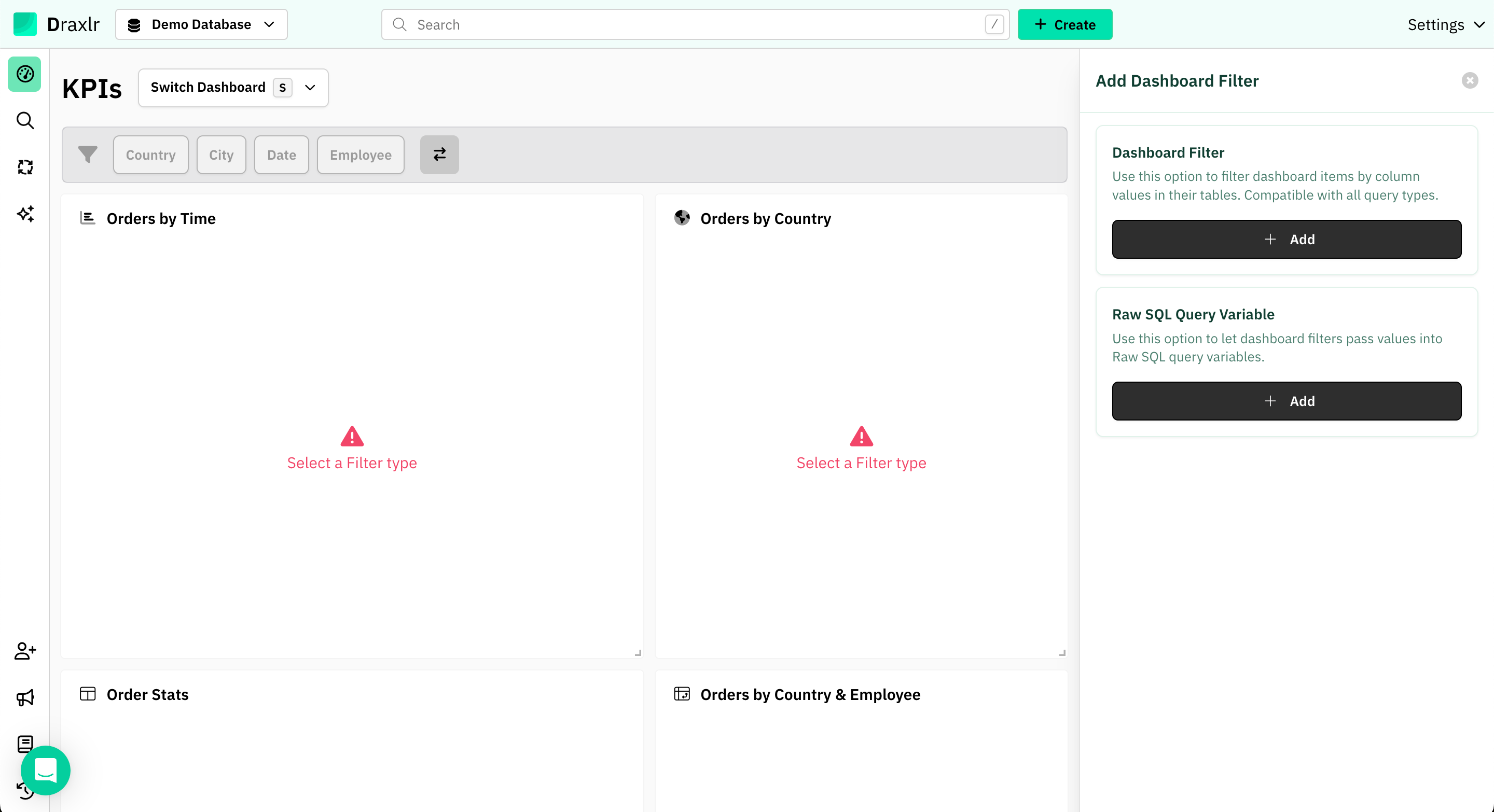
Click Add Filter.
How to Create a Standard Filter
1. Add a filter
Click Add Filter in the filter bar. If you're asked to choose a filter type, pick Dashboard Filter. This choice only appears when the dashboard also has Raw SQL items with variables, or is a global dashboard.
2. Enter a name
Give the filter a name that viewers will understand, such as Ship City or Order Date.
3. Pick a data type
Choose the Data Type: Text, Numeric, Boolean, Date & Time, Date or Time. Each dashboard item then shows a Select Table / Field picker that lists only fields of that type, including the item's virtual columns.
4. Choose the field in each item
For each item, choose the Table and the Field the filter should apply to. The tables include any tables joined in the item's query.
- Click Use same for other elements to pick the same table and field in every other item whose query has it.
- Leave an item's field empty if the filter shouldn't affect it.
- Items that Draxlr can't filter, such as Raw SQL queries it can't read, show No filter option. Use a Raw SQL Query Variable filter for those.
5. Set the optional settings
- Dropdown List: for Text and Numeric filters, show viewers a list of values to pick from, entered by hand (Manual) or loaded from a Saved Query. See Preset values.
6. Click Create
The filter appears in the filter bar.
Using a Standard Filter
Click the filter, choose an operator, enter or pick a value, and click the check mark. The operators depend on the data type and are the same as in the Query Builder's Filter step, for example LIKE, IS, IN or STARTS WITH for text.
Date and Date & Time filters open a date picker instead:
- Presets: Today, Yesterday, Current Week, Previous Week, Current month, Previous month and Current year
- Empty: rows with no date
- Custom dates: a start and end date
- Relative dates: the previous or next number of days, weeks, months or years
See Using filters for clearing filters and seeing which filters apply to an item.
Changing a Standard Filter
Open the filter's menu (⋮) and choose Edit to change its name, data type, field mapping or optional settings, then click Update. The menu shows while the filter has no value applied.
When you add an item to the dashboard later, Draxlr links your existing filters to it if its query has the same field. To link it to a different field, edit the filter.