Dashboard Filter > Raw SQL Query Variable
Learn how to create a Raw SQL Query Variable filter in Draxlr to pass dashboard filter values into variables in your raw SQL queries, with multi-value support.
Raw SQL Query Variable filters allow you to dynamically pass values into variables defined in your Raw SQL queries.
This is particularly useful when you want your dashboards to react to user-selected values, making them more interactive and customizable.
Unlike Standard Filters, which filter data based on column values, Raw SQL Query Variable Filters only work with raw SQL queries that contain variables.
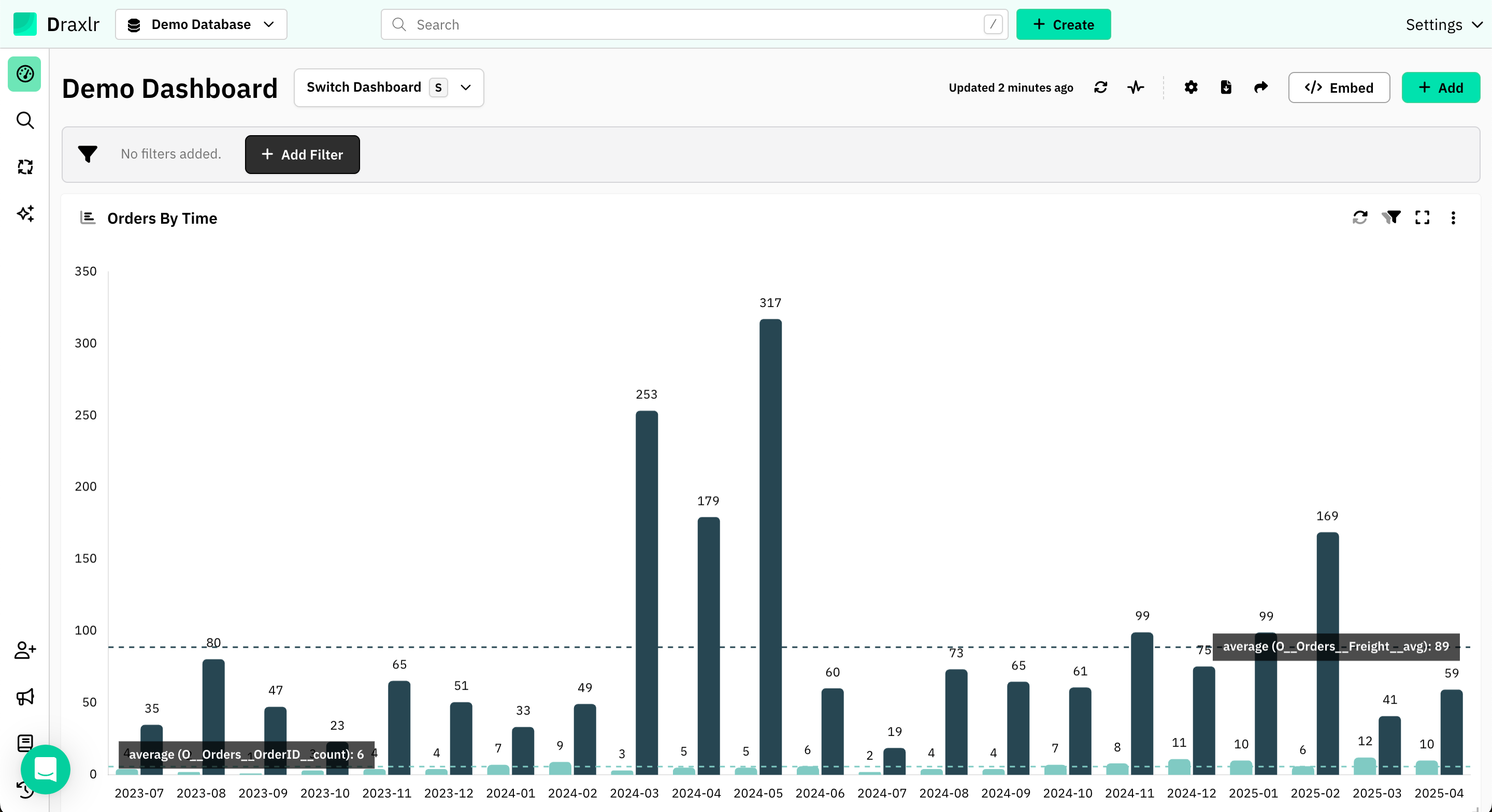
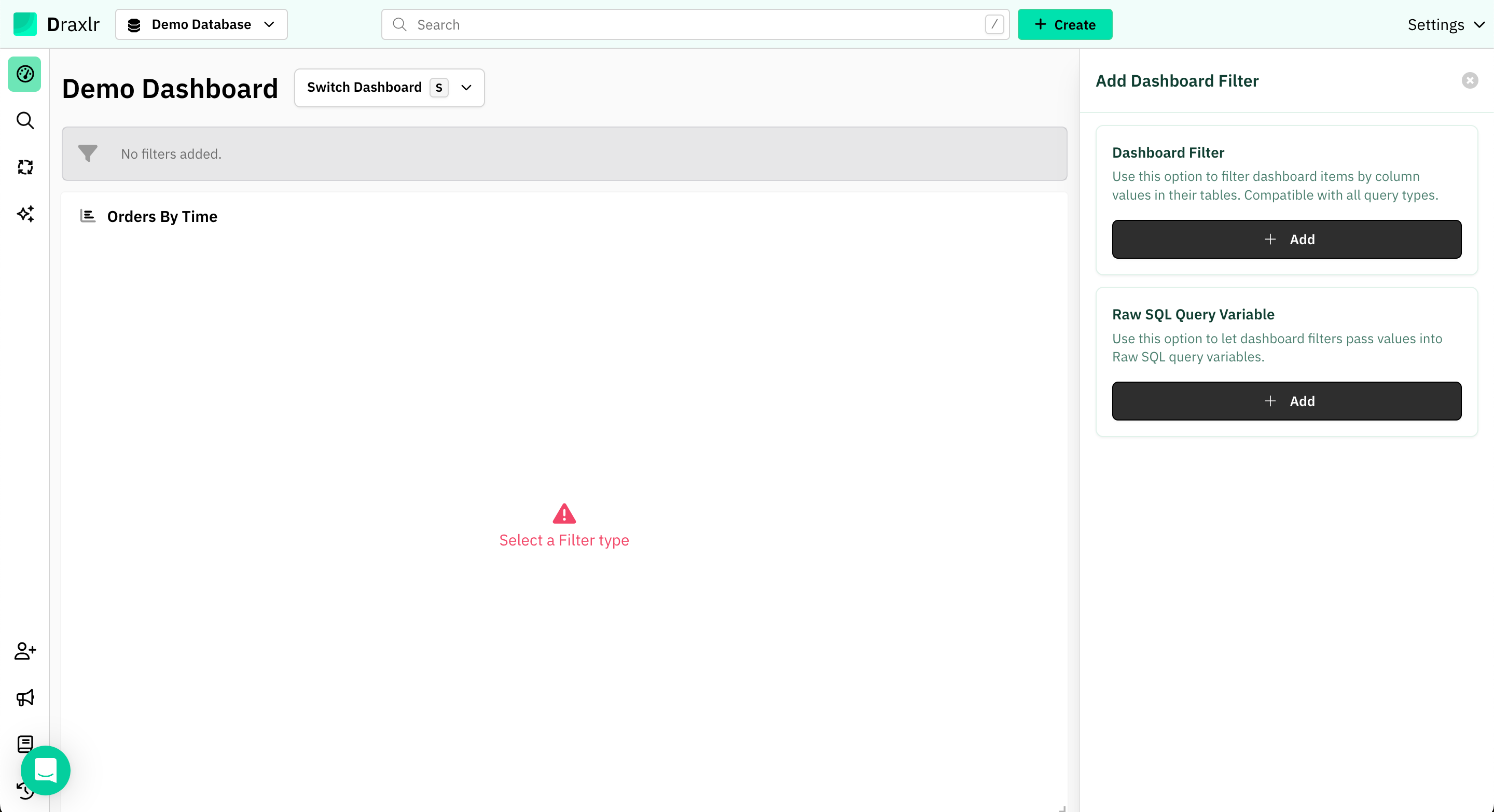
First up, click on "Add Filter".
How to create?
1. Click on Add Filter
From your dashboard, click the Add Filter button in the top bar.
2. Select Raw SQL Query Variable
In the filter type options, choose Raw SQL Query Variable.
3. Enter a Filter Name
Provide a descriptive name for your filter (e.g., Employee ID).
4. Choose a Data Type
Select the appropriate Data Type for the filter (Text, Numeric, Boolean, Date & Time, Date, Time).
This ensures values match the variable type in your Raw SQL query.
5. Allow Multiple Values
Enable this option if your SQL query uses operators such as IN, NOT IN, etc.
SELECT * FROM `Orders` WHERE `Orders`.`EmployeeID` IN ({{employeeId}});
6. Map the Filter to a Query Variable
From the dropdown, select the variable in your Raw SQL query where the filter value should be passed.
7. Create the Filter
Click Create to save the filter.
8. Apply the Filter
Your filter will now appear in the dashboard sidebar. Enter a value and apply it.
9. See Results
The filter’s value will be dynamically passed into the Raw SQL variable, updating the connected dashboard elements instantly.
Key Notes
- Works only with Raw SQL queries containing variables.
- Variables must match the filter’s data type (e.g., numeric for IDs, text for names).
✅ That’s it! You’ve successfully created a Raw SQL Query Variable Filter.